View Issues in a Calendar | QA Touch Issues Calendar
How to View Issues in a Calendar in QA Touch
The QA Touch Issues Calendar displays your issues in a single calendar view, with each issue shown as an event on its due date. It helps you track upcoming deadlines and milestones, and customizable color-coded labels let you quickly identify issue priorities and statuses. To use it, set a due date when you create an issue, then click the calendar icon in the Issues menu and click any issue to see its details.
At a Glance: QA Touch Issues Calendar
| What it does | Displays QA Touch issues as events in a single calendar view |
| How issues appear | On the due date selected when the issue is created |
| Labels | Customizable color-coded labels for issue priorities and statuses |
| Where | Issues menu → calendar icon |
| Issue details shown | Summary, description, status, priority, due date, creation date, and assignee |
| Next action | Click “View Issue” to open the specific issue page |
What Is the Issues Calendar in QA Touch?
The Issues Calendar is a QA Touch feature that offers a clean and efficient way to display issues within a single calendar view. QA Touch issues are represented as events on the calendar, enabling users to easily track upcoming deadlines and milestones. Customizable color-coded labels allow for quick identification of issue priorities and statuses, aiding in effective work prioritization.
How to Add Issues to the Calendar
An issue appears on the calendar based on the due date you select when creating it.
-
Navigate to the Issues module and click on “Add Issue” to open a popup.
-
Create an issue by specifying its due date, status, and priority.
-
The due date selected during issue creation will be reflected on the calendar view.
How to Access Issues in Calendar View
To open the calendar, click the calendar icon in the Issues menu. Click any issue on the calendar to view its details, then click “View Issue” to open the issue page.
-
Click the calendar icon in the Issues menu to access the calendar page.
-
On the calendar page, all issues are displayed. Clicking on any issue will open a popup.
-
In the popup, users can view issue details such as summary, description, status, priority, due date, creation date, and assignee information.
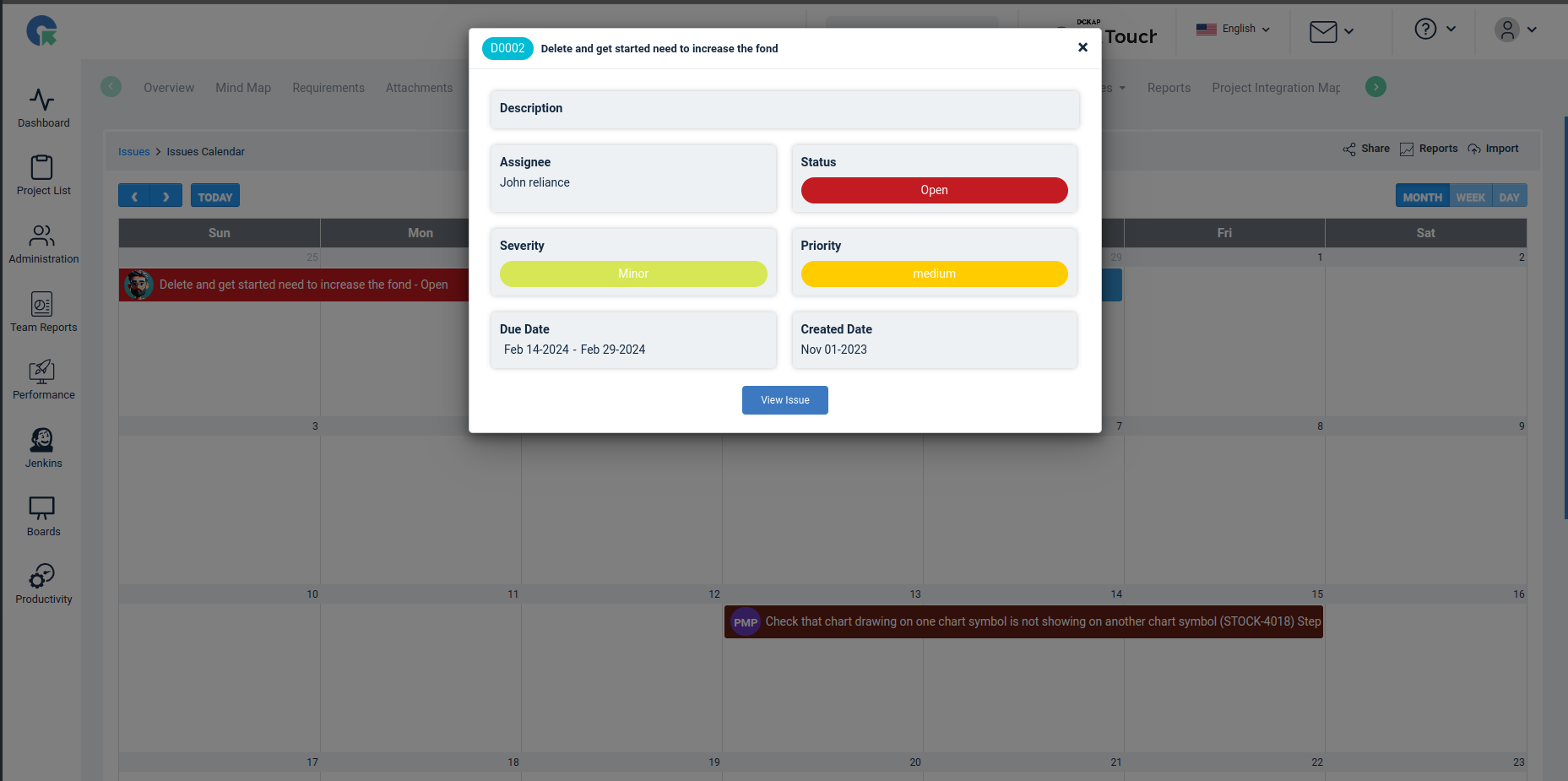
- Click “View Issue” to navigate to the specific issue page for further action.
Video: Accessing Issues in Calendar View
Frequently Asked Questions
Can I view QA Touch issues in a calendar?
Yes. The QA Touch Issues Calendar displays issues as events in a single calendar view, based on each issue’s due date.
How do I open the Issues Calendar?
Click the calendar icon in the Issues menu to access the calendar page.
How does an issue get onto the calendar?
When you create an issue with “Add Issue”, the due date you select is reflected on the calendar view.
What details can I see when I click an issue on the calendar?
A popup shows the issue’s summary, description, status, priority, due date, creation date, and assignee information.
Can I identify issue priority and status on the calendar?
Yes. Customizable color-coded labels allow quick identification of issue priorities and statuses.
How do I open the full issue from the calendar?
Click “View Issue” in the popup to navigate to the specific issue page.