YouTrack Integration Guide
In this article
We are pleased to announce our community that QA Touch is now integrated with YouTrack.
YouTrack is a proprietary, commercial browser-based bug tracker, issue tracking system and project management software developed by JetBrains. It focuses on query-based issue search with auto-completion, manipulating issues in batches, customizing the set of issue attributes, and creating custom workflows.
QA Touch offers seamless integration with YouTrack presenting the best way to keep all the bugs posted in the YouTrack. A permanent token allows access to a service with the permissions that are granted to the user account.
We have an array of other integrations JIRA, JIRA Server, SLACK, GitHub, GitLab, Bitbucket, Trello, Assembla.
How to Generate Permanent Token in YouTrack?
The steps are below to create a permanent token
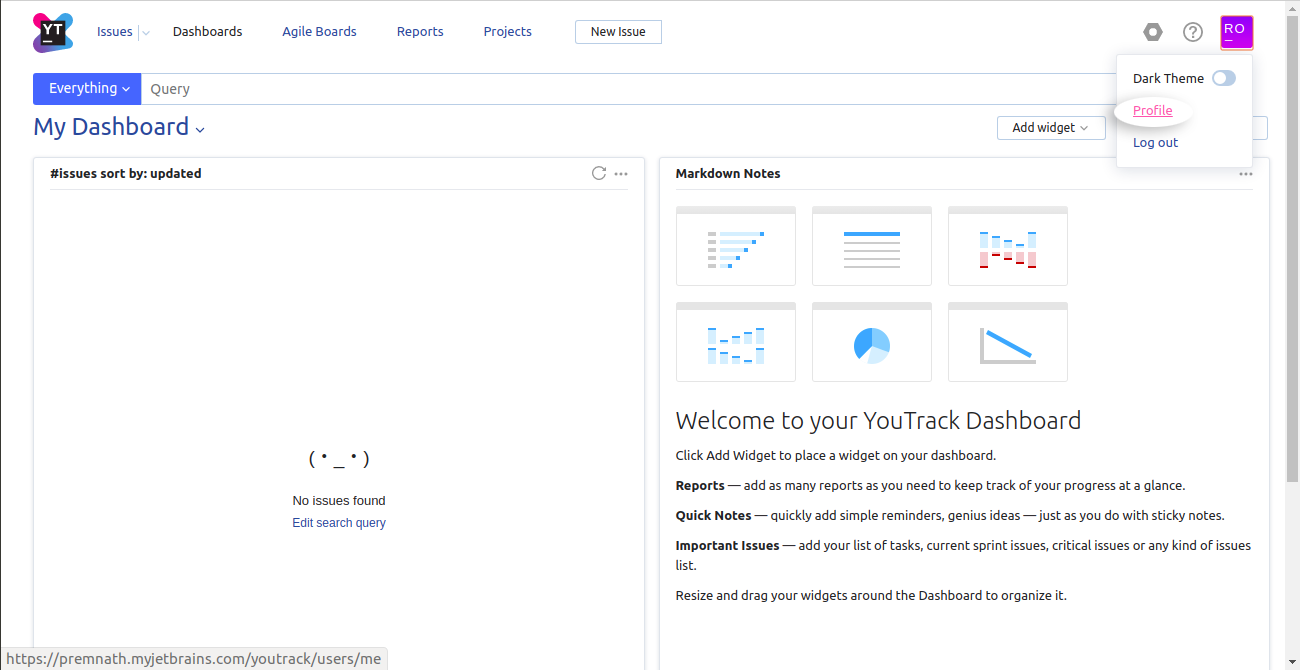
- Open your user profile.
- Click the link to access your Hub account.
- Select the Authentication tab.
- Click the New token button.
- In the New Permanent Token dialog, specify a name for the new token and the access scope for it. The scope for the token is a list of services which you can access with this new token.
The below snapshots shows the steps to access the avatar.
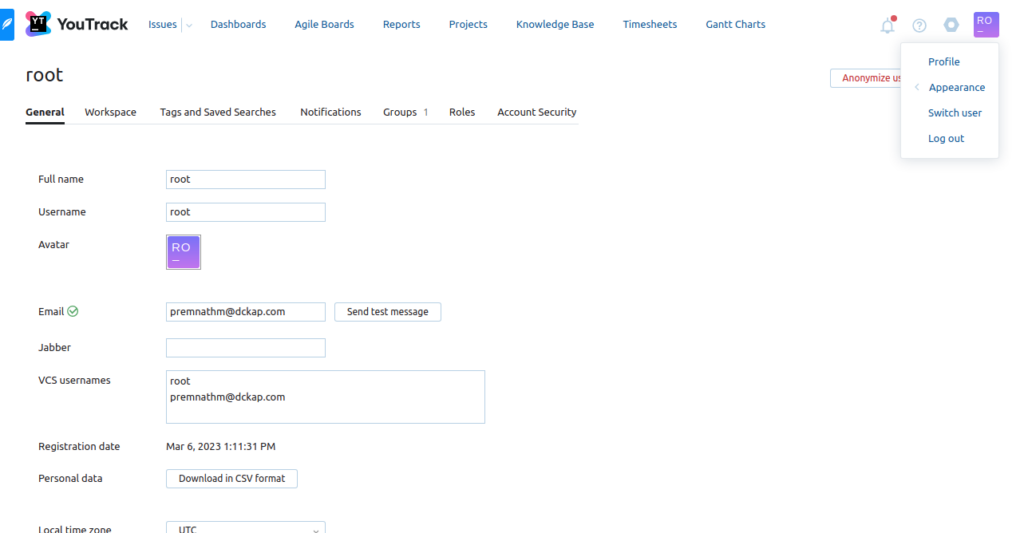
Please click the Account Security Tab
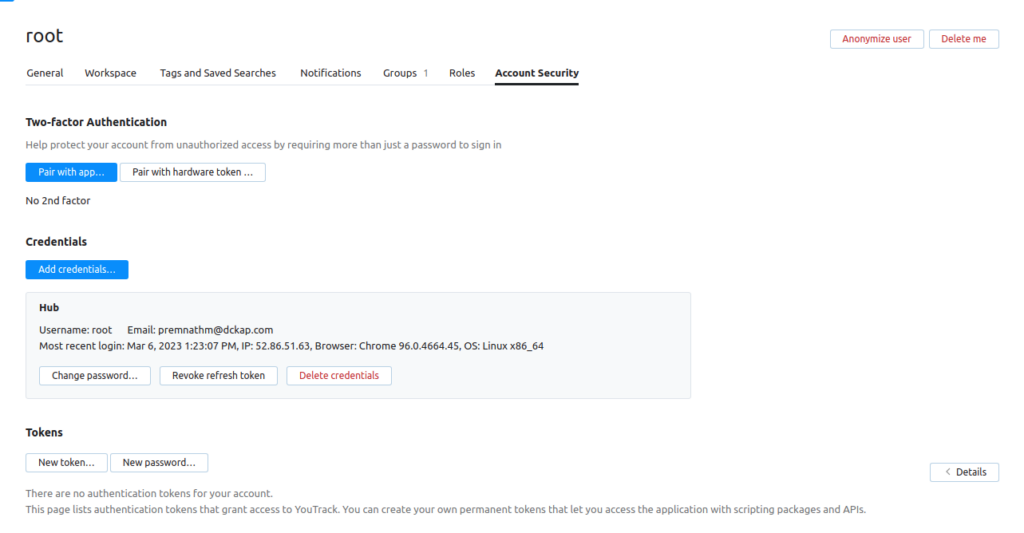
Tokens – Click the New Token button

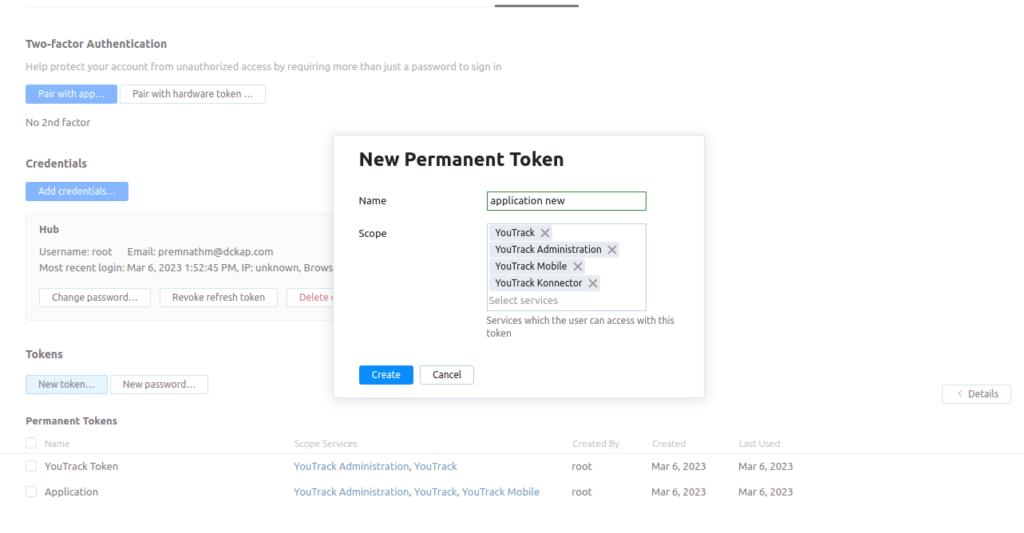
Permission Setup
YouTrack
YouTrack Administration
YouTrack Mobile
Token Generated
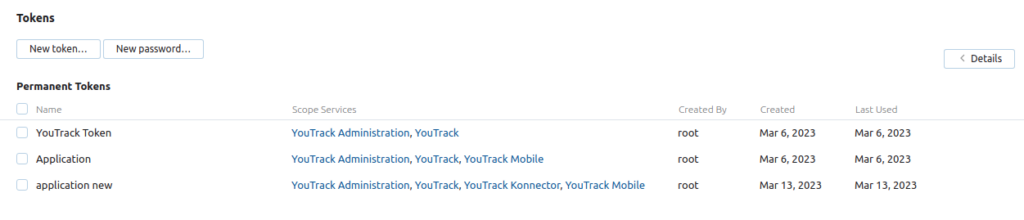

YouTrack Global Configuration
Here’s the step-by-step guide one should be following for a successful and seamless YouTrack Integration with QA Touch:
- Login to QA Touch as an Administrator.
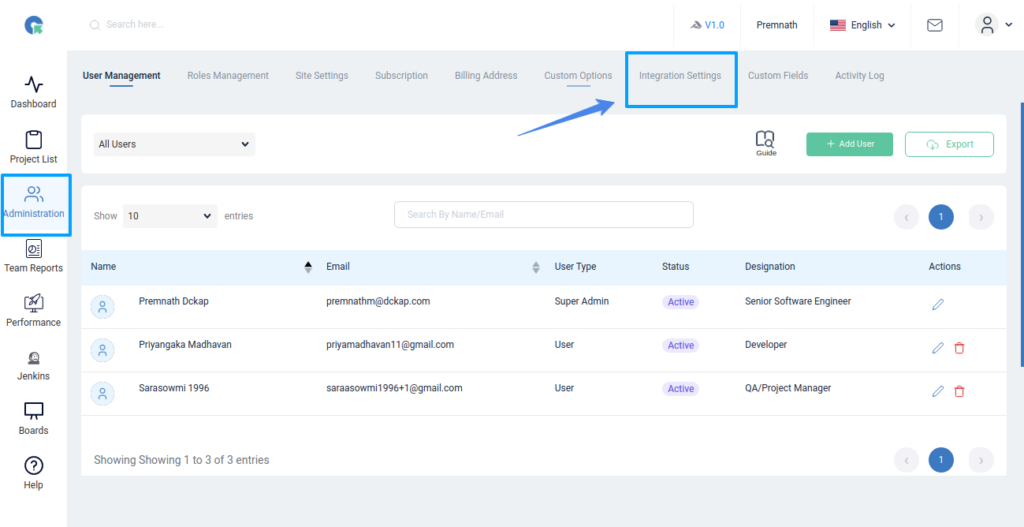
- Click the Administration → Integration Settings.
- Enter YouTrack Username, URL, and Permanent Token
- Click the Submit button.
- After a successful configuration, the status becomes connected as shown in the below snapshot.

Administration → Integration Setting Navigation
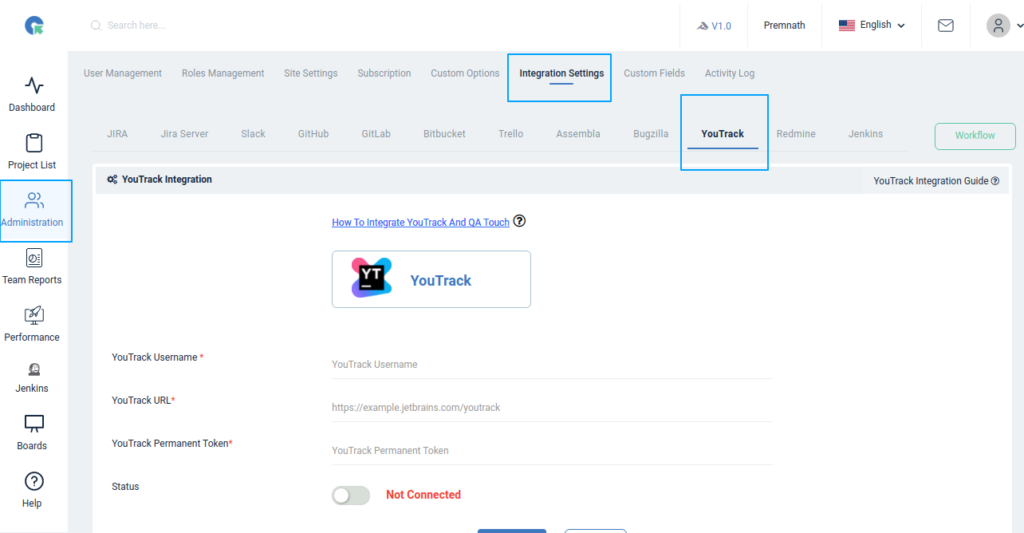
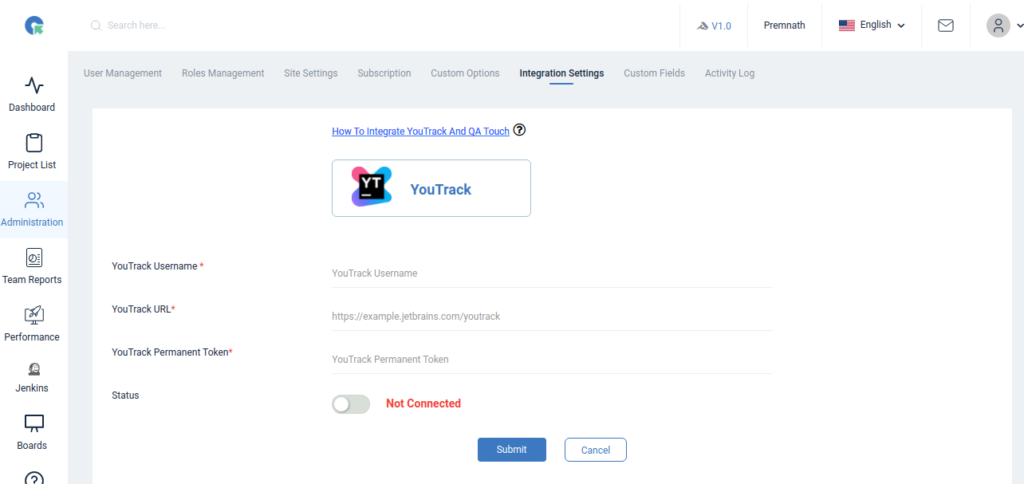
After successful configuration, the status becomes connected
Mapping YouTrack Repository to Project
Map the respective repository to the QA Touch Project with bugs that are added in the repository.
- Click on any Projects → Integration.
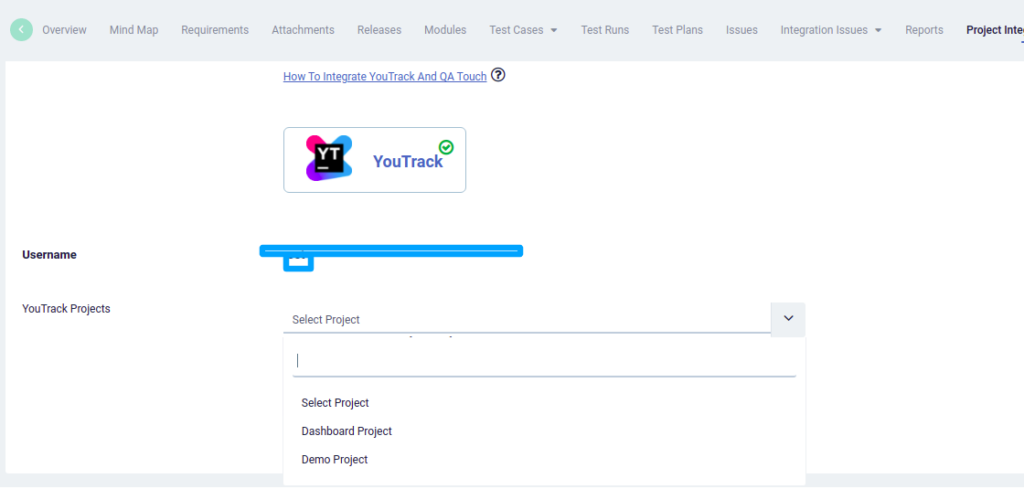
- Select a YouTrack Projects and click submit to Map
Have a look at the below screenshot for your reference.
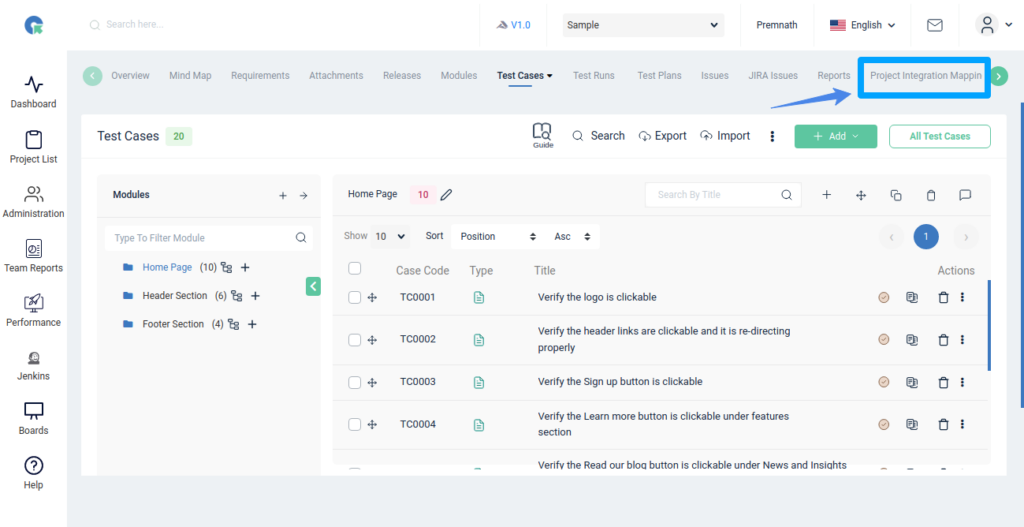
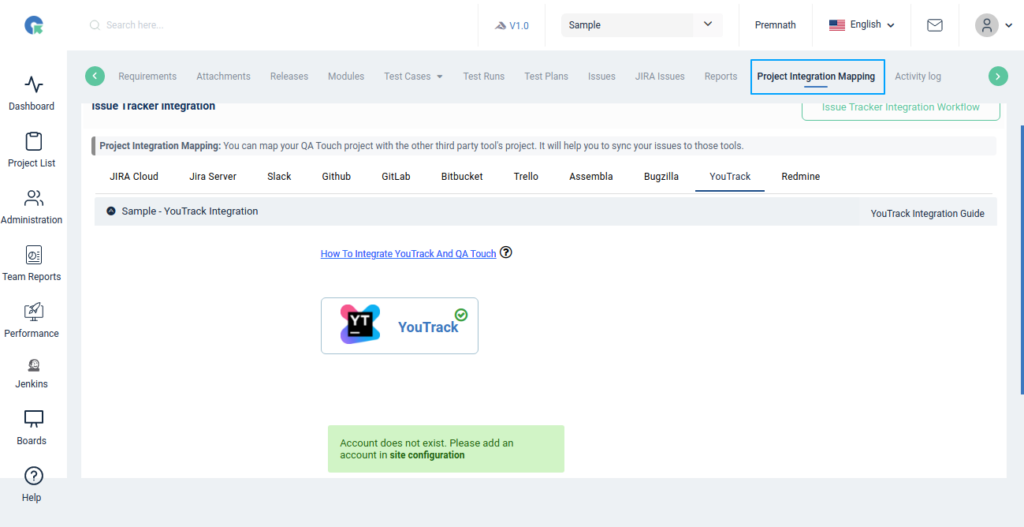
We can map any YouTrack project
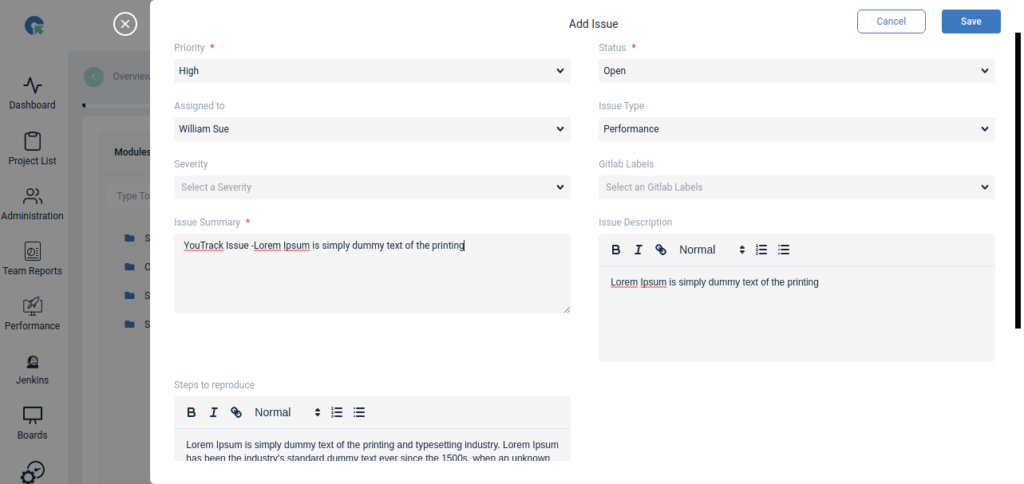
Add Issue From QA Touch. Once we create an issue it will be automatically synced with the YouTrack Integrated project.
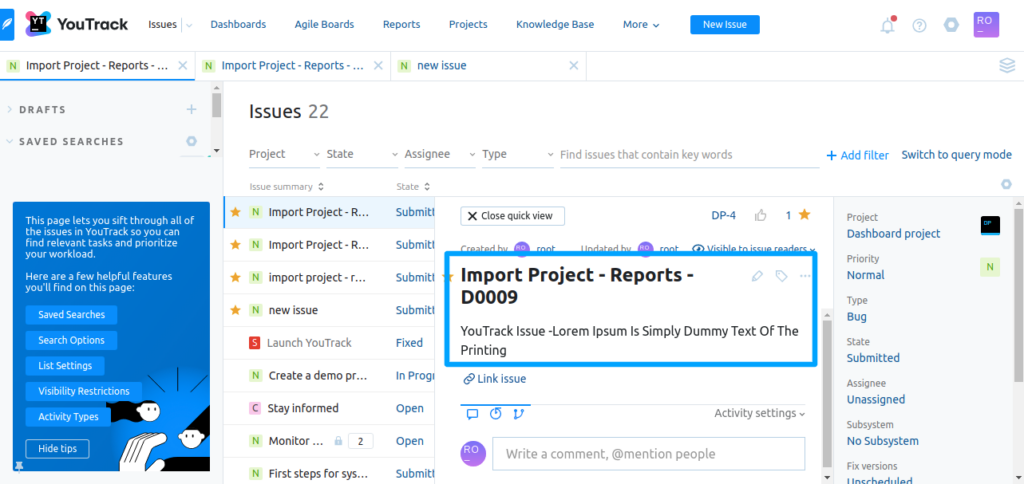
Snapshot of Messages Posted in YouTrack by QA Touch
Any bugs posted in QA Touch will automatically be redirected to YouTrack Issues tab after successful integration. A screengrab of the same is shared below on how messages are posted in YouTrack by QA Touch.
We hope this blog helped you to understand the process better of how integration should be done between QA Touch with YouTrack.
This integration is just the beginning of a lot more platforms which we are planning to collaborate within the near future to make testing accessible for all.
Register here and be the master of your application testing. Get a chance to use YouTrack integration and many more that we offer.