GitLab and JIRA Cloud Integration Reports | QA Touch
GitLab and JIRA Cloud Integration Summary Reports in QA Touch
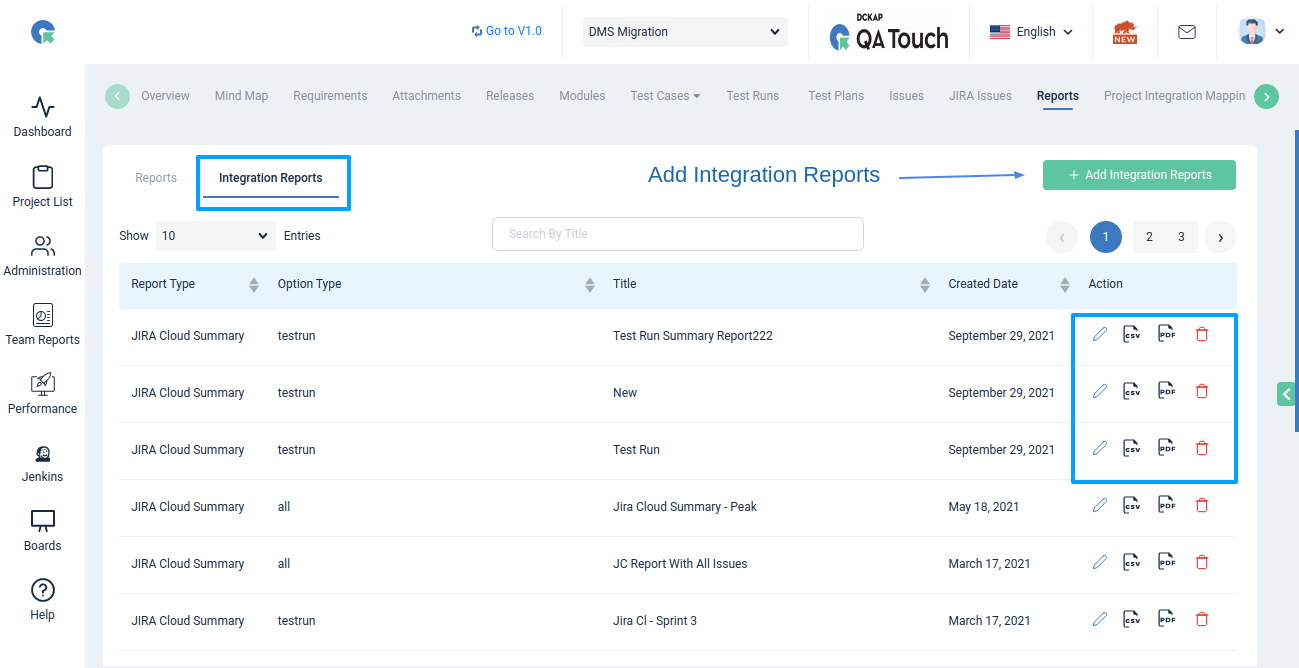
QA Touch Integration Reports give you an overview of how your GitLab and JIRA Cloud integrations connect with test cases and test runs in a project. You create them from the project’s Integration Reports tab by clicking Add Integration Reports and choosing either the “Gitlab Integration Summary” or “JIRA Cloud Summary” report type. Both reports can be shared by exporting them in CSV or PDF format.
At a Glance: QA Touch Integration Reports
| What they do | Provide an overview of GitLab or JIRA Cloud integration with test cases and test runs |
| Where | Project → Integration Reports tab → Add Integration Reports |
| Report types | ”Gitlab Integration Summary” and “JIRA Cloud Summary” |
| GitLab report options | Report Title and duration |
| JIRA Cloud report options | Report Title and one issue filter: Include All Issues, Include Issues Mapped with Test Run, or Include Issues Mapped with Release |
| Sharing | Export (CSV, PDF) |
How to Create a GitLab Integration Summary Report in QA Touch
The GitLab Integration Summary Report provides an overview of the GitLab integration with test cases and test runs. To create it, open the project’s Integration Reports tab, click Add Integration Reports, select “Gitlab Integration Summary”, enter a title, select the duration, and click Save.
Step 1: Open Integration Reports in Your Project
- Login to QA Touch.
- Click the Project for which you want to generate the report.
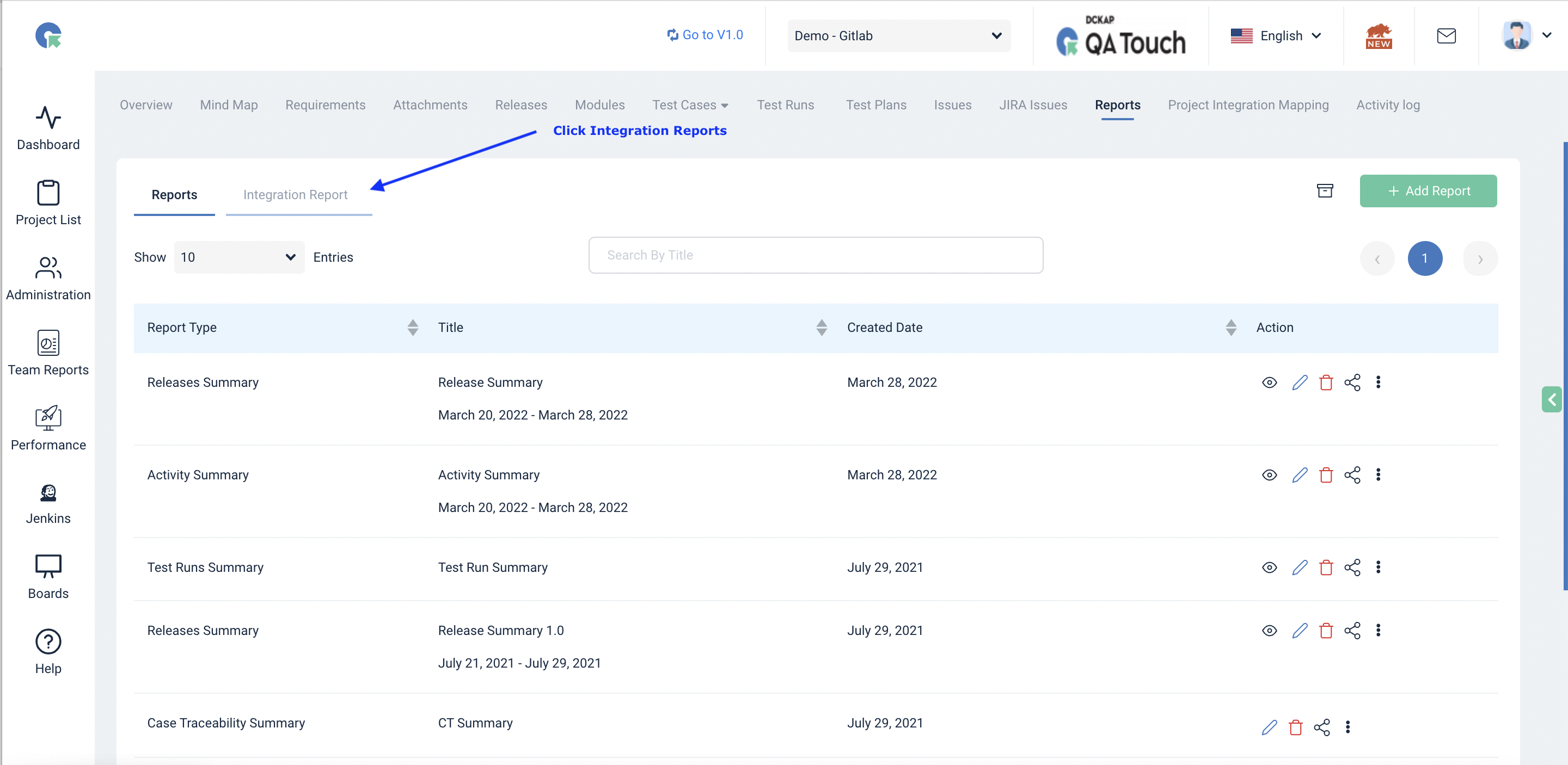
- Click the Integration Reports tab.
Step 2: Add a GitLab Integration Report
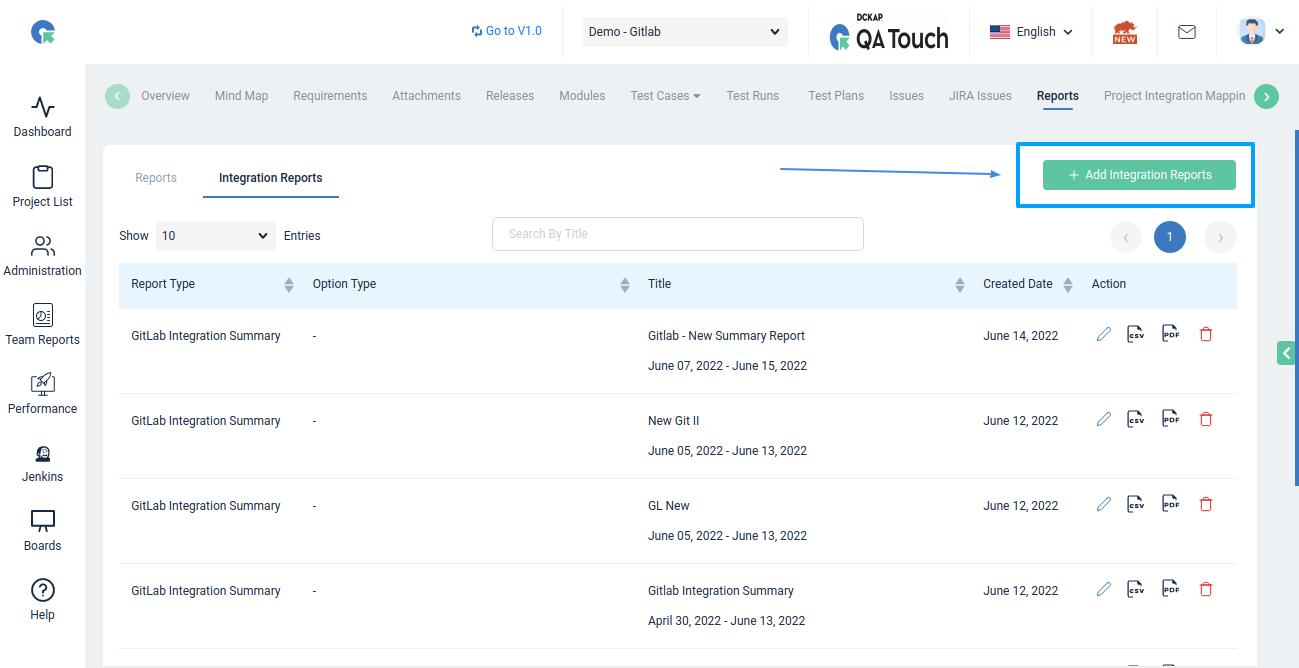
- Click Add Integration Reports.
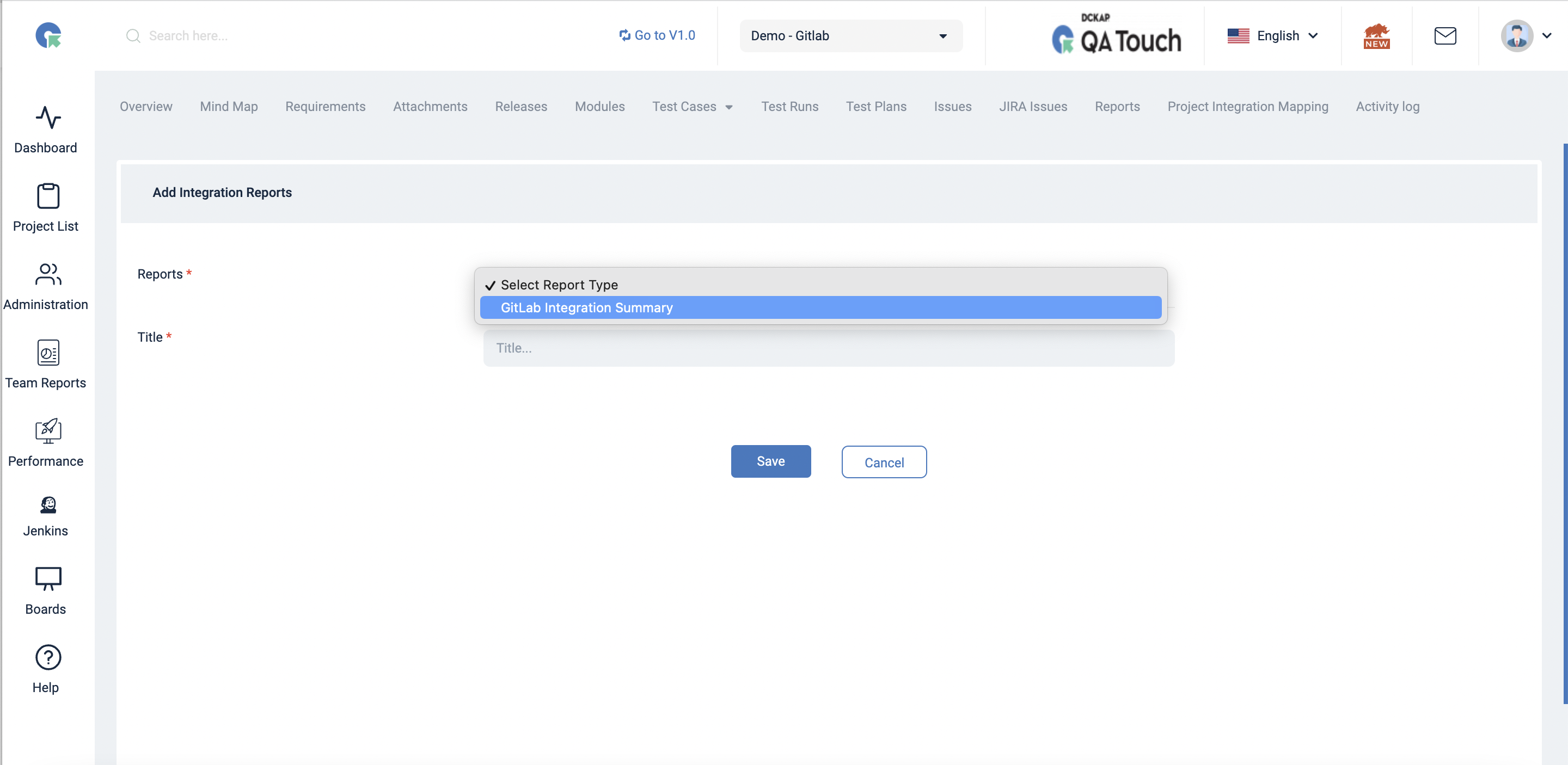
- Select the Report Type as “Gitlab Integration Summary”.
Step 3: Set the Title and Duration
- Enter the Report Title.
- Select the duration.
- Click Save.
How to Share the GitLab Integration Summary Report
QA Touch provides a suite of options to share the report:
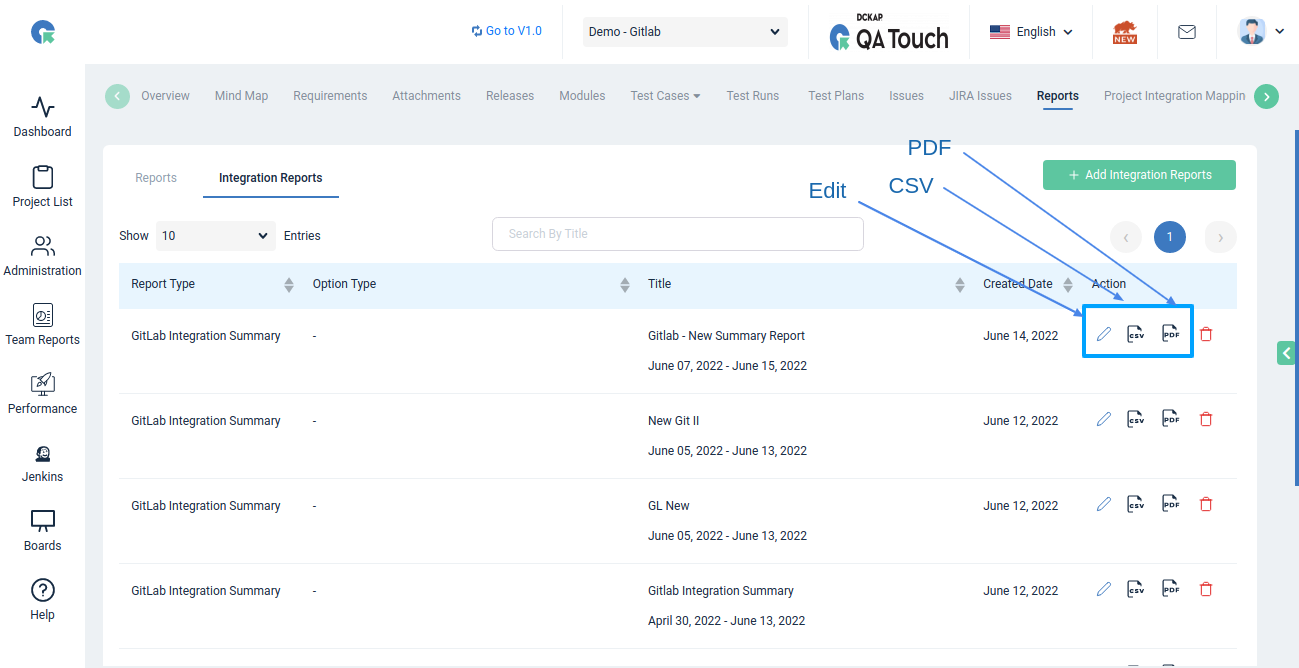
Export(CSV, PDF)
How to Create a JIRA Cloud Integration Summary Report in QA Touch
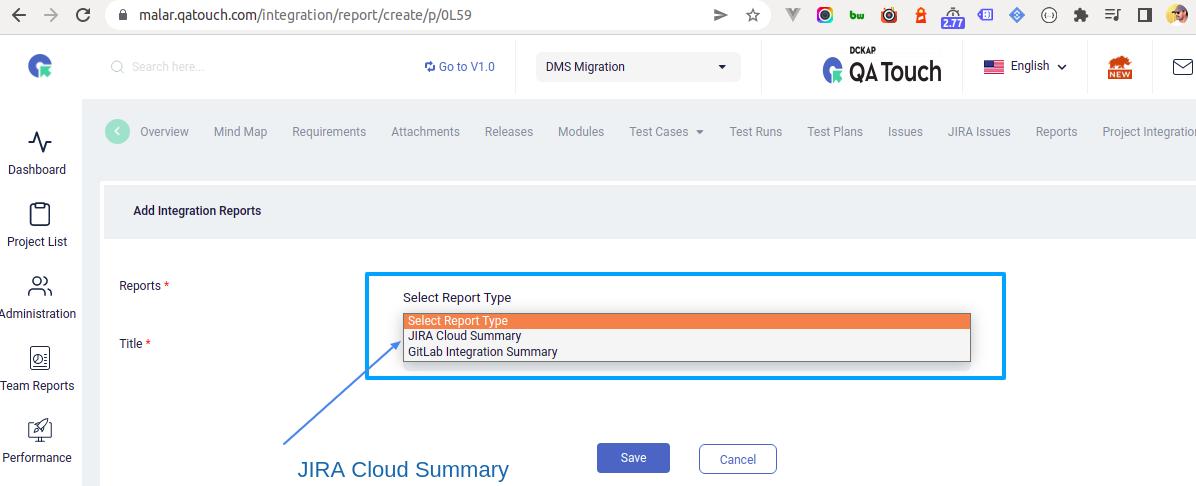
The JIRA Cloud Integration Summary Report provides an overview of the JIRA integration with test cases and test runs. To create it, open the project’s Integration Reports tab, click Add Integration Reports, select “JIRA Cloud Summary”, enter a title, choose which issues to include, and click Save.
Step 1: Open Integration Reports in Your Project
- Login to QA Touch.
- Click the Project for which you want to generate the report.
- Click the Integration Reports tab.
Step 2: Add a JIRA Cloud Integration Report
- Click Add Integration Reports.
- Select the Report Type as “JIRA Cloud Summary”.
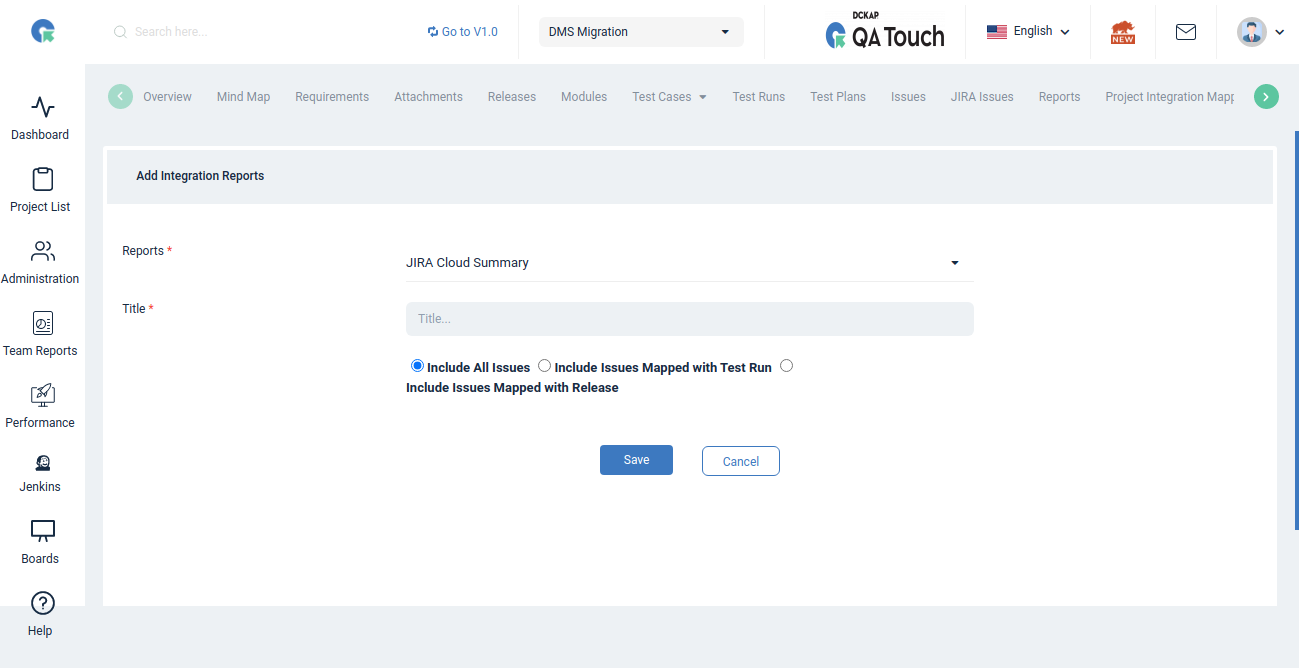
Step 3: Set the Title and Choose Which Issues to Include
- Enter the Report Title.
- Choose any one of the options below:
- Include All Issues
- Include Issues Mapped with Test Run
- Include Issues Mapped with Release
- Click Save.
How to Share the JIRA Cloud Integration Summary Report
QA Touch provides a suite of options to share the report:
Export(CSV, PDF)
Frequently Asked Questions
What are Integration Reports in QA Touch?
Integration Reports provide an overview of how your GitLab or JIRA Cloud integration connects with test cases and test runs in a QA Touch project.
Where do I create an integration report in QA Touch?
Open the project, click the Integration Reports tab, and click Add Integration Reports.
Which integration report types are available?
You can select the “Gitlab Integration Summary” or the “JIRA Cloud Summary” report type.
What options does the JIRA Cloud Summary report have?
You enter a Report Title and choose one option: Include All Issues, Include Issues Mapped with Test Run, or Include Issues Mapped with Release.
Can I filter the GitLab Integration Summary report by date?
Yes. When creating the GitLab Integration Summary report, you select the duration along with the Report Title.
How can I share an integration report?
You can export integration reports in CSV or PDF format.