Import Requirements in Bulk
In the Requirements page,
- Click on the Import button in the right
- Download sample Requirements in .csv format
- In the .csv file, fill in the -Requirement Type -Requirement Title -Description -save it.
- Upload the file in QA Touch.
- Now You can also import the Requirement Types with hierarchies from the import file. Simply use greater-than symbol (>) in the first column as a separator.
Example : Requirement Type > Sub-Requirement Type 1 > Sub-Requirement Type 2
All the requirements in the .csv file will appear in your QA Touch Requirements page.
Export Requirements
To export Project Requirements,
- Click on the Export button in the right end of the requirements page
- You can export in any one of the -.xls -.xlsx -.csv formats
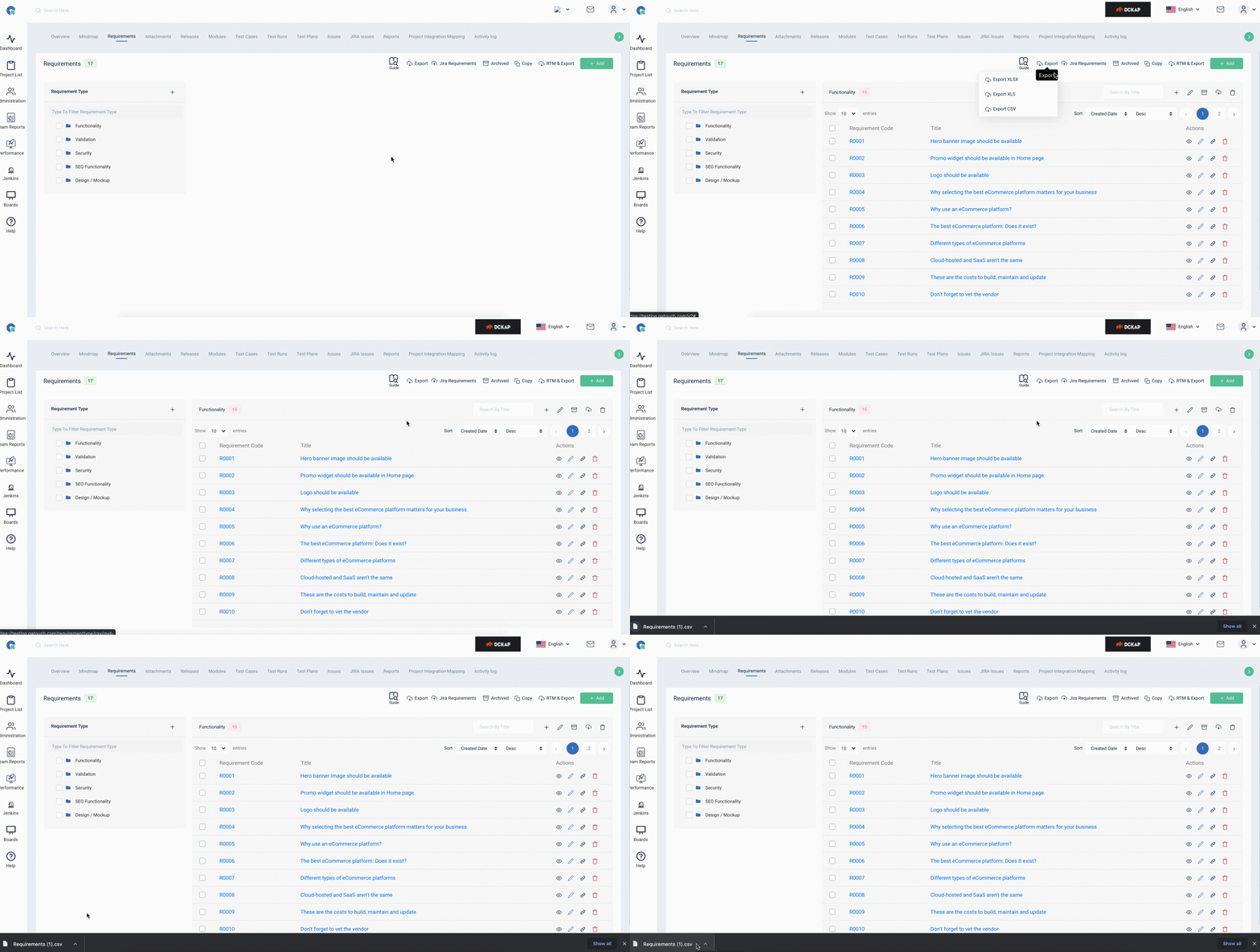
You can either all requirements or a specific requirement type.
Click on the right of Traceability matrix and select either -Export -Export All
If you select Export, it will only export the selected Requirement Type. If you select Export All, it will export all the Requirements in the project.
The exported Requirements file will contain:
- Requirement Id
- Document Title (Requirement Type)
- Title (Requirement title)
- Description (Requirement Description)
- No of linked Test Cases Created Date
- Updated Date
Requirement Approve/Reject/Re-verify
The Requirement Page allows users to manage requirements efficiently by providing options to Approve, Reject, or Re-Verify them along with comments for better tracking and communication.
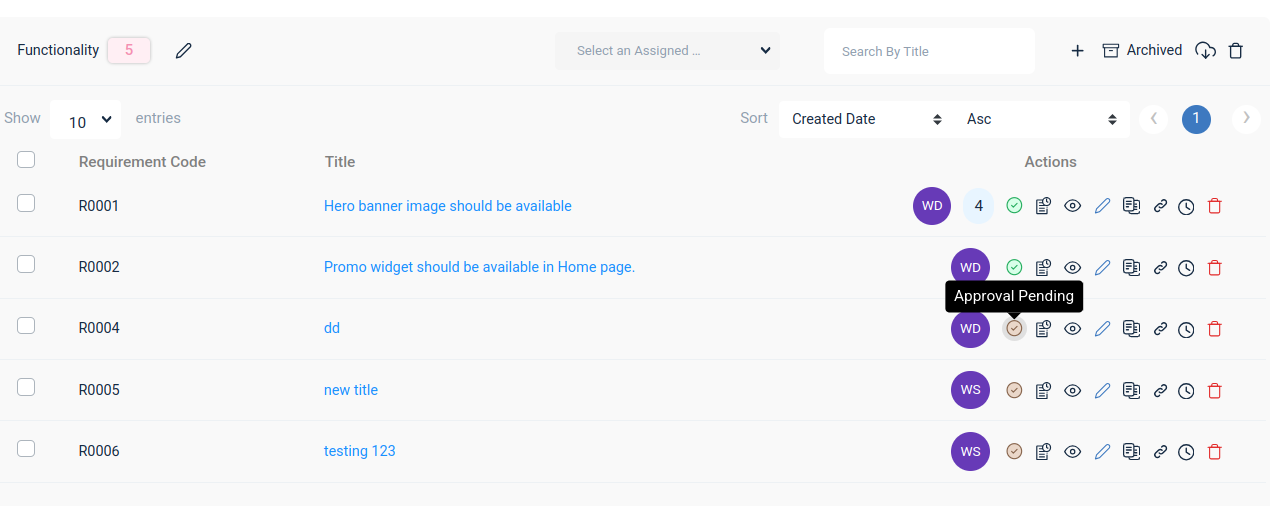
- Approve – Mark the requirement as approved for further processing.
- Reject – Decline the requirement with a reason, ensuring clarity.
- Re-Verify – Send the requirement for re-evaluation before final approval.
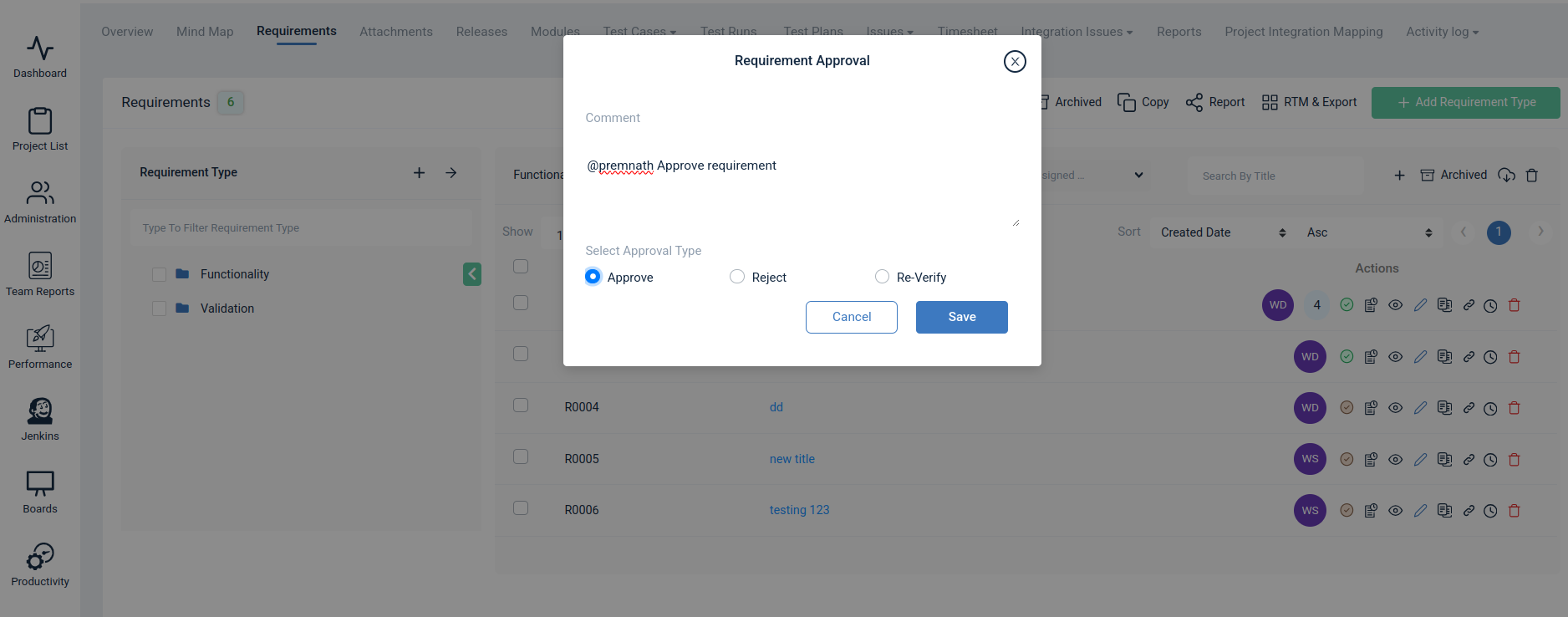
How to Approve,Reject and Re-verify a Requirement?
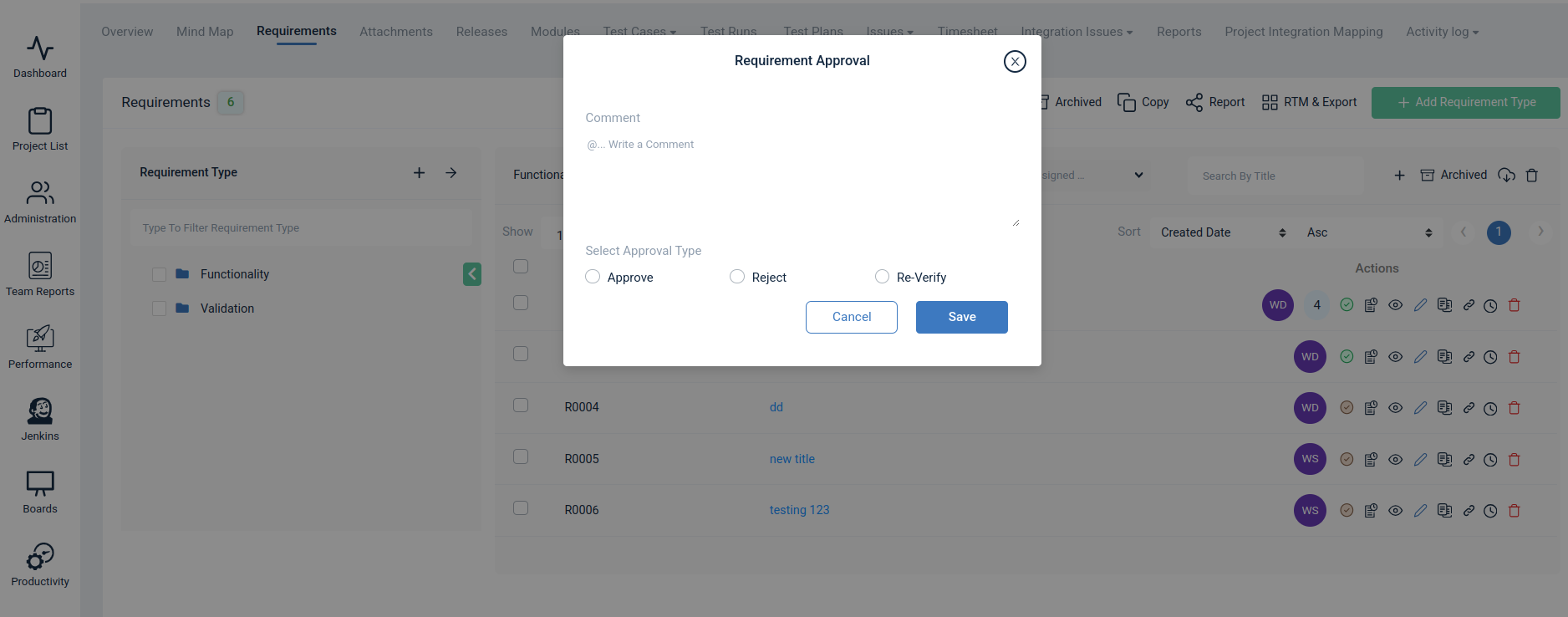
- Goto Requirement page, click approval pending option
- Approve or reject the requirement by selecting the required option
- To Notify the user ,tag the assigned use and comments
- Click on save ,the status will be updated successfully.
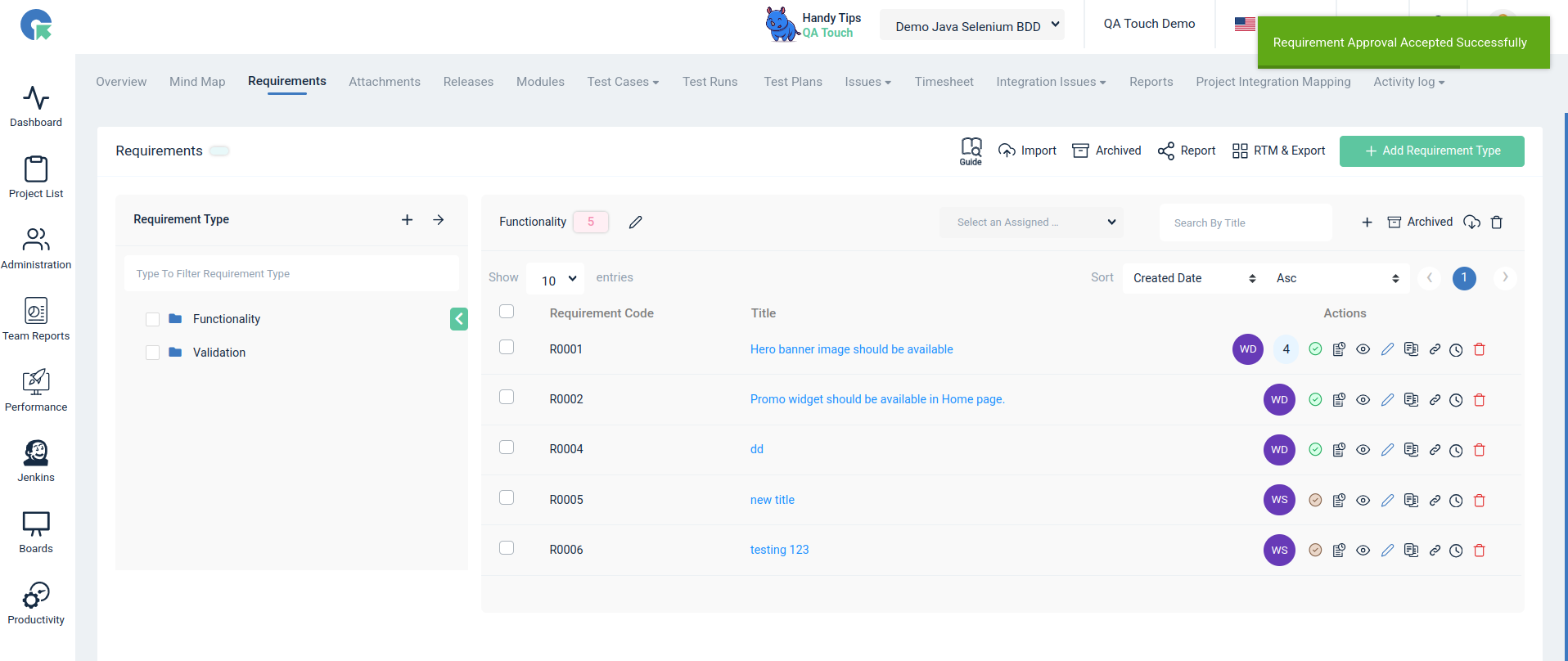
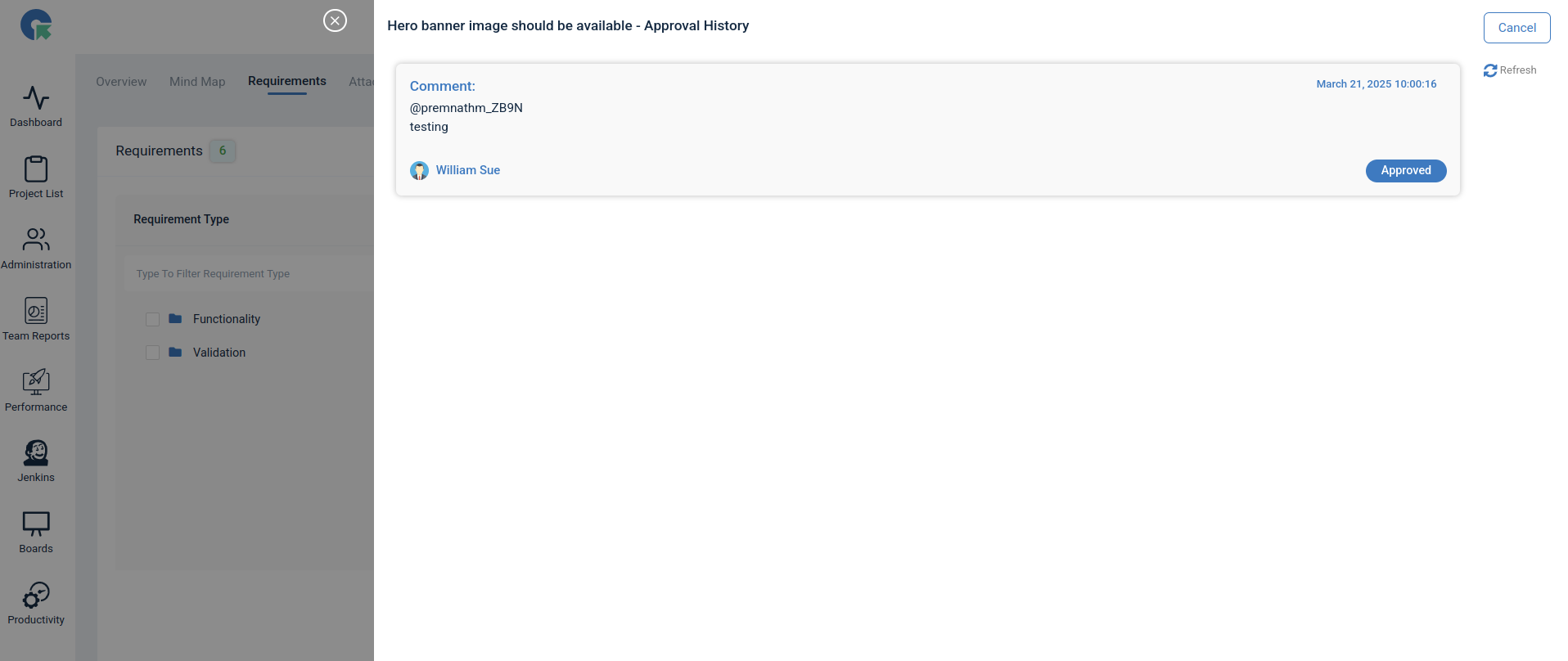
How to view the status history of requirement approval?
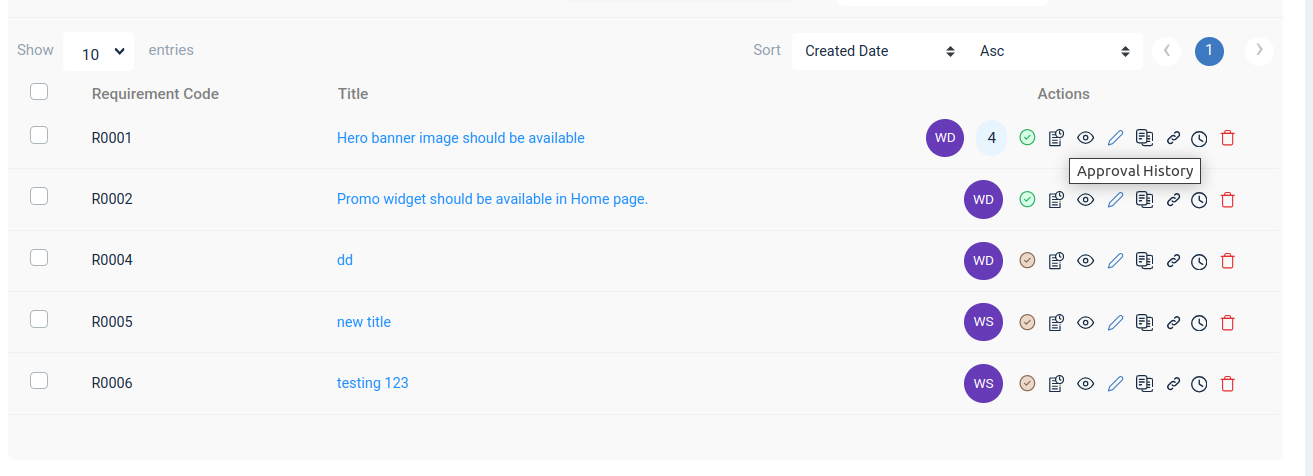
To view the status of the requirement Approved, Rejected and Re-verify click on the approval history icon.All the status and comments will be displayed.
How to bulk update the approval status?
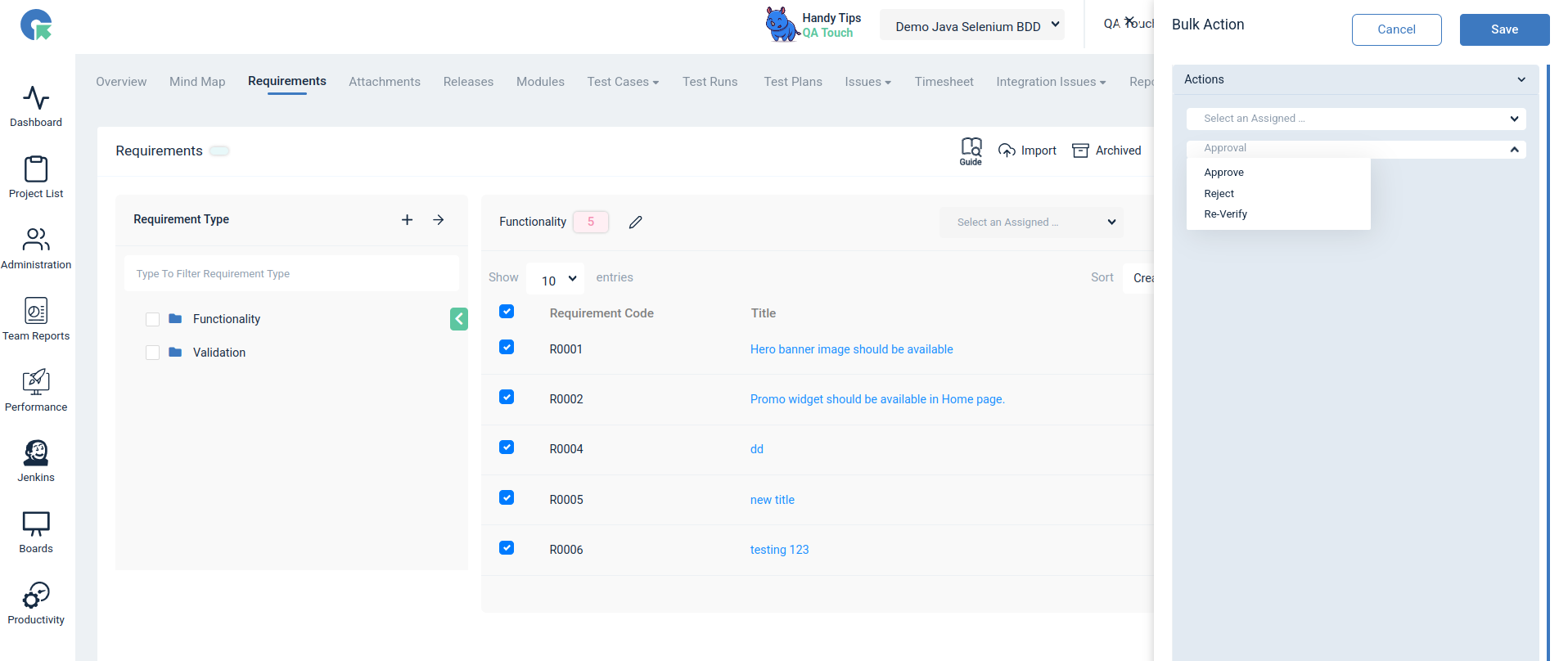
To Bulk update the approval status, select the required requirements and select the status (Approved,Rejected and Re-verify ) and click on save .The selected requirements will be updated successfully.