Trello Integration Guide
In this article
The day is finally here. After months of undeterred work, we are pleased to announce to our community that QA Touch is now integrated with Trello and will be taking you through the complete steps for Trello Integration with QA Touch.
Trello’s boards, lists, and cards enable you to organize and prioritize your projects in a fun, flexible, and rewarding way.
Trello Integration with QA Touch is really seamless and easy. Trello can be blended with QA Touch in a short period of time by following the steps below:
Generate the API Key in Trello.
Configure the API Token.
- Log In to Trello: Ensure you are logged into your Trello account in your web browser.
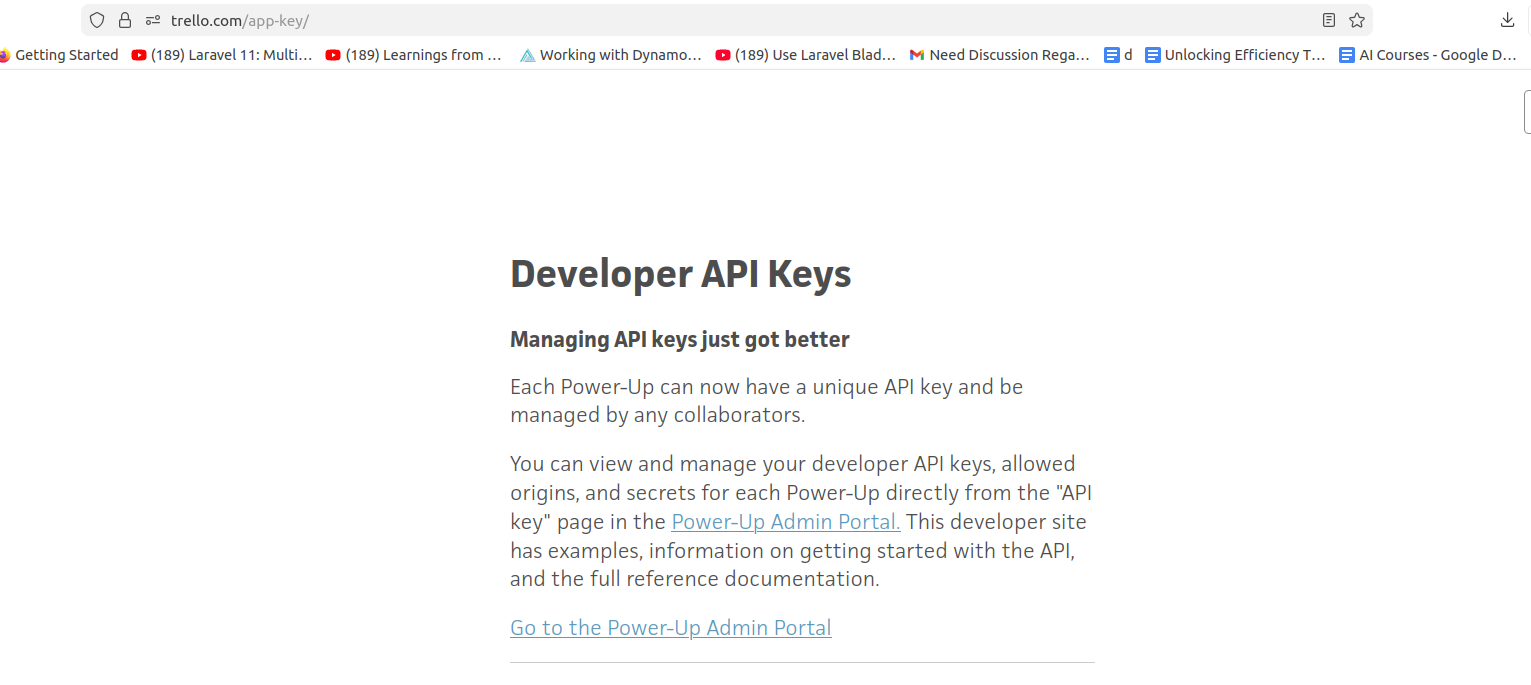
- Access the Power-Up Admin Portal: Navigate to the Trello Power-Up Admin Portal.
Power-Up Admin Portal - https://trello.com/power-ups/admin/
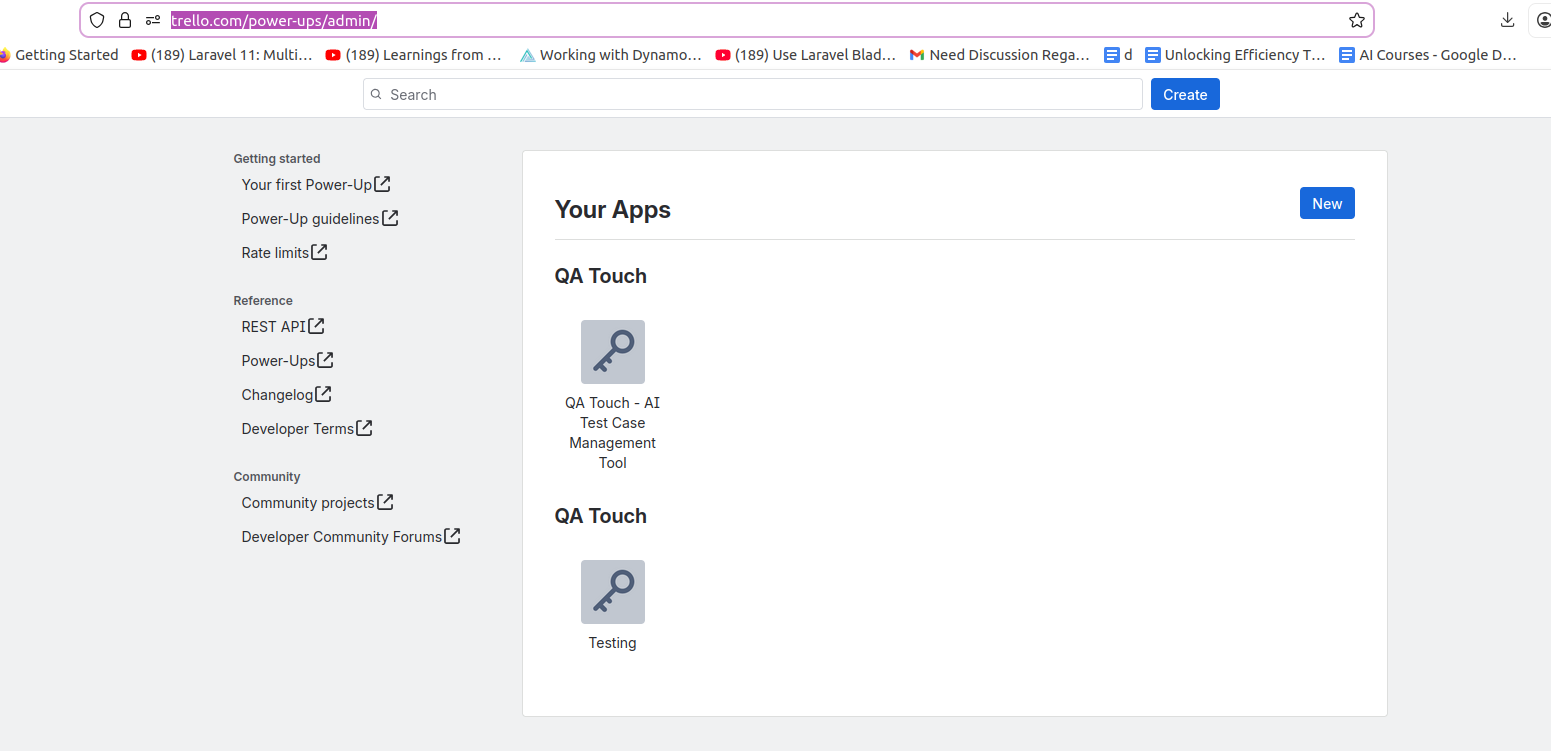
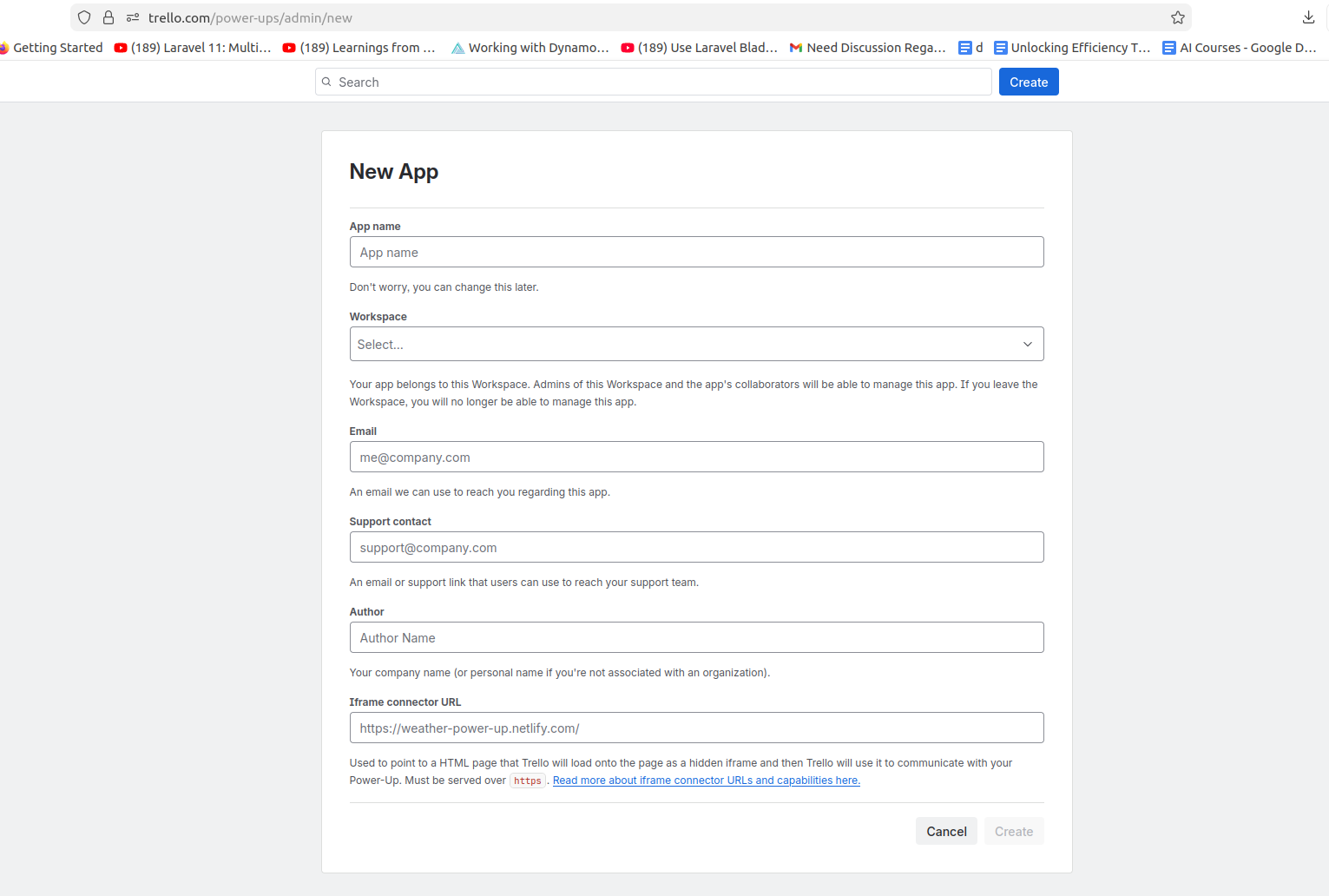
Create a New Power-Up:
- Click the “New” button to create a new integration.
- Enter a name for your Power-Up and select the associated Workspace.
- Fill in the required contact information and click “Create”.
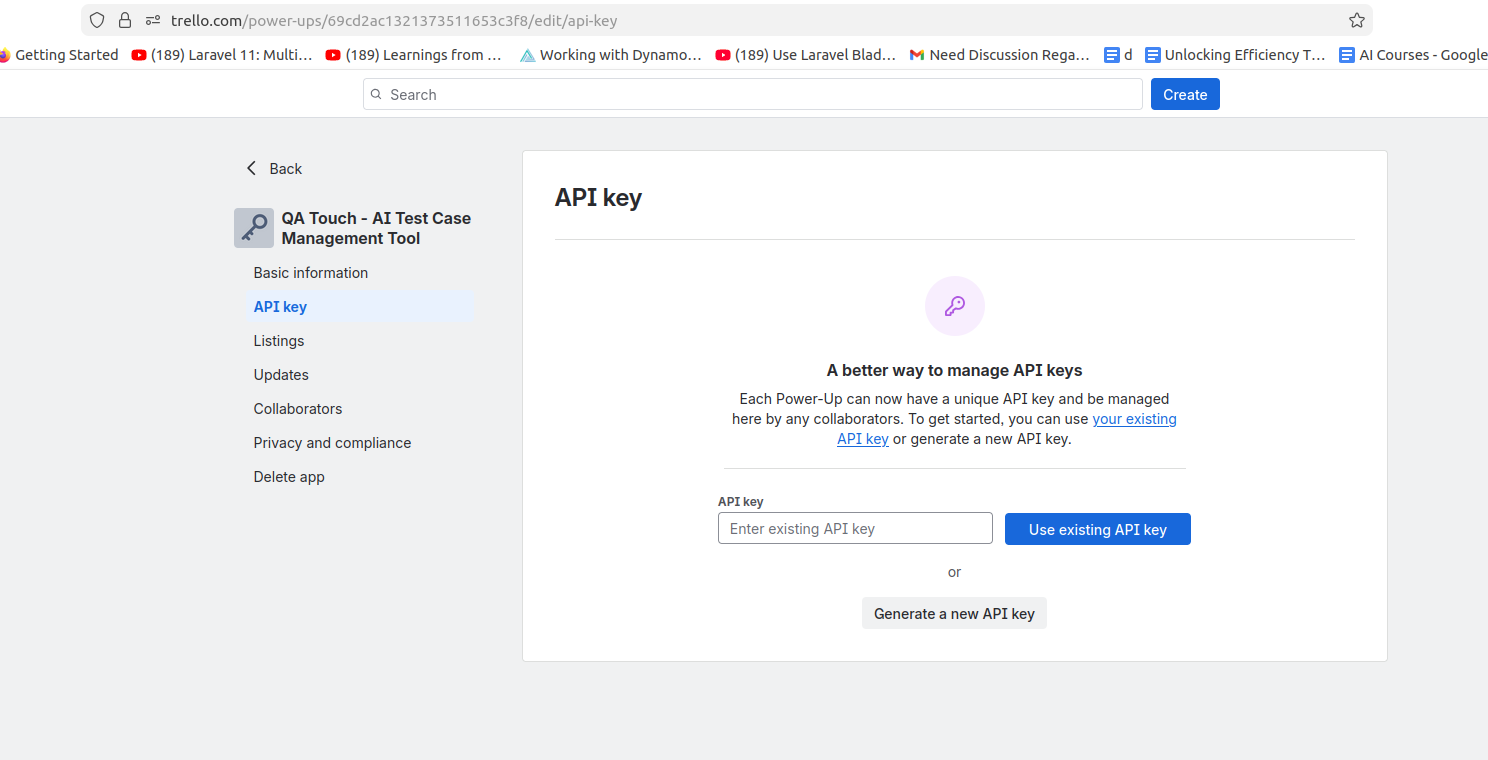
Generate the API Key:
- In the new Power-Up’s settings, go to the “API Key” tab.
- Click the option to “Generate a new API Key”.
- Copy and securely store the generated API key, as it identifies your application
Generate the User Token:
On the same API Key page, look for a hyperlinked “Token” at the end of the explanatory paragraph. Click this link.
A new screen will prompt you to grant your application access to your account. Review the permissions and click “Allow”.
You will be redirected to a page displaying your unique API token. Copy this token immediately and store it securely, as you will not be able to view it again after leaving the page
API Key vs. Token: The API key identifies your application and is public. The API token grants access to specific user data and must be kept secret and secure.
Token Access: The generated token, combined with your API key, has the power to read from and write to your entire Trello account based on the permissions granted.
Trello Global Configuration
Here’s the step-by-step guide one should be following for a successful and seamless Trello Integration with QA Touch:
- Login to QA Touch as an Administrator.
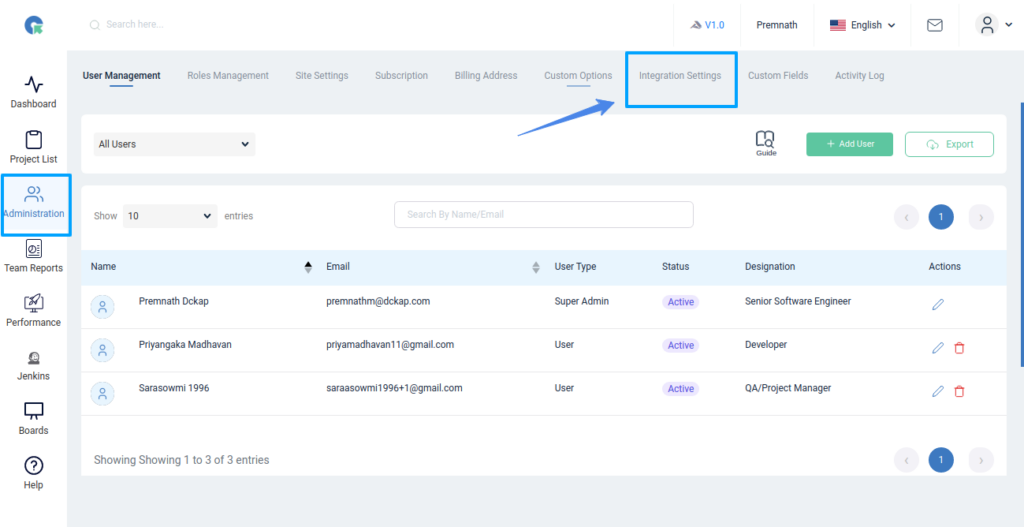
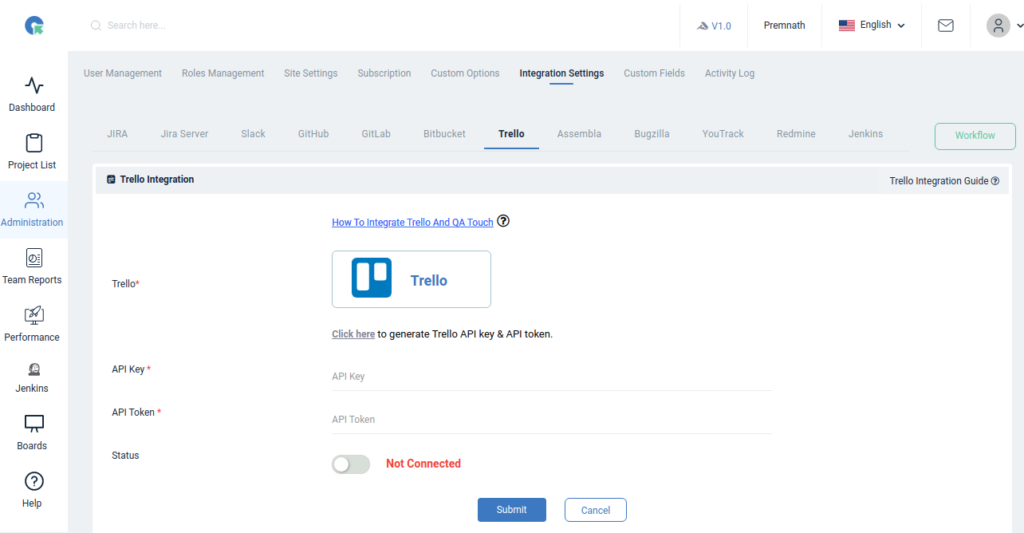
- Click Administration → Integration Settings → Trello Settings.
- Enter API Key and API Token.
- Click Update.
- After a successful configuration, the status becomes connected as shown in the below snapshot.
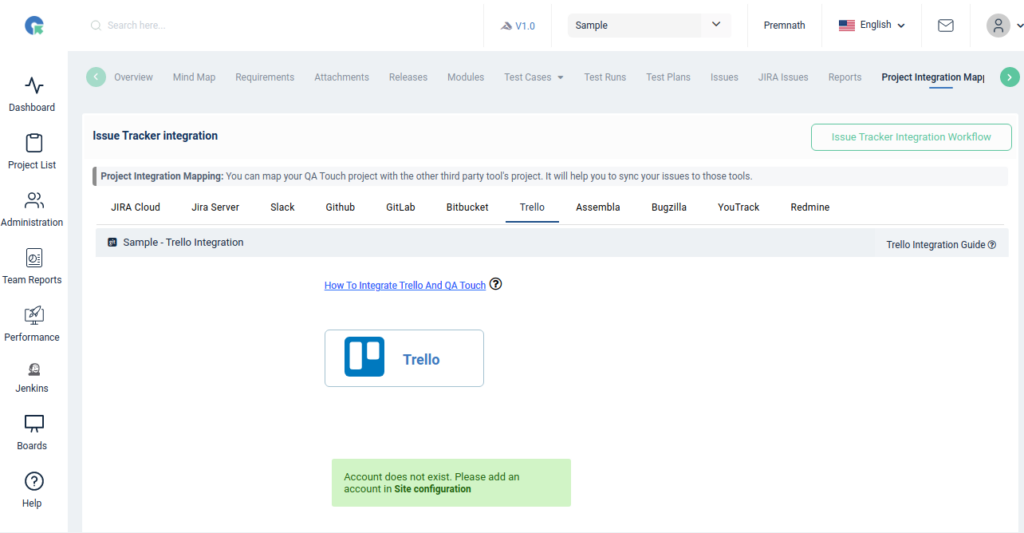
Mapping Trello to the Project
Map the respective repository to the QA touch Project with bugs which are added in the repository.
- Click on the Project Name from the projects list
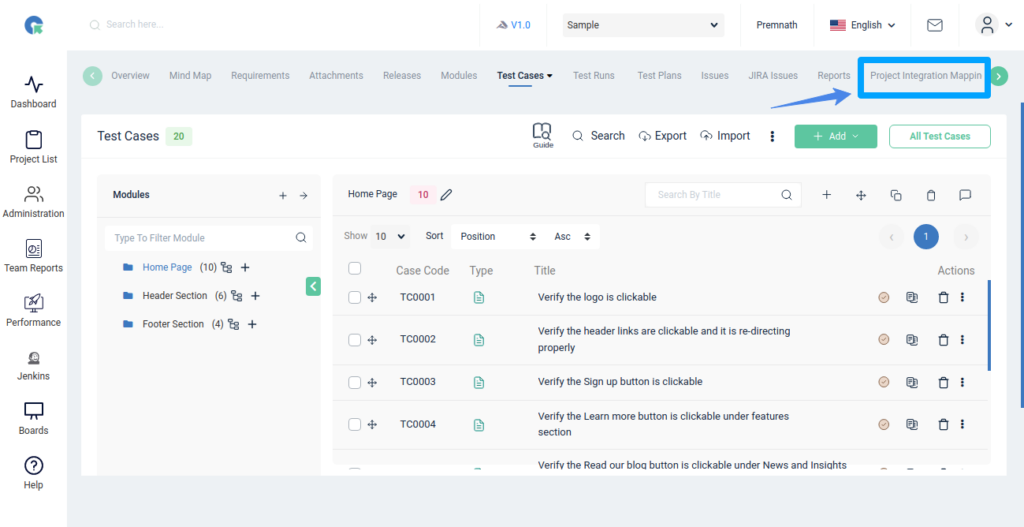
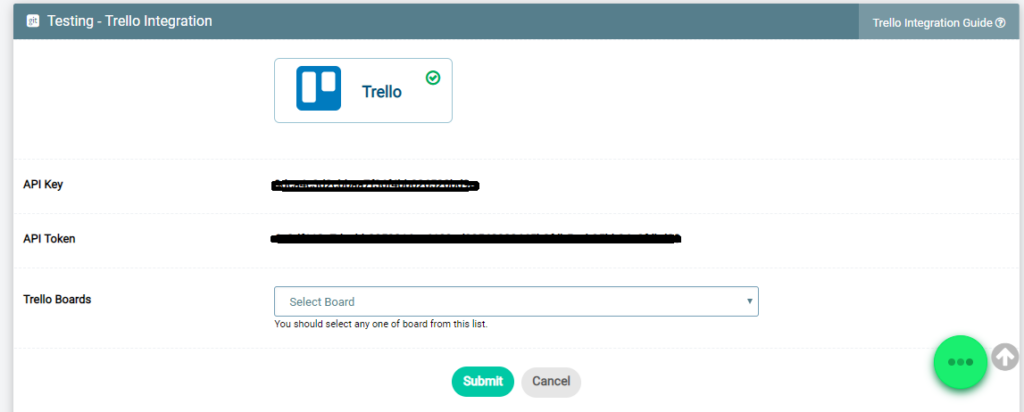
- Click on Projects → Project Mapping.
- Select a Trello board and click ‘Submit’ to Map
Have a look at the below screenshot for your reference.
The issue in Trello by QA Touch
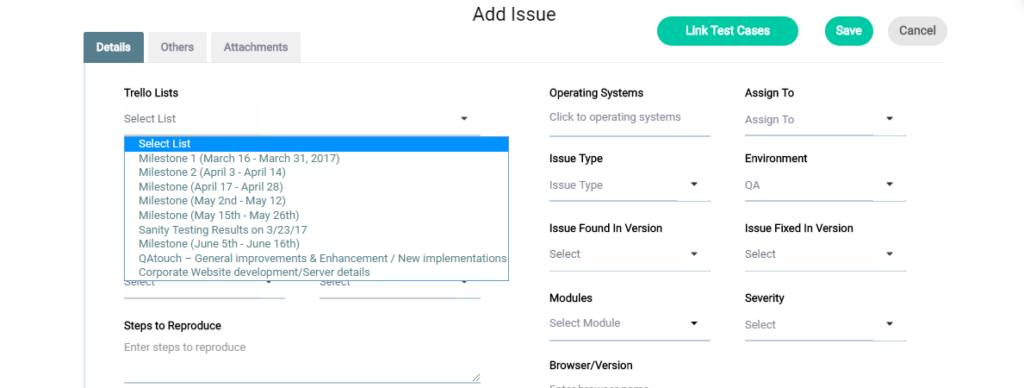
We have displayed the list of Trello boards, where you will select the list and post the issues. It automatically creates the bug in the selected Trello list.
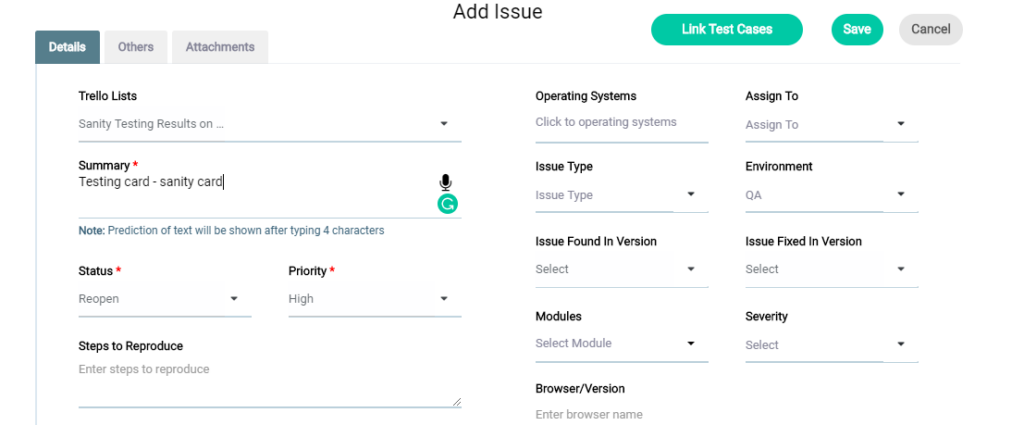
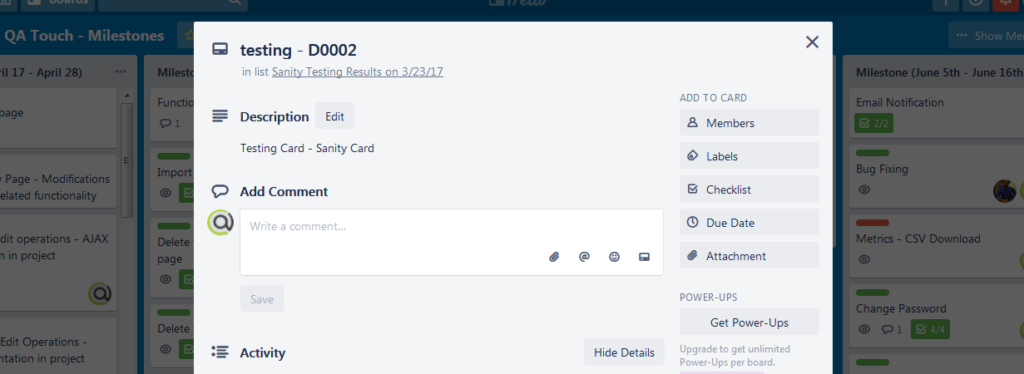
I have selected a sample “Sanity Testing Result” Trello list in my card, filled in all the information, and clicked the ‘Save’ button, where the bug is stored in the Trello “Sanity Testing Result”.
The below screenshot shows the Bug posted in the Trello list.
To Sum Up
We hope this blog helped you to better understand the process of how integration should be done between QA Touch with Trello.
This integration is just the beginning, as we are planning to collaborate with a lot of different platforms in the near future, helping to make testing accessible for all.
Register here and be the master of your application testing. Get a chance to use Trello and many more options that we offer.