Slack Integration Guide
In this article
A Test management tool integrated with slack makes team collaboration much easier than ever for project teams and keeps them stay updated on every activity in the project.
QA touch offers seamless integration with Slack Cloud providing you with the best way to keep all the messages shared in the Slack collaboration tool. To integrate Slack with QA touch we have to do the below steps:
Generate the Legacy Token API Key of Slack. Configure API Key of Slack and the channel details. Configure Slack Message Settings.
How To Generate OAuth Access Token?
- Sign in to your workspace. For example(https://qatouch.slack.com/)
- Load the URL https://api.slack.com/apps
- Click on the Create An App Button
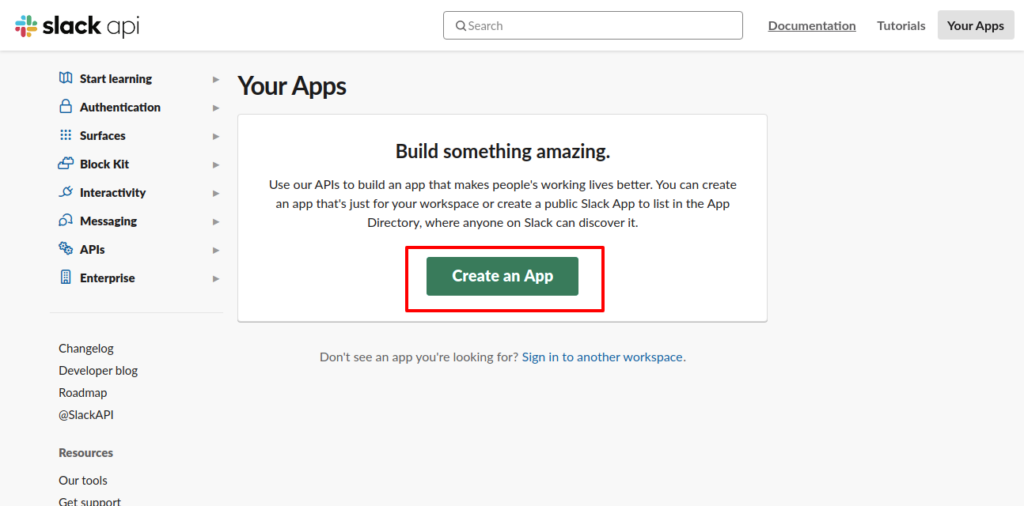
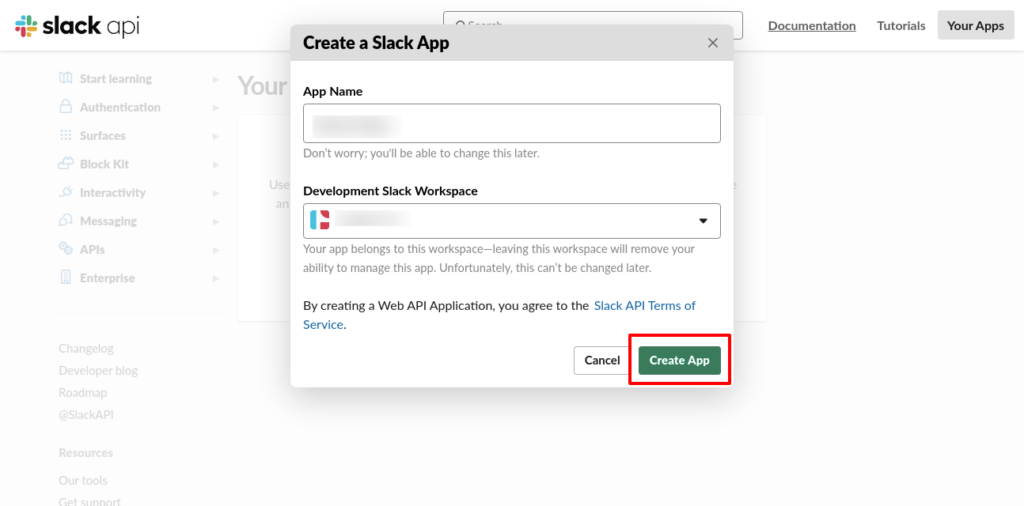
It will open a popup form. Enter the App Name and Select the workspace in the Development Slack Workspace dropdown. And click on the create button.
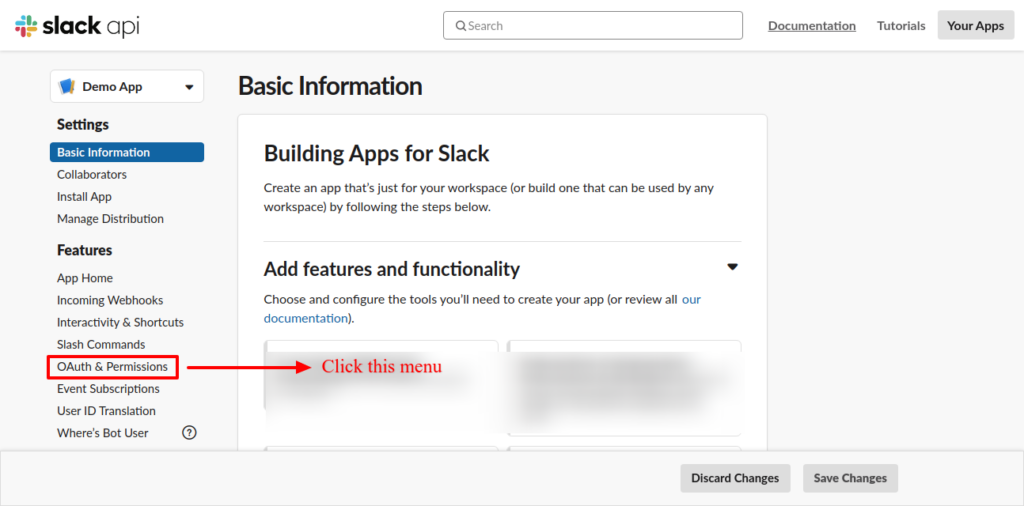
After creating the app, click on the Oauth and Permissions menu in the left side panel.
Then scroll down to the Scopes section on the page.
Then click on the Add Oauth Scope button under the Bot Token Scope section,
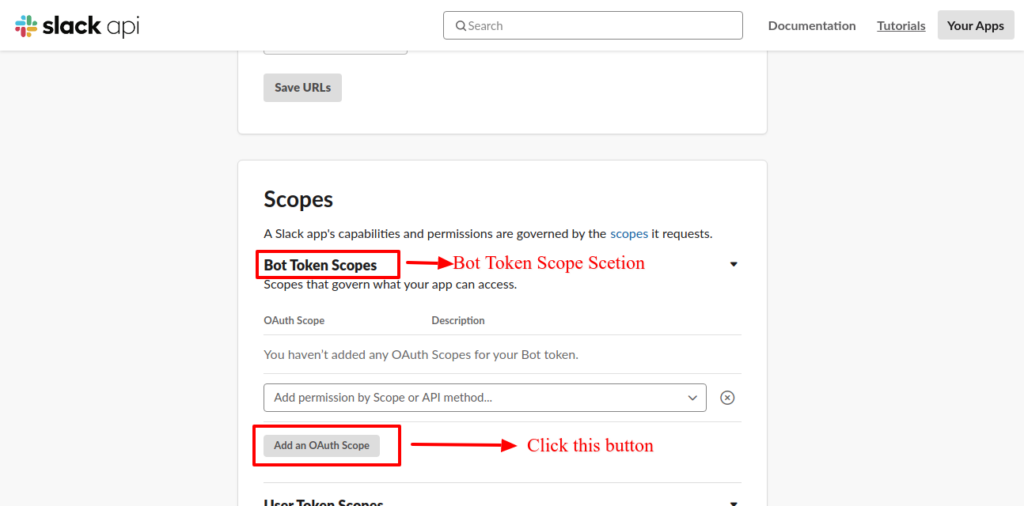
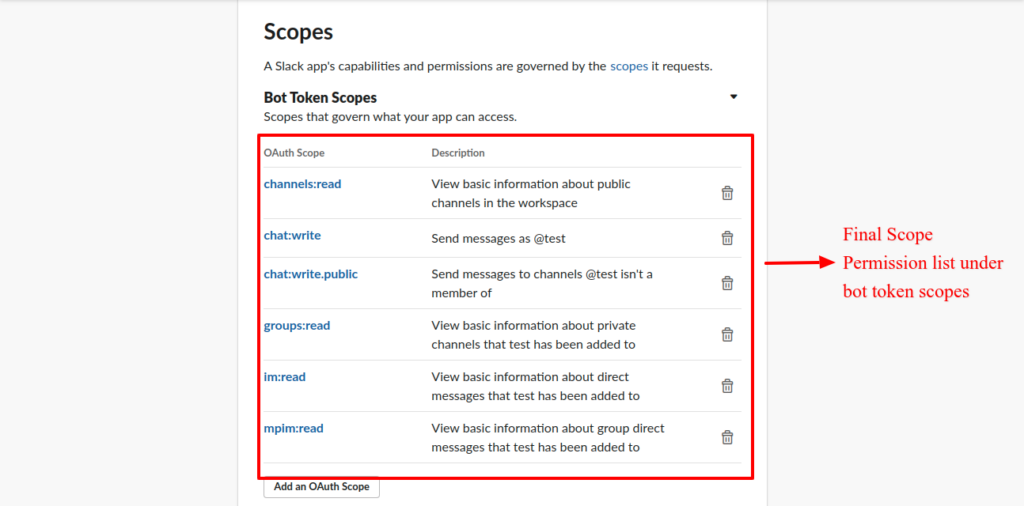
Then search and select the following scope in the dropdown to give permission in the workspace.
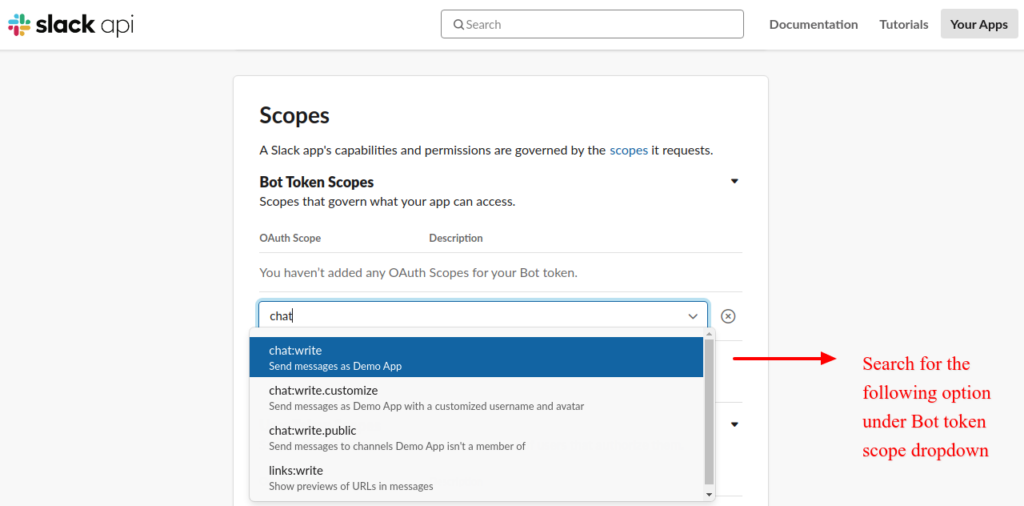
Channels:read, Groups:read, Mpim:read, Im:read, Chat:write chat:write:public
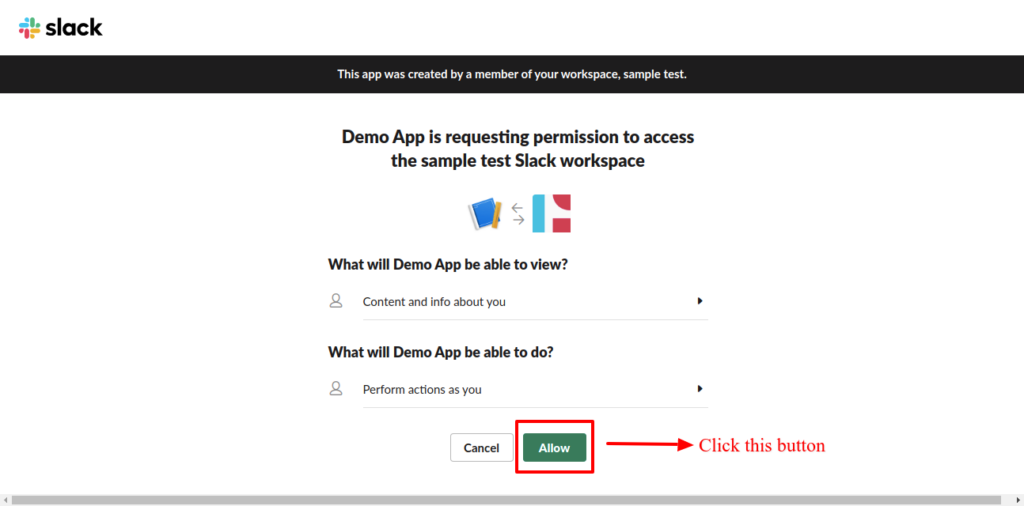
Then move to the top of the page and click on the Install To WorkSpace Button Click on the Allow button in the next step.
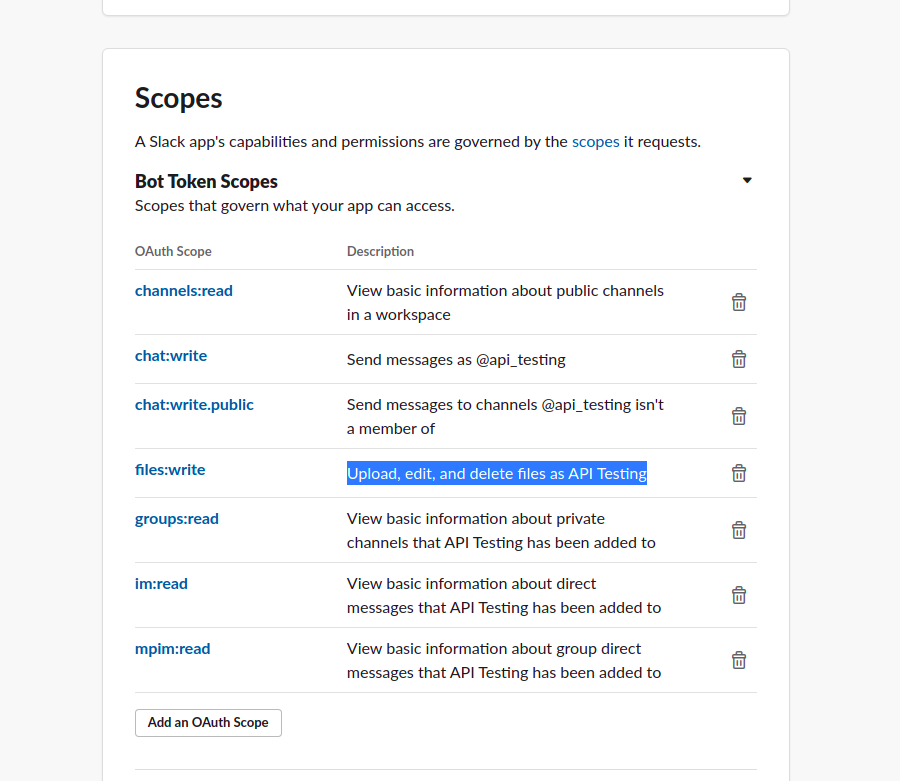
Share Report File – If you need to share a report file in the slack channel, enable the below setting, see the below screenshot for your reference.
files: write
Finally, the Bot User OAuth Access Token has been generated and displayed on the screen.
Copy the token and paste in the slack tab under integration menu in the Administration menu
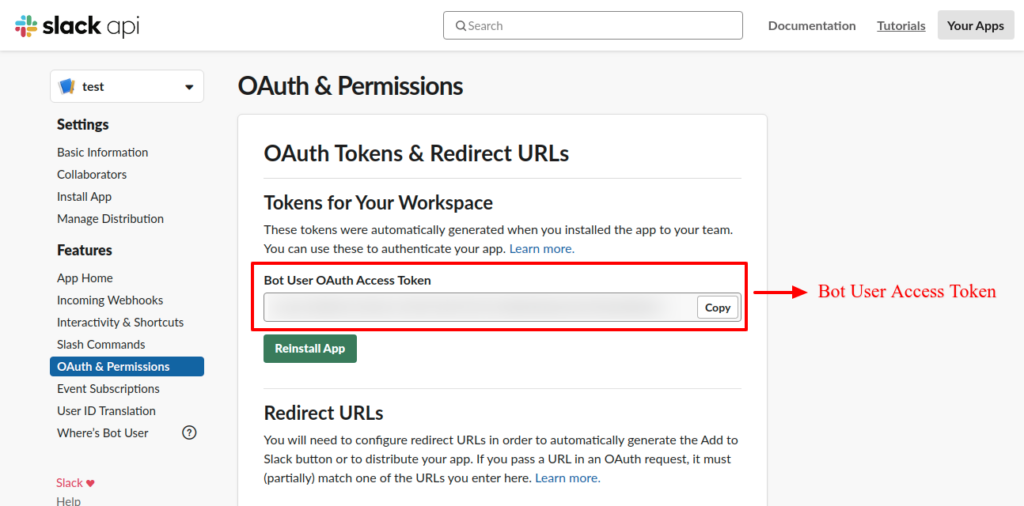
Configuring Global Slack Settings
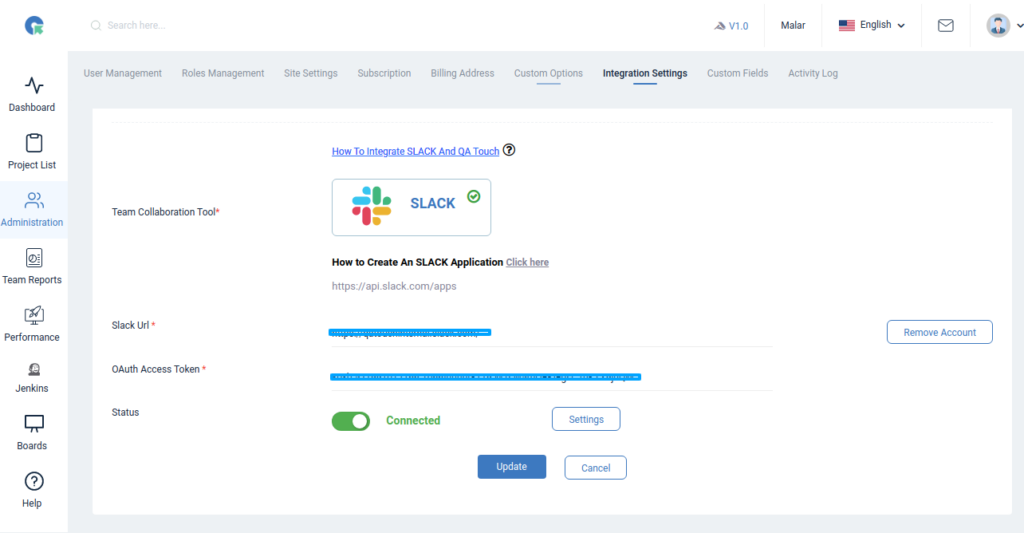
To reach the Integration page, go to Administration in the left navigation panel and click Integration Settings.
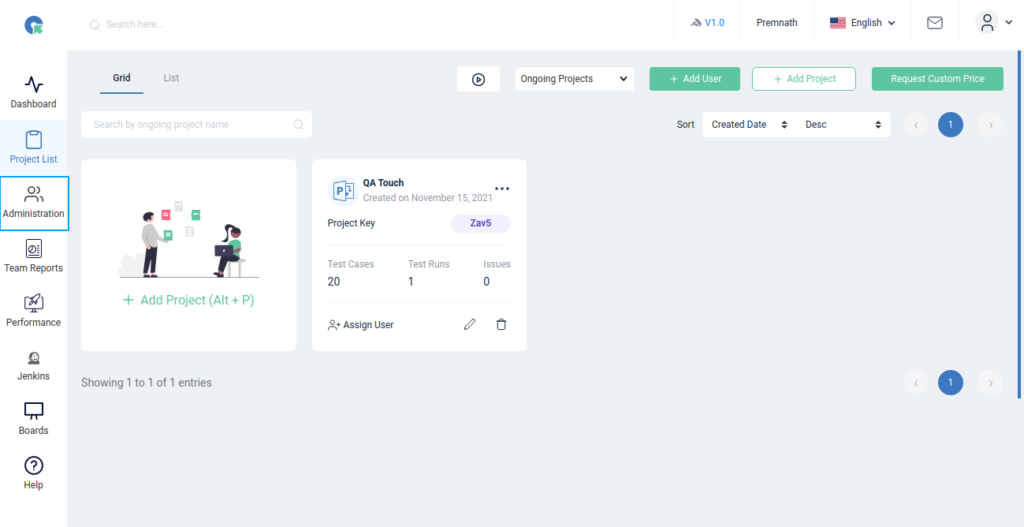
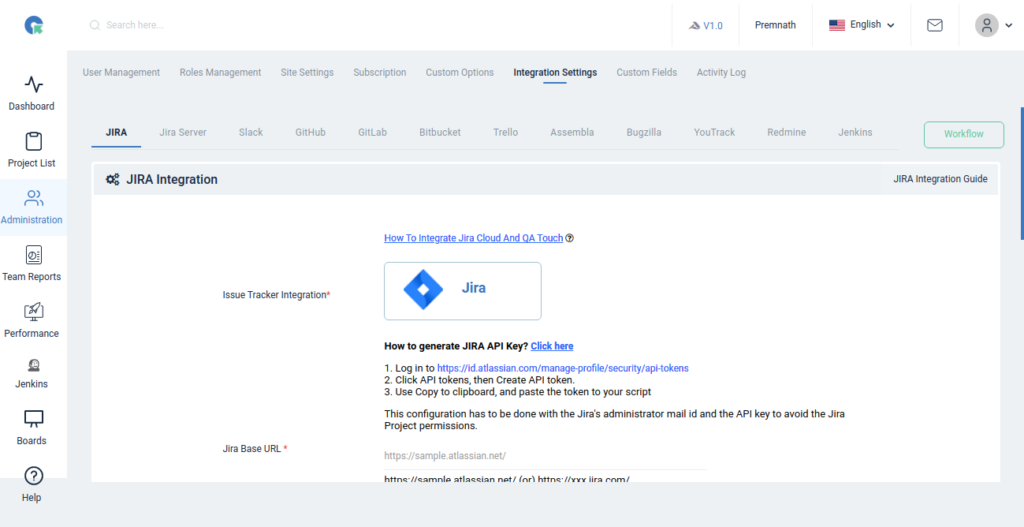
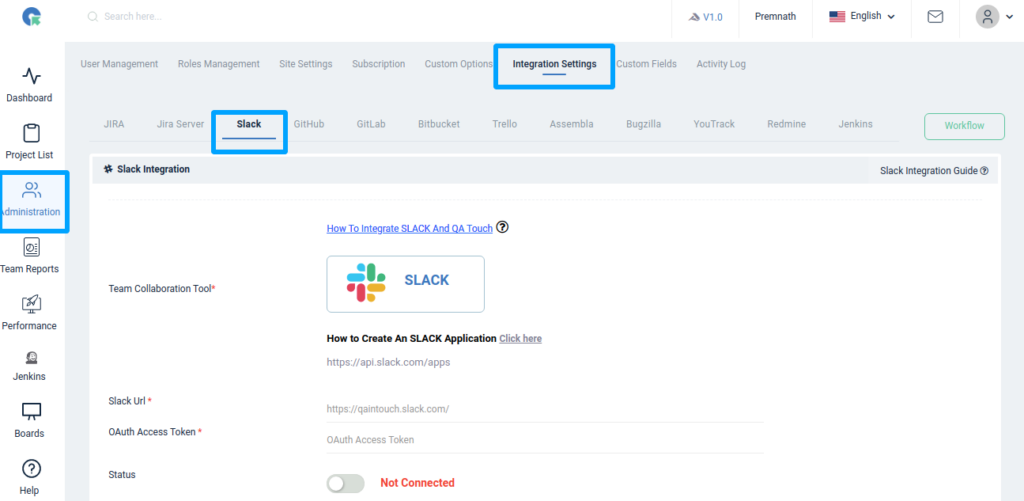
Slack Configuration
Here’s a step-by-step guide you should follow for successful Slack Integration.
- Login to QA touch as an Administrator.
- Click the Administration → Integration Settings
- Enter Slack URL. (eg: https://example.slack.com/)
- Enter the generated OAuth Access Token.
- Click Submit.
- After successful configuration, the status becomes connected as shown in the below:
Configure Slack Message Settings
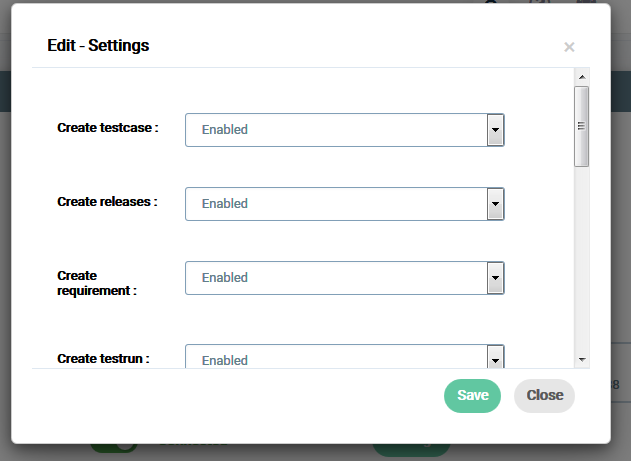
Click the Settings button and the Popup opens with a list of modules and actions which need to be notified in slack messages. Please see the below snapshot for your reference.
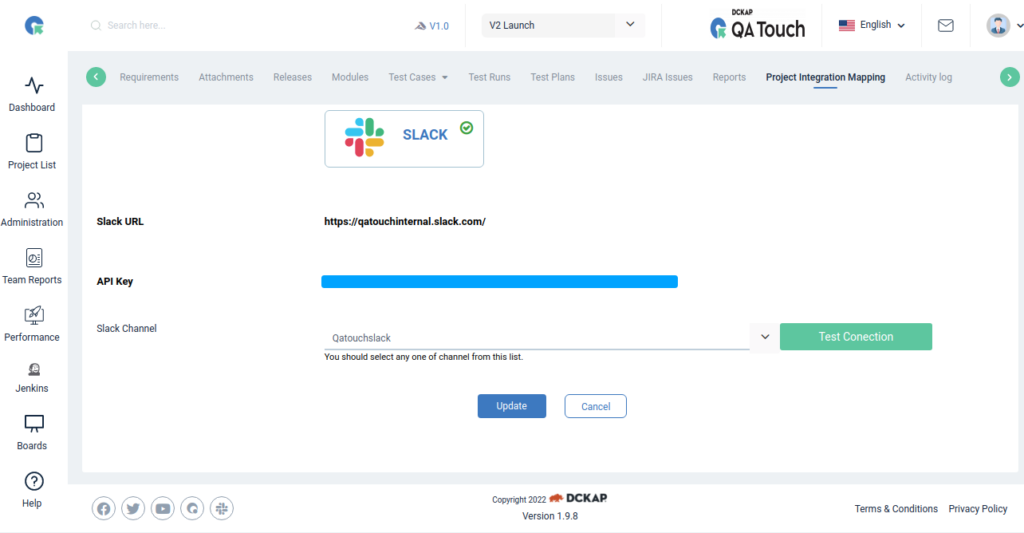
Mapping Slack Channel to Project
Map the respective channel to the QA Touch Project to receive project-specific notifications.
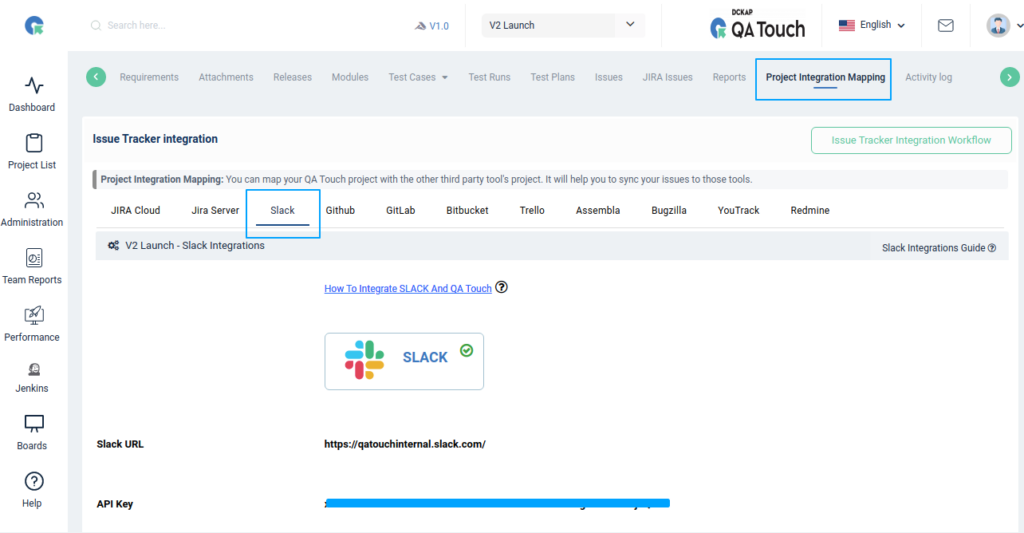
- Click on Projects → Project Integration Mapping.
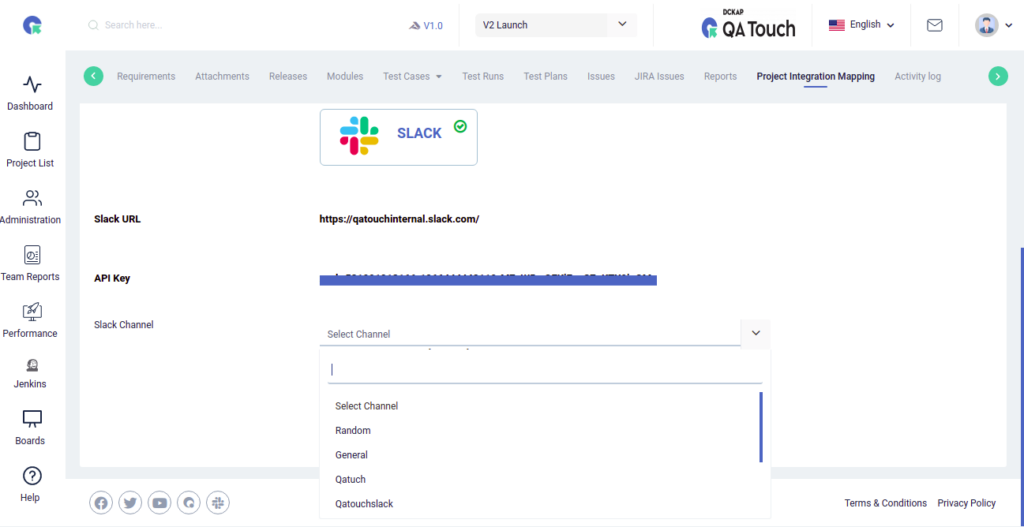
- Select a slack channel and click submit to Map.
- Click the Test Connection to trigger a sample QA Touch message.
Please see the below screenshot for your reference.
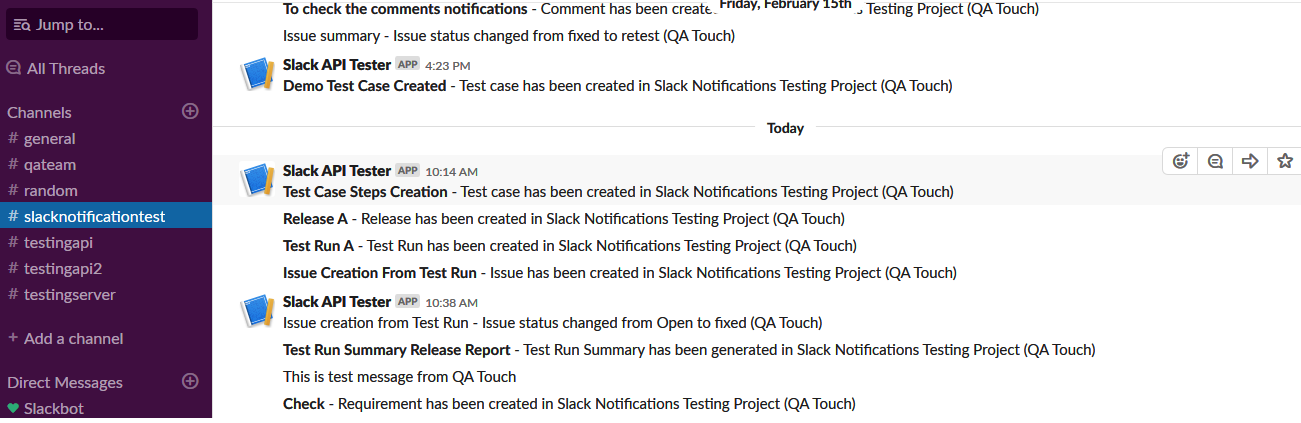
Snapshot of Messages Posted in Slack by QA touch
After Successful integration, QA touch automatically posts messages on slack for each action in the project. Snapshot shared below shows how messages are posted in slack by QA touch.
Hope these recent feature updates are useful. Many more important New Feature updates are in the pipeline and do stay subscribed to get notified.