GitHub Actions
Connect your GitHub account to QA Touch and review GitHub Actions workflow run details directly inside QA Touch.
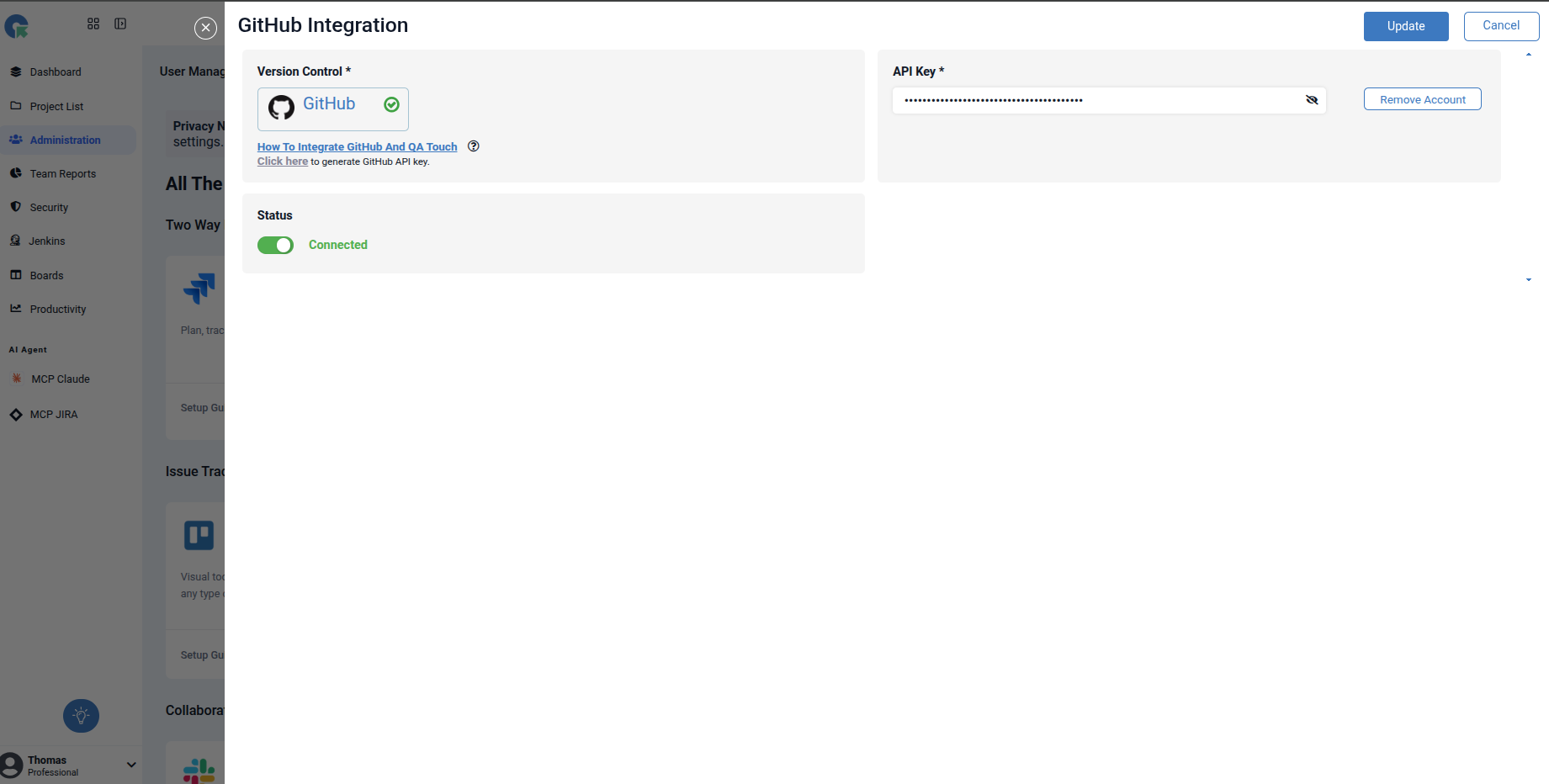
GitHub Authentication
- Go to Administrator → Integration Settings.
- Click GitHub.
- A GitHub integration overlay will open.
- Enter your GitHub API Key.
- Click Connect to authenticate your GitHub account.
- Once connected successfully, you can configure the GitHub repository and Actions workflow.
View GitHub Actions Workflow Run Details
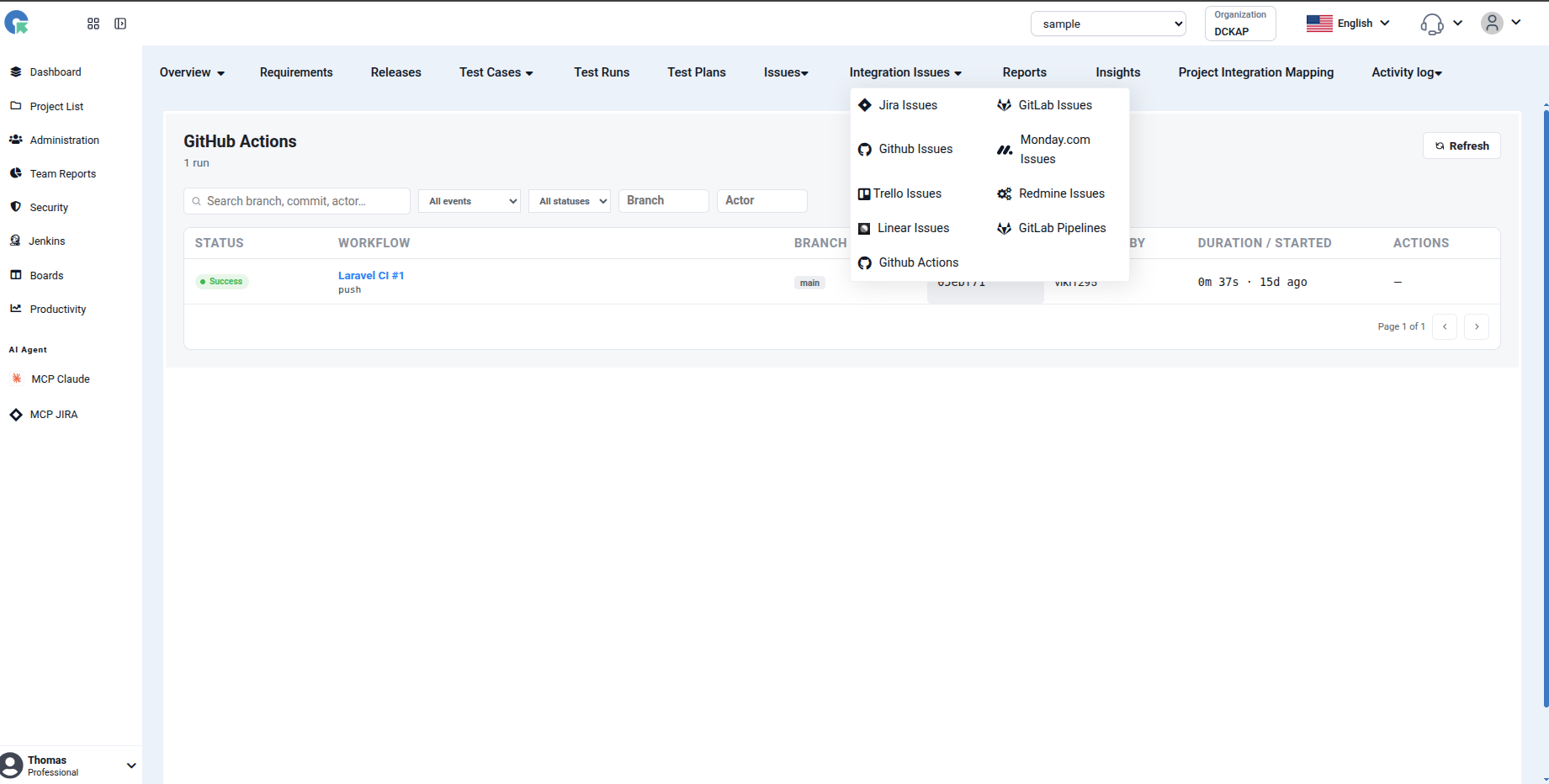
After selecting a workflow from the GitHub Actions workflow list, you can open a specific workflow run to view its execution details in QA Touch.
Open Workflow Run Details
- Go to Project List.
- Select the required project.
- Navigate to Integration Issues → GitHub Actions.
- Select a workflow from the workflow list.
- Click the required workflow run to open its details.
Workflow Run Details
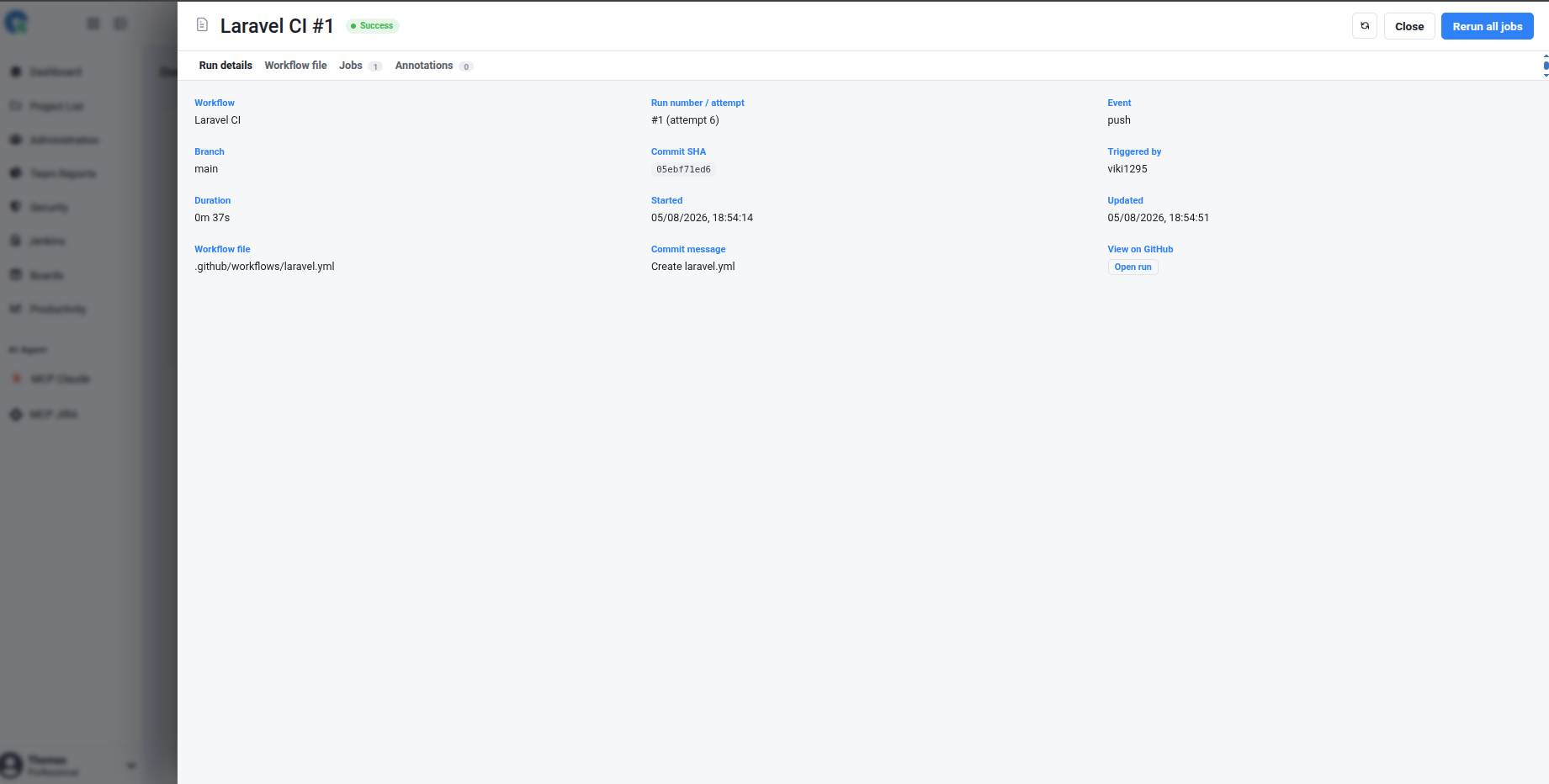
The workflow run details page provides information about the selected GitHub Actions execution. You can view:
- Workflow — Name of the GitHub Actions workflow.
- Run number / attempt — Identifies the workflow run and the number of execution attempts.
- Event — The event that triggered the workflow, such as
push. - Branch — The branch on which the workflow was executed.
- Commit SHA — The commit associated with the workflow run.
- Triggered by — The GitHub user who triggered the workflow.
- Duration — Total time taken to complete the workflow run.
- Started — Date and time when the workflow started.
- Updated — Date and time when the workflow information was last updated.
- Workflow file — The GitHub Actions workflow configuration file used for the run.
- Commit message — The commit message associated with the workflow.
- Jobs — Number of jobs included in the workflow run.
- Annotations — Available workflow annotations, if any.
Workflow Status
The workflow status is displayed next to the workflow name.
For example, Success means the workflow completed successfully. Other statuses may be displayed depending on the current GitHub Actions execution state.
View Workflow File
Click Workflow file to view the workflow configuration associated with the selected run.
For example: .github/workflows/laravel.yml
View the Workflow on GitHub
To open the workflow run directly in GitHub, click Open run under View on GitHub. This allows you to view the complete workflow execution and additional information available in GitHub.
Rerun Workflow
If supported, click Rerun all jobs to rerun all jobs associated with the workflow run. This can be useful when a workflow fails because of a temporary issue or when you want to verify the workflow again after making changes.
Tabs Available
The workflow details page includes the following sections:
- Run details — Displays the overall workflow execution information.
- Workflow file — Displays the workflow configuration.
- Jobs — Displays the jobs executed as part of the workflow.
- Annotations — Displays available workflow annotations.
Tip: Use the workflow run details page to quickly identify the branch, commit, trigger, execution duration, and job status without leaving QA Touch.