Generate Multiple Test Cases from an AI Prompt | QA Touch
Generate Multiple Test Cases Using an AI Prompt in QA Touch
QA Touch lets you generate multiple structured test cases from a simple natural language prompt, such as “Login module” or “Shopping cart edge cases.” You open Generate Multi Test Cases using AI Prompt from the Test Cases section, choose Exploratory Session or Test Case (Steps) mode, enter your prompt, and set a test case limit. QA Touch then creates detailed test cases with clear steps and validations that you can review, refine, and save directly into your QA Touch project.
At a Glance: AI Prompt Test Case Generation
| What it does | Generates multiple structured test cases from a natural language prompt |
| Where | Test Cases section → Generate Multi Test Cases using AI Prompt |
| Modes | Exploratory Session or Test Case (Steps) |
| Input | A feature or module prompt, plus a Test Case Limit |
| Test Case Limit | For example, 5, 10, 15, or 20; free users can select a limit of 5 |
| Output | Structured, detailed test cases with clear steps and validations, saved to your project |
What Can You Do with AI Prompt Test Case Generation?
The Generate Multi Test Cases using AI Prompt feature in QA Touch enables teams to turn a short description of a feature into a set of ready-to-save test cases.
With this feature, teams can:
- Enter a simple prompt (like “Login module” or “Shopping cart edge cases”).
- Choose the number of test cases to generate (e.g., 5, 10, 15). Free user can select 5 limit
- Instantly receive structured, detailed test cases with clear steps and validations.
- Save them directly into your QA Touch project.
How to Generate Multiple Test Cases with an AI Prompt (Step-by-Step)
To generate test cases from a prompt, go to the Test Cases section, click Generate Multi Test Cases using AI Prompt, choose a mode, enter your prompt, set the Test Case Limit, and click Generate. Then review and save the generated test cases.
- Login to QA Touch
- Go to the Test Cases section in QA Touch.
- Click Generate Multi Test Cases using AI Prompt.
- Choose between two modes:
- Exploratory Session: AI suggests exploratory scenarios for rapid coverage.
- Test Case (Steps): AI generates structured step-by-step test cases.
- Enter your feature/module prompt in natural language. Example: “Shopping cart: Test add, update, remove, checkout, validation, discounts, and edge cases carefully.”
- Set the Test Case Limit (e.g., 5,10,20).
- Click Generate. Within seconds, depending on the limit, QA Touch will create detailed test cases.
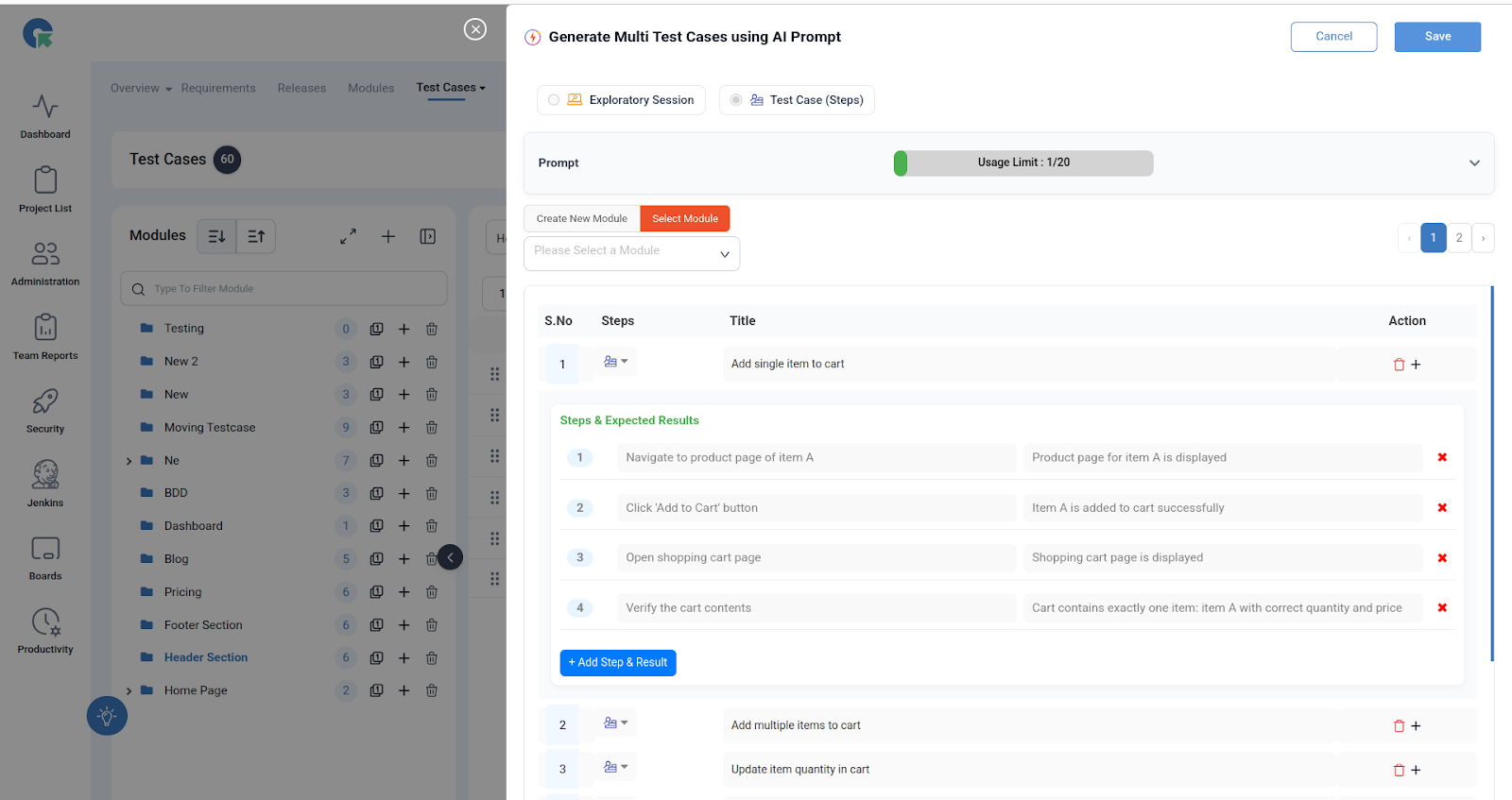
- Review, refine, and save them directly into your project.
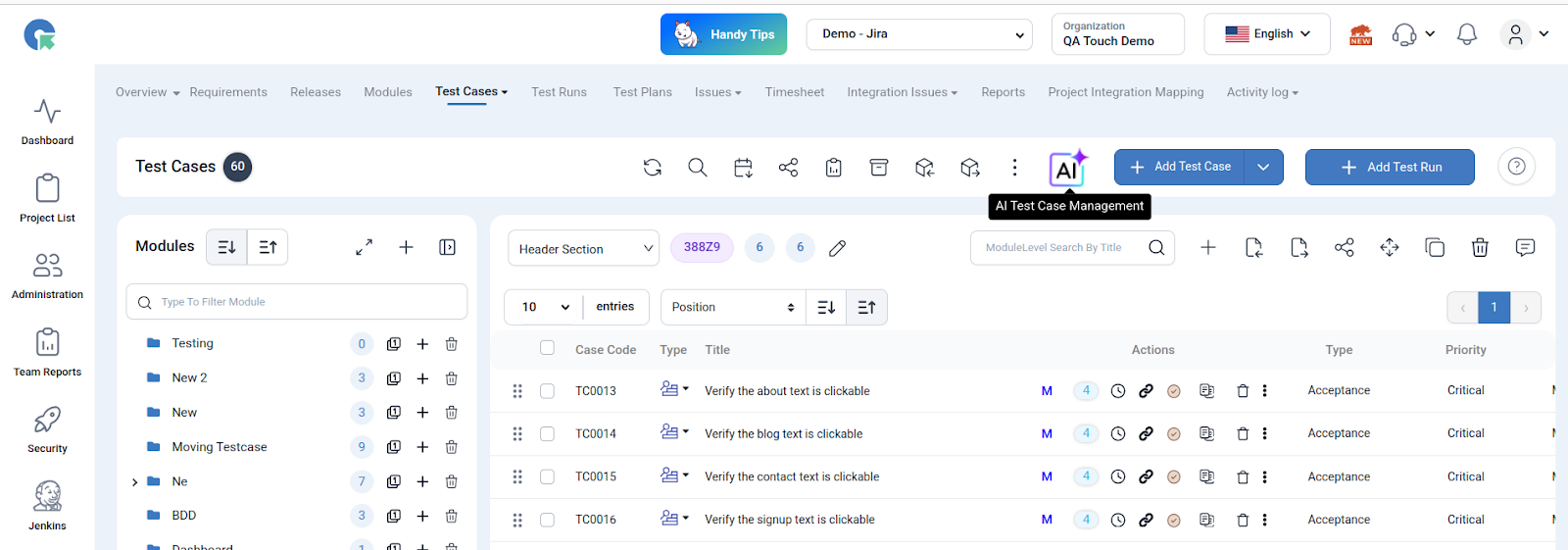
Open the AI Feature
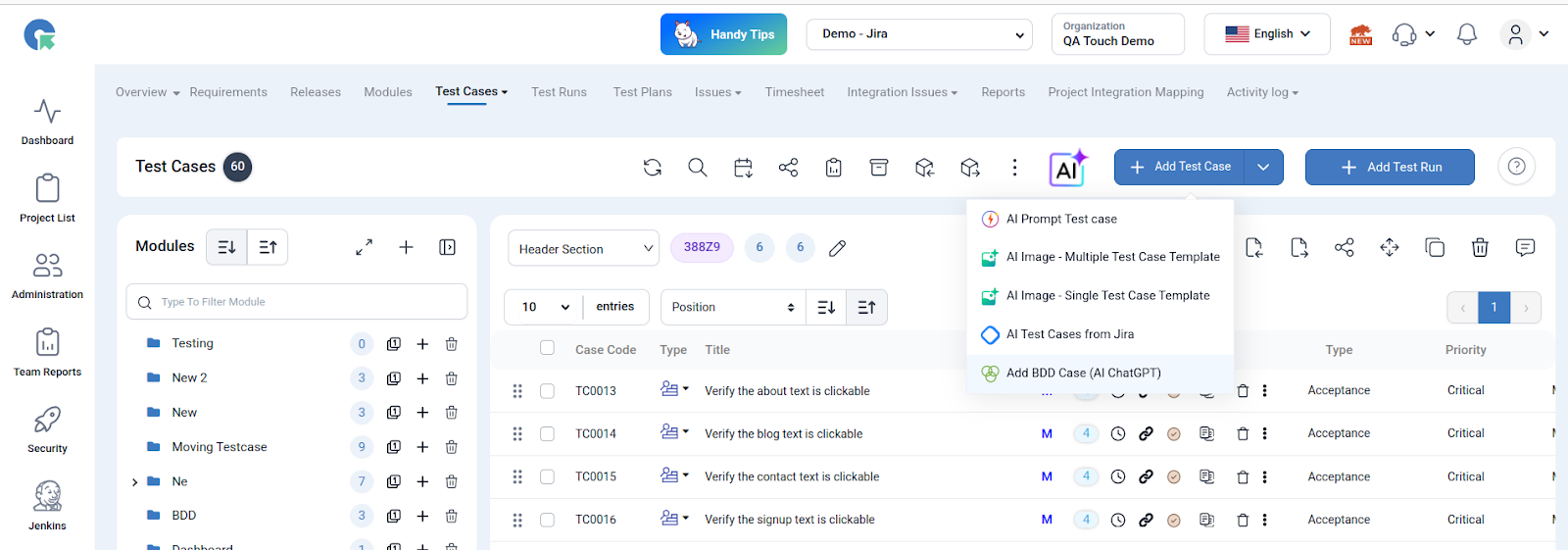
Select AI Prompt Test Case
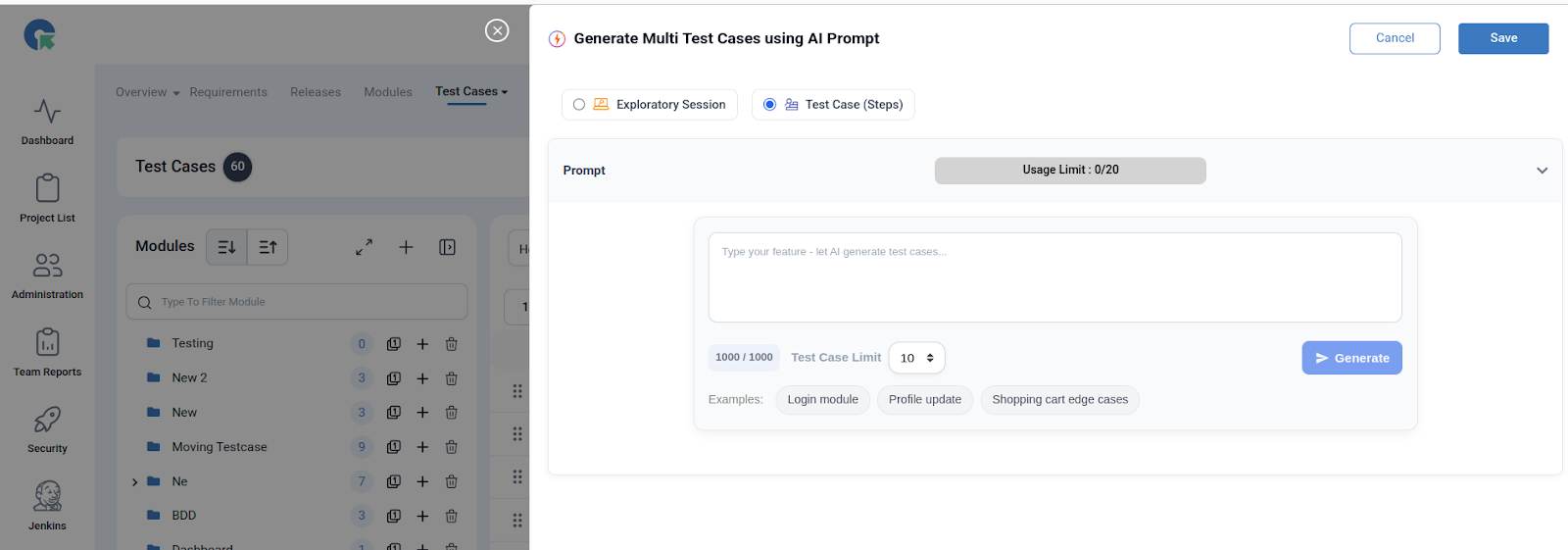
Enter the Shopping Cart Prompt
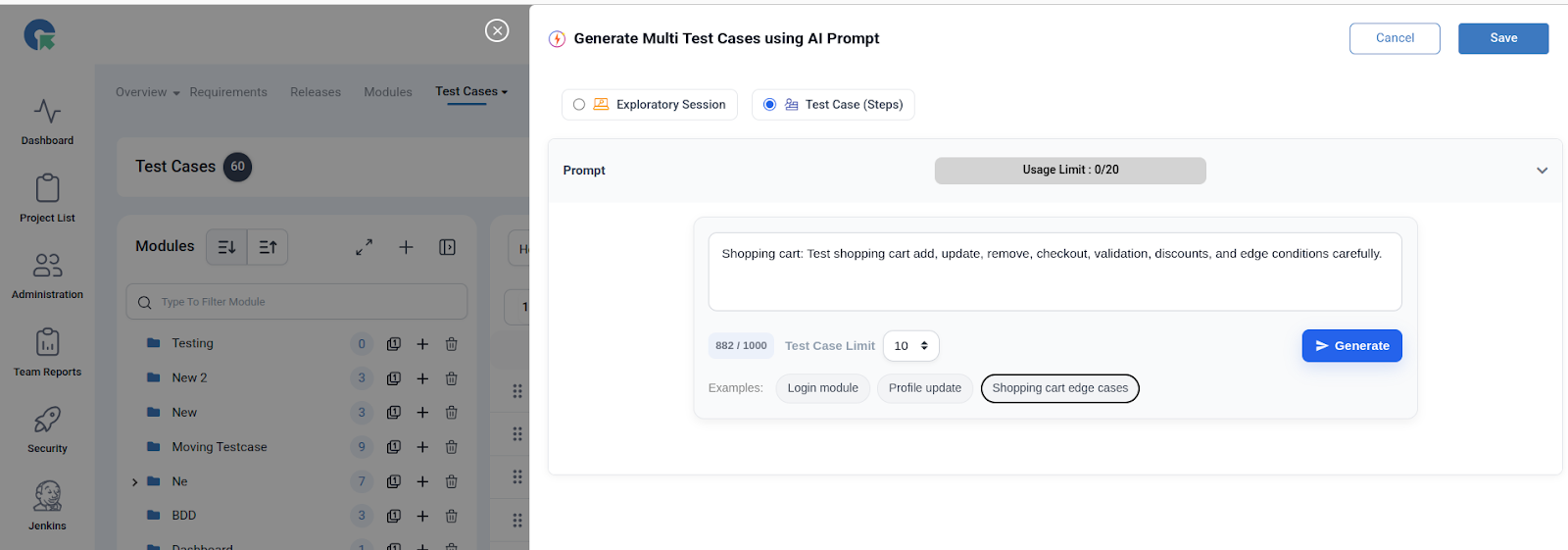
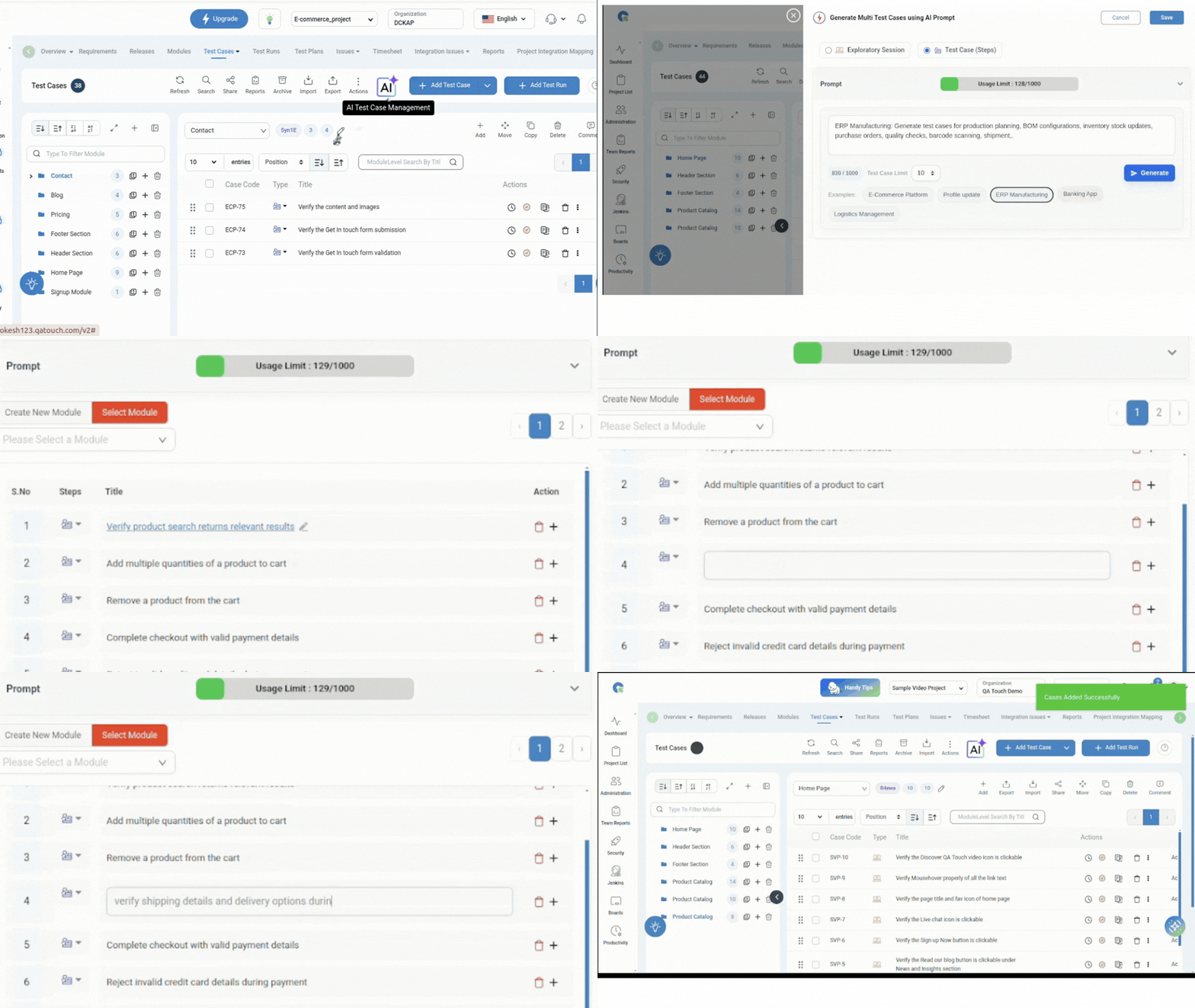
Set the Test Case Limit (e.g., 5, 10, 20) and Generate
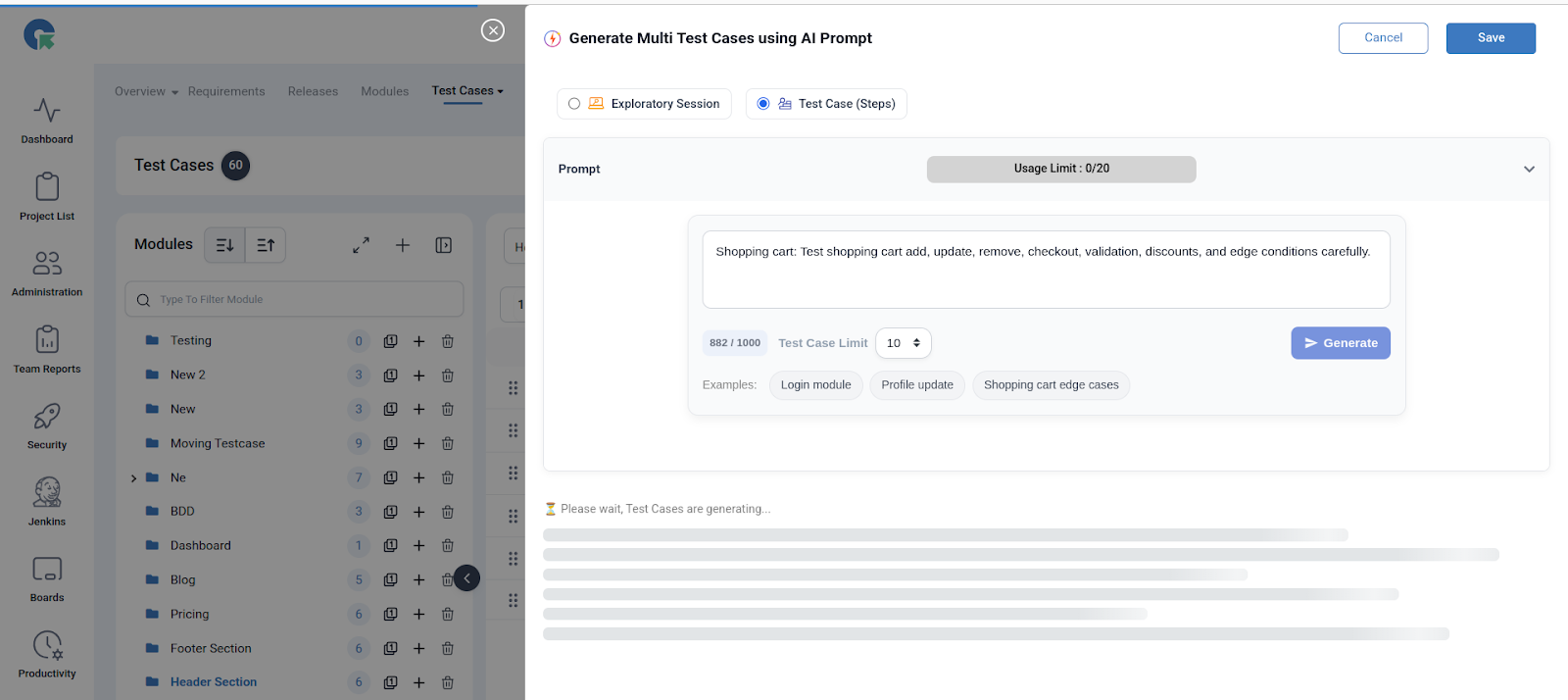
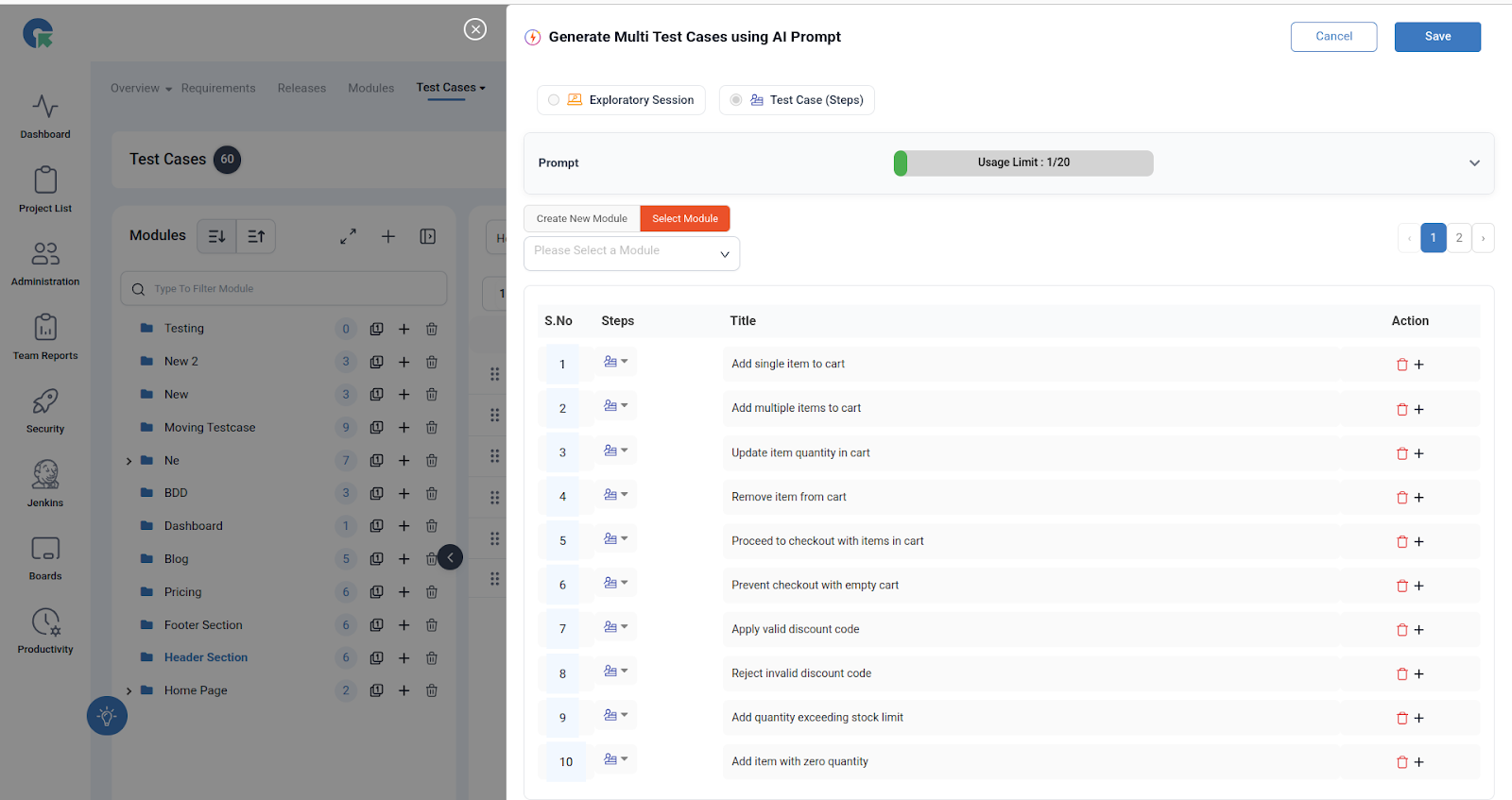
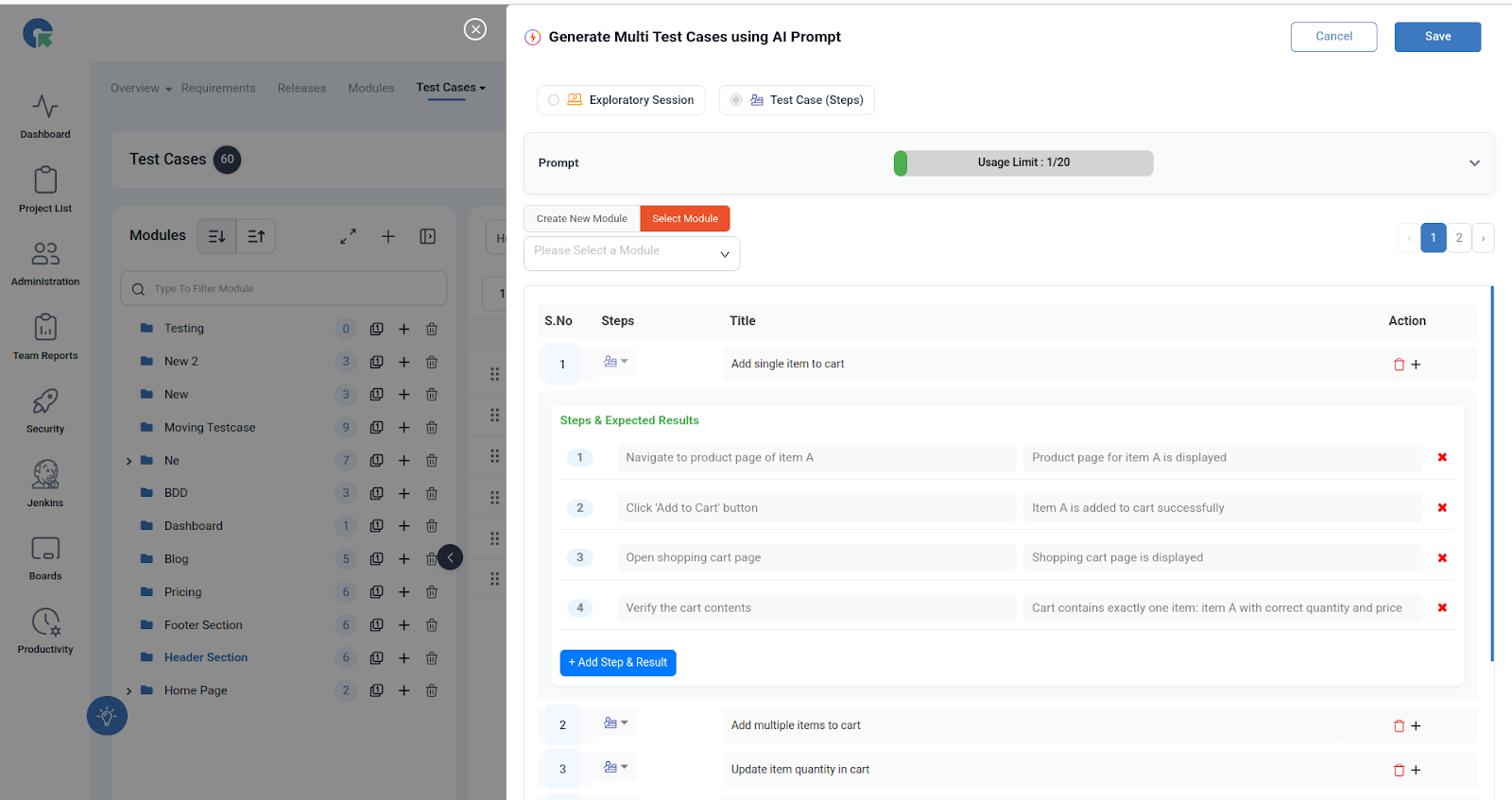
Final Step: Click the Save Button
Example: Generating Login Module Test Cases with an AI Prompt
This example shows a login module prompt and the kinds of test cases QA Touch AI might generate from it.
Prompt
“Login module: Test valid login, invalid login, password reset, session handling, and security checks.”
AI-Generated Test Cases Might Include
- Valid login with correct username and password.
- Invalid login with incorrect password.
- Login with unregistered email.
- Password reset with valid email.
- Password reset with invalid email.
- Session timeout handling.
- Multiple failed login attempts leading to account lock.
- Login with special characters in username.
- Successful login with “Remember Me” checked.
- Logout functionality after login.
Frequently Asked Questions
Can QA Touch generate test cases from a text prompt?
Yes. Use Generate Multi Test Cases using AI Prompt in the Test Cases section, enter a feature or module prompt in natural language, and QA Touch generates structured, detailed test cases.
What modes are available for AI prompt test case generation?
You can choose Exploratory Session, where AI suggests exploratory scenarios for rapid coverage, or Test Case (Steps), where AI generates structured step-by-step test cases.
How many test cases can I generate at once?
You set a Test Case Limit, for example 5, 10, 15, or 20. Free users can select a limit of 5.
What should I write in the AI prompt?
Describe the feature or module and what to test in natural language, for example: “Shopping cart: Test add, update, remove, checkout, validation, discounts, and edge cases carefully.”
What do the AI-generated test cases include?
The generated test cases are structured and detailed, with clear steps and validations.
Can I edit AI-generated test cases before saving?
Yes. You can review and refine the generated test cases, then save them directly into your QA Touch project.