MCP Browser Skill Test Capture
QA Touch MCP Browser Claude Skill: Automatically Generate Test Cases by Crawling Your Web App
The QA Touch MCP Browser Capture Case Skill is a Claude Skill that autonomously crawls a web application and generates QA Touch test cases without manual intervention. You give Claude an application URL, and Claude crawls through the application’s pages, identifies UI elements and available interactions, and mimics user actions to build test cases. The MCP Browser Capture Case Skill works with the Claude Chrome extension and the QA Touch MCP Server configured in Claude Desktop. The output is a CSV file in QA Touch test case format that you can import into QA Touch and use to create and execute a Test Run.
At a Glance: QA Touch MCP Browser Capture Case Skill
| What it does | Autonomously crawls the pages of a web application, identifies UI elements and available interactions, mimics user actions, and generates QA Touch test cases without manual intervention |
| Input | An application URL |
| Required tools | Claude Chrome extension (authorized with your Claude account), the MCP Browser Capture Case Skill, Claude Desktop, and the QA Touch MCP Server (with your QA Touch domain and API token) |
| Output | A CSV file in QA Touch test case format, ready for import |
| Main workflow | Invoke the skill with a URL and START → Claude crawls the application and mimics user actions → Claude generates the test case CSV → review the CSV → import into QA Touch → create and execute a Test Run |
What Do I Need to Use the MCP Browser Capture Case Skill?
To use the MCP Browser Capture Case Skill, you need the Claude Chrome extension installed and authorized with your Claude account, the mcpbrowser-qatouch-capture-case skill uploaded to Claude, and the QA Touch MCP Server added to your Claude Desktop configuration with your QA Touch domain and API token.
How to Install and Authorize the Claude Chrome Extension
To install the Claude Chrome extension, add the official Claude extension from claude.com in the Chrome Web Store, then open the extension and click Authorize to connect it with your Claude account.
Step 1: Install the Claude Chrome Extension
- Open the Chrome Web Store.
- Search for Claude.
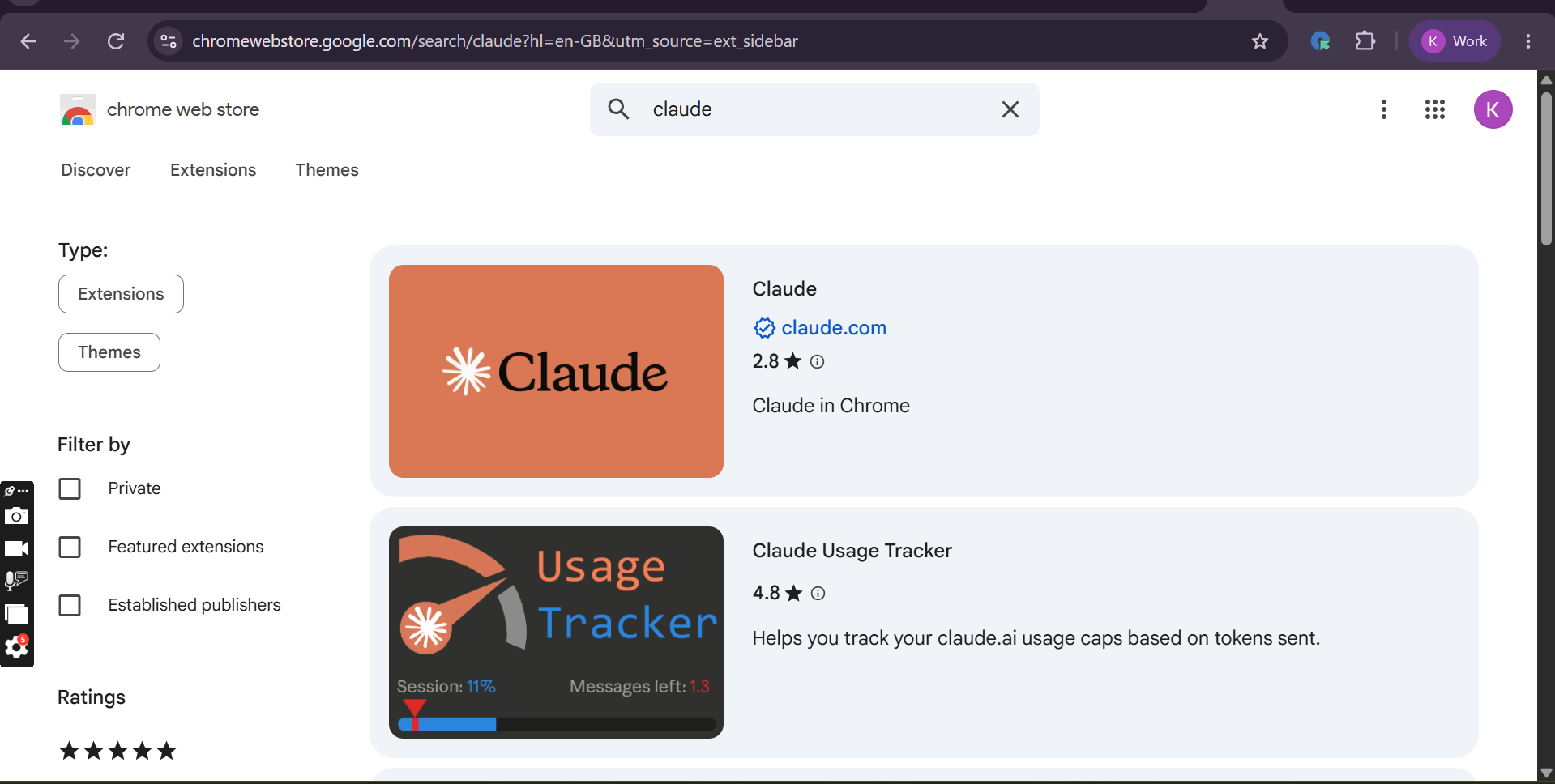
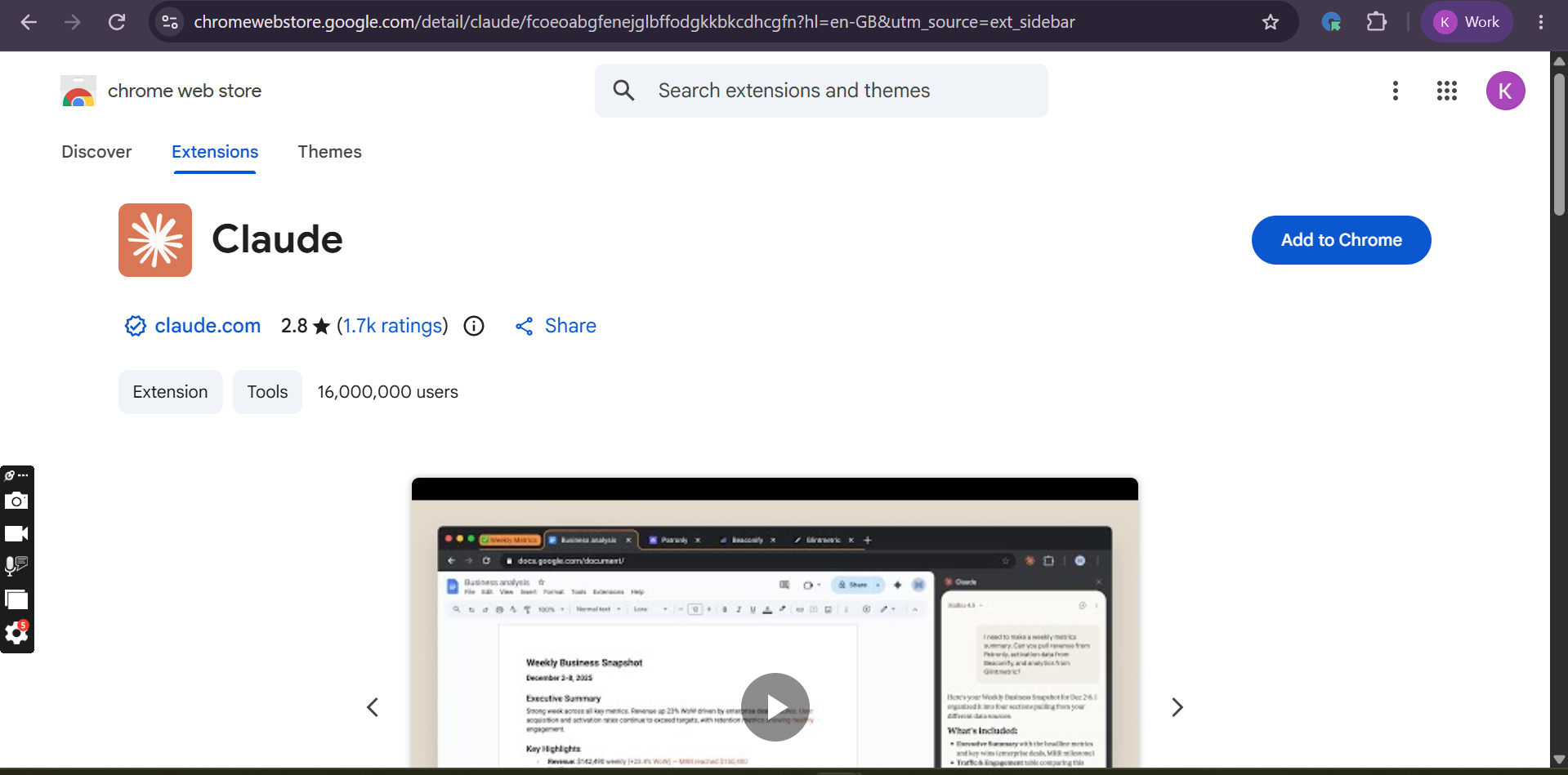
- Select the official Claude extension from
claude.com. - Click Add to Chrome.
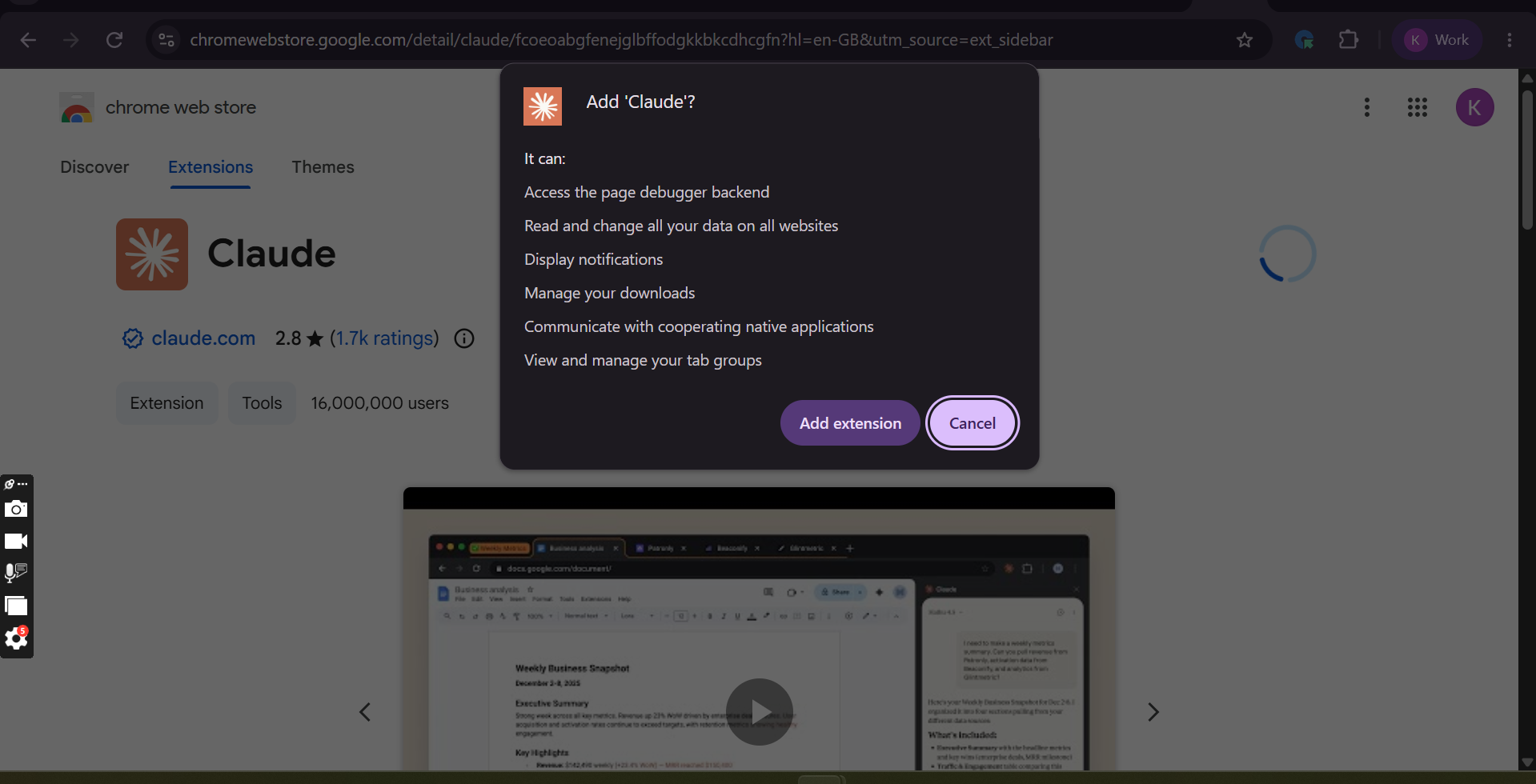
- Review the permissions and click Add extension.
Step 2: Authorize the Claude Chrome Extension
After installing the Claude Chrome extension:
- Open the Claude extension.
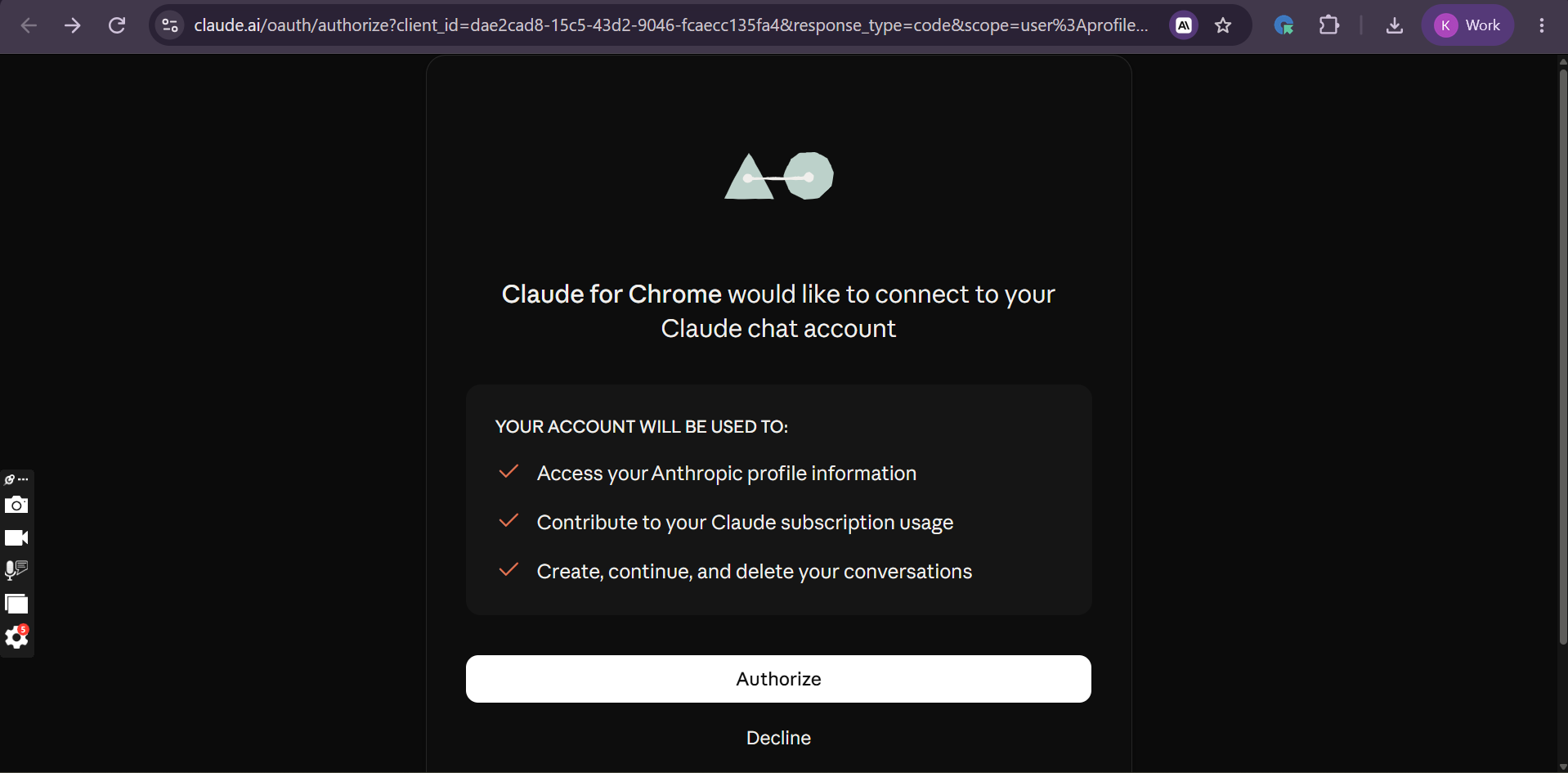
- You will be redirected to the Claude authorization page.
- Review the requested account permissions.
- Click Authorize to connect the extension with your Claude account.
How to Download and Install the MCP Browser Capture Case Skill in Claude
To install the MCP Browser Capture Case Skill, download the skill package from the qatouch-claude-skills GitHub repository and upload it to Claude.
⬇ Download Skill GitHub Repository mcpbrowser-qatouch-capture-case.skill
How to Configure the QA Touch MCP Server in Claude Desktop
To configure the QA Touch MCP Server, add the qatouch server entry to your claude_desktop_config.json file with your QA Touch domain and API token.
Where Is the Claude Desktop Configuration File?
Windows
%APPDATA%\Claude\claude_desktop_config.jsonmacOS
~/Library/Application Support/Claude/claude_desktop_config.jsonLinux
~/.config/Claude/claude_desktop_config.jsonQA Touch MCP Server Configuration Example
{
  "mcpServers": {
    "qatouch": {
      "command": "npx",
      "args": [
        "-y",
        "qatouch-mcp-server"
      ],
      "env": {
        "QATOUCH_DOMAIN": "yourdomain",
        "QATOUCH_API_TOKEN": "yourtoken"
      }
    }
  }
}
How to Automatically Generate QA Touch Test Cases from an Application URL
To generate test cases, start a new conversation in Claude and invoke the MCP Browser Capture Case Skill with the application URL and START. Claude autonomously crawls the application, identifies UI elements and available interactions, mimics user actions, and provides the generated QA Touch test cases as a CSV file. No manual interaction with the application is required.
Step 1: Start the MCP Browser Capture Case Skill in Claude
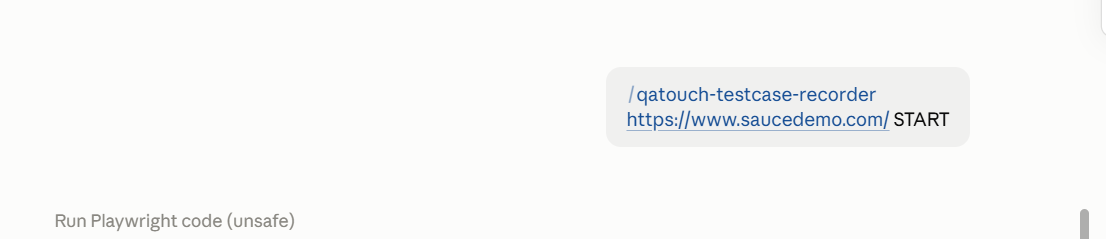
Open Claude and start a new conversation. Invoke the MCP Browser Capture Case Skill and provide the application URL.
/mcpbrowser-qatouch-capture-case
Example:
/mcpbrowser-qatouch-capture-case
https://www.saucedemo.com/ START
or
/mcpbrowser-qatouch-capture-case     https://opensource-demo.orangehrmlive.com/web/index.php/auth/login START
Step 2: Let Claude Crawl the Application
Claude uses the MCP Browser Capture Case Skill to autonomously crawl through the pages of the application, identify UI elements and available interactions, and mimic user actions. You do not need to perform any actions in the browser.
Step 3: Review the Generated Test Case CSV
Claude automatically generates the test cases and provides them in QA Touch test case format as a CSV file, ready for import.
Review the generated test case CSV and import it into QA Touch to create the test case.
Example: Generated QA Touch Test Cases
Example result:
I’ve explored the application and turned it into 2 QA Touch test cases, attached as a CSV ready to import:
- Login (Critical): log in as Admin and land on the Dashboard. The password is masked as
********.- Admin (Medium): open the Admin module from the menu and land on the System Users page.
No sample CSV was uploaded, so the file uses the standard QA Touch column layout.
How to Import Generated Test Cases into QA Touch Through Claude
To import the generated test cases, prompt Claude with the QA Touch project where the test cases need to be created, then verify the test cases in QA Touch.
Specify the QA Touch project ID and module name, where the test case needs to be created.
Import these test cases into QA Touch project - PROJECT_NAME PROJECT_KEY.
Example prompt:
Import these test cases into QA Touch project - PROJECT_NAME PROJECT_KEYOpen QA Touch and verify that the test case contains the correct steps, expected results, and Title.
Example: Test Cases Created in QA Touch
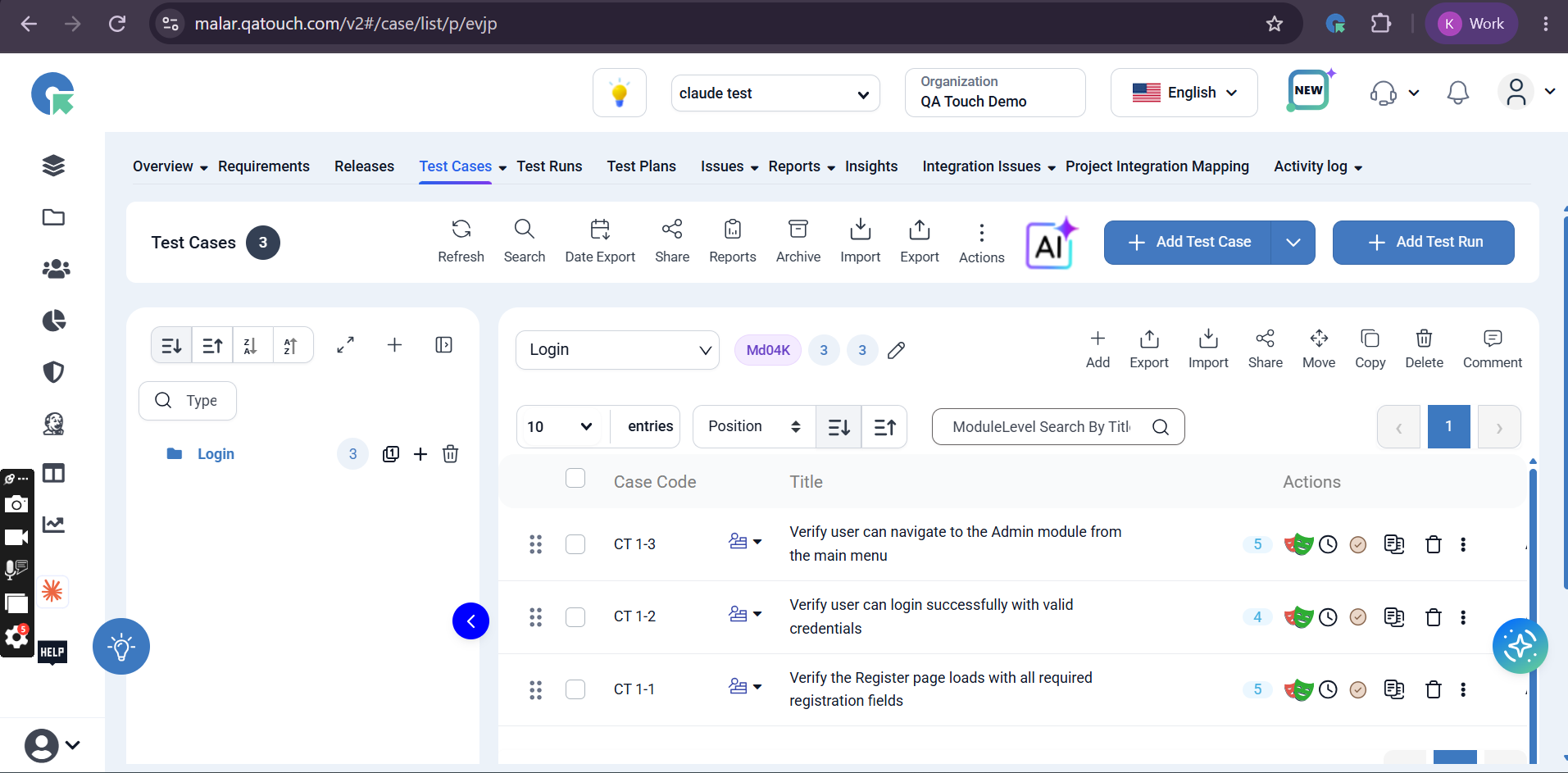
Example test cases created in QA Touch (project: Claude Test / QA Touch Demo, module: Login):
| Case Code | Title |
|---|---|
| CT 1-3 | Verify user can navigate to the Admin module from the main menu |
| CT 1-2 | Verify user can login successfully with valid credentials |
| CT 1-1 | Verify the Register page loads with all required registration fields |
How to Create and Execute a Test Run in QA Touch Through Claude
After importing the test cases, you can prompt Claude to create a Test Run with those test cases and then execute the Test Run. The status is updated automatically in QA Touch.
Step 1: Create the Test Run
Create a Test Run with these test cases and name it as “September Regression Test Run name”
Create a New Test Run and include the module which is required, and assign it to the respective person.
Step 2: Verify and Execute the Test Run
Verify the Test Run has been created in QA Touch in the respective project. Then execute the Test Run — status will be updated automatically in QA Touch.
Example: Creating and Executing a Test Run from Claude
Example flow:
- Prompt:
Create a Test run with all test cases and name it as "September Run" under release "Sprint 1" and Assign them to user "Emma jones"Result: “September Run” (run key41Ek9) is created in the project, assigned to Emma Jones, including every test case. - Prompt:
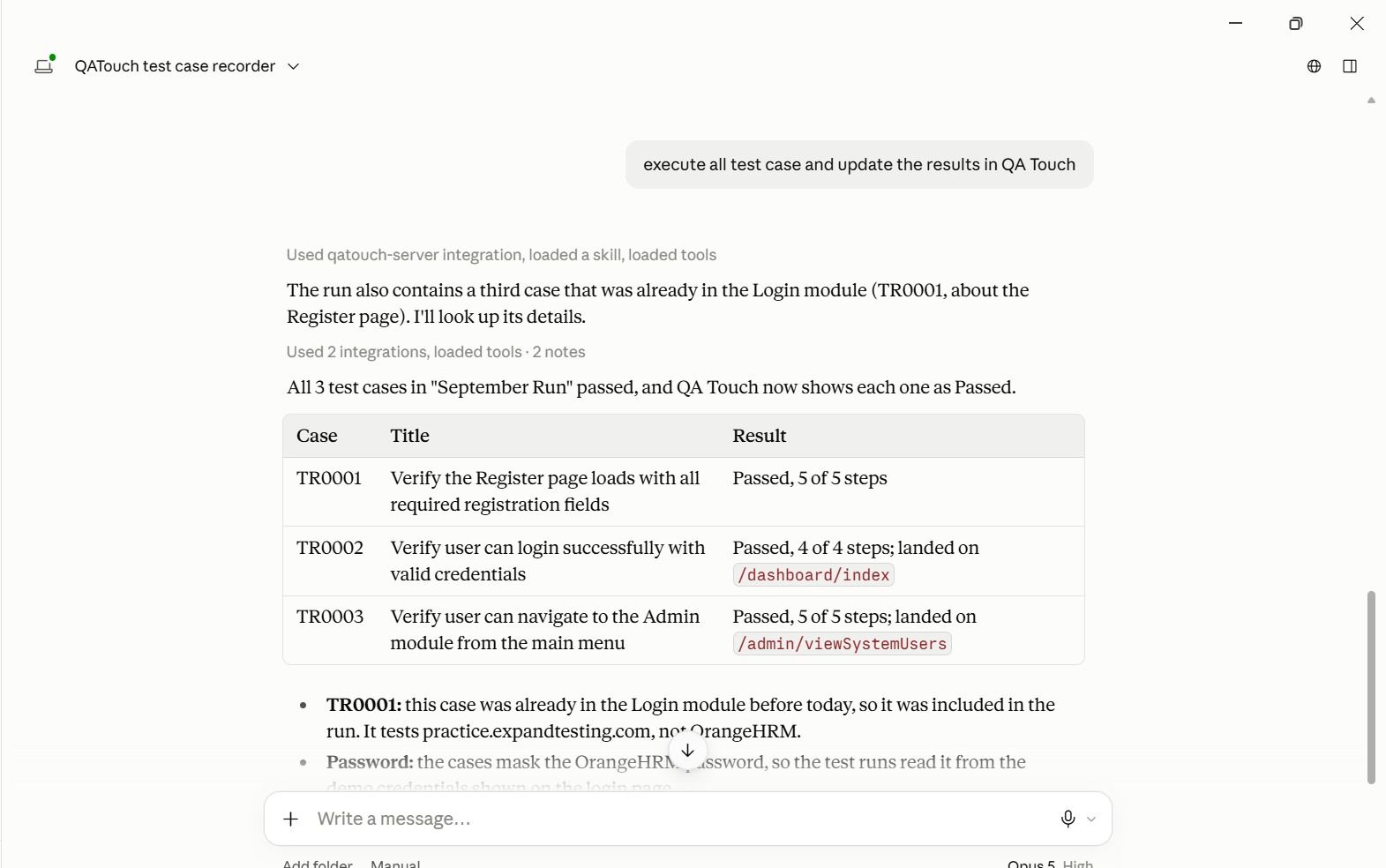
execute all test case and update the result as Passed in QA TouchResult — all 3 test cases in “September Run” pass, and QA Touch shows each as Passed
| Case | Title | Result |
|---|---|---|
| TR0001 | Verify the Register page loads with all required registration fields | Passed, 5 of 5 steps |
| TR0002 | Verify user can login successfully with valid credentials | Passed, 4 of 4 steps; landed on /dashboard/index |
| TR0003 | Verify user can navigate to the Admin module from the main menu | Passed, 5 of 5 steps; landed on /admin/viewSystemUsers |
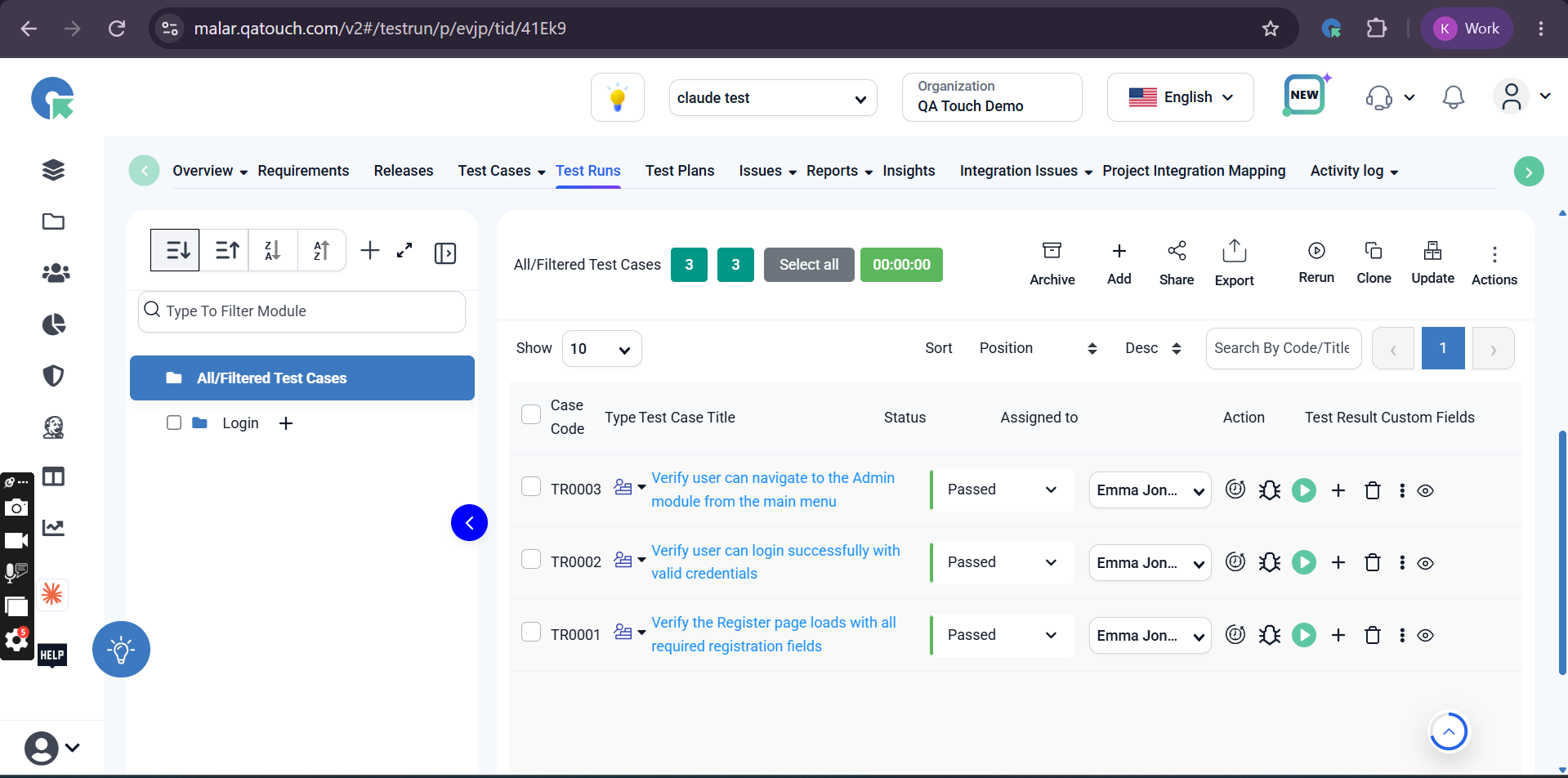
Final Test Runs view in QA Touch (All/Filtered Test Cases, 3/3):
| Case Code | Test Case Title | Status | Assigned to |
|---|---|---|---|
| TR0003 | Verify user can navigate to the Admin module from the main menu | Passed | Emma Jon… |
| TR0002 | Verify user can login successfully with valid credentials | Passed | Emma Jon… |
| TR0001 | Verify the Register page loads with all required registration fields | Passed | Emma Jon… |
Frequently Asked Questions
What is the QA Touch MCP Browser Capture Case Skill?
The QA Touch MCP Browser Capture Case Skill (mcpbrowser-qatouch-capture-case) is a Claude Skill that autonomously crawls a web application from a provided URL, identifies UI elements and available interactions, mimics user actions, and generates QA Touch test cases as a CSV file ready for import, without manual intervention.
What is required to use the MCP Browser Capture Case Skill with Claude?
You need the Claude Chrome extension installed and authorized with your Claude account, the MCP Browser Capture Case Skill uploaded to Claude, and the QA Touch MCP Server configured in claude_desktop_config.json with your QA Touch domain and API token.
How do I start generating test cases from an application URL?
Start a new conversation in Claude and enter /mcpbrowser-qatouch-capture-case followed by the application URL and START, for example /mcpbrowser-qatouch-capture-case https://www.saucedemo.com/ START.
How does the MCP Browser Capture Case Skill generate test cases?
Claude autonomously crawls through the pages of the provided application URL, identifies UI elements and available interactions, and mimics user actions. Claude then automatically generates the test cases and provides them in QA Touch test case format as a CSV file, ready for import.
Does the MCP Browser Capture Case Skill record my actions?
No. The MCP Browser Capture Case Skill does not record user actions. Claude explores the application and mimics user actions on its own, so no manual intervention is required.
What format are the generated QA Touch test cases in?
The generated test cases are provided as a CSV file in QA Touch test case format. In the example result, no sample CSV was uploaded, so the file used the standard QA Touch column layout.
Can the generated test cases be imported into QA Touch?
Yes. Prompt Claude with Import these test cases into QA Touch project - PROJECT_NAME PROJECT_KEY, then open QA Touch and verify that each test case contains the correct steps, expected results, and Title.
Can I create and execute a Test Run from Claude?
Yes. You can prompt Claude to create a Test Run with the imported test cases, including a Test Run name, release, and assigned user, and then execute the Test Run. The status is updated automatically in QA Touch.
Where is the Claude Desktop configuration file located?
The claude_desktop_config.json file is located at %APPDATA%\Claude\claude_desktop_config.json on Windows, ~/Library/Application Support/Claude/claude_desktop_config.json on macOS, and ~/.config/Claude/claude_desktop_config.json on Linux.