Custom Field - Import
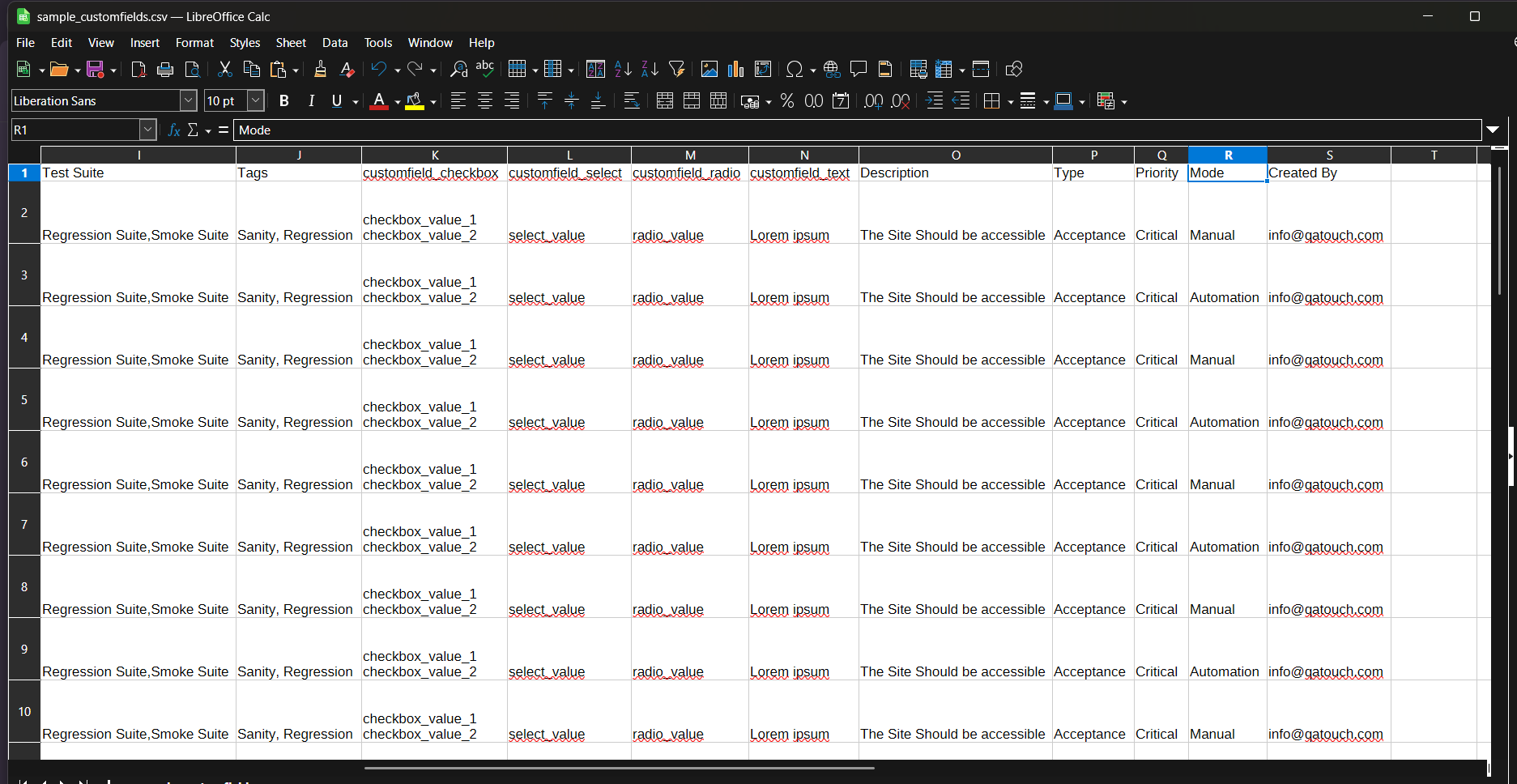
QA Touch allows you to import test cases in bulk using Excel/CSV files, including support for custom fields to better align with your test management process.
Preparing the Excel Sheet
- Download the Sample Test Case Template from QA Touch before starting
- Supported file formats: .csv and .xls
Formatting Guidelines
-
Ensure mandatory fields are correctly filled:Module Name and Test Case Title
-
Each column in Excel has a corresponding field in QA Touch
-
Supported custom field types:
- Checkbox
- Dropdown (Select)
- Radio Button
- Input Field
- Text Area
- Multi-select
-
For Multi-value fields:
- Enter values as In new Row
- Example: Chrome, Firefox
-
Dropdown /Select fields:
- Values must match exactly with the options configured in QA Touch
How to Import Test Cases in QA Touch
- Go to Test Case List page
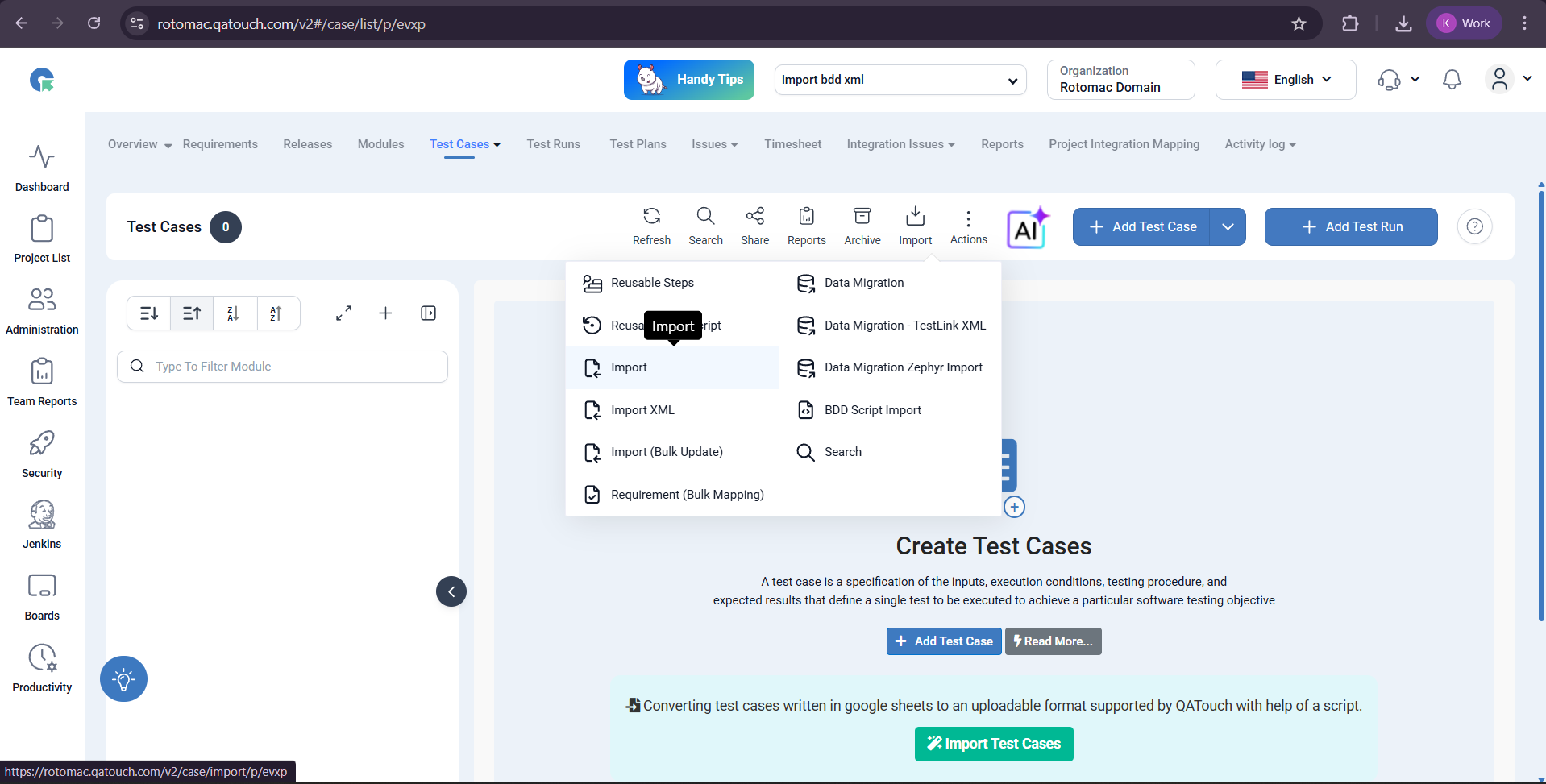
- Click on Import
- Select Test Case Template (with Custom Fields)
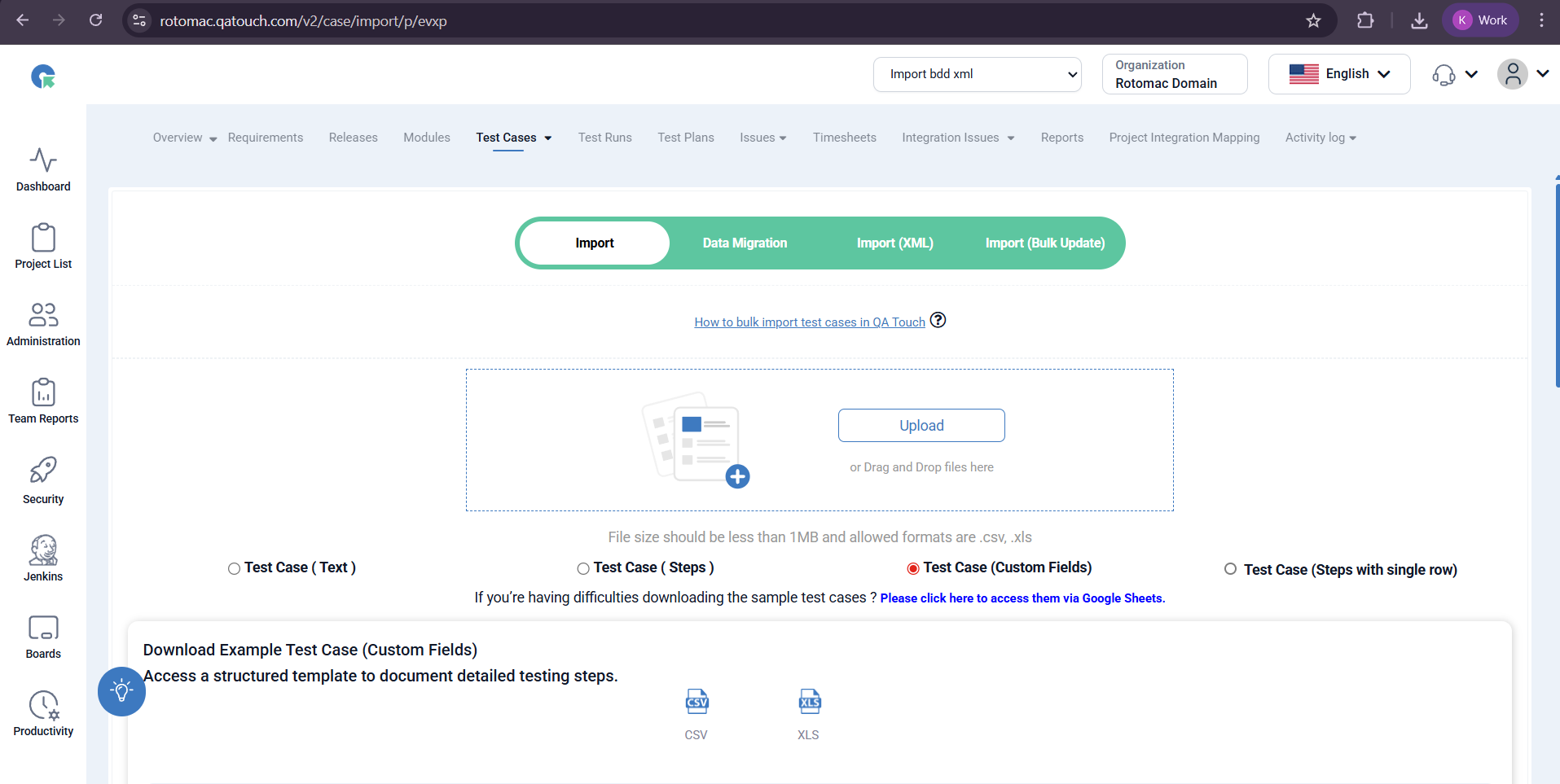
- Upload your file (
.csv/.xls) - Map fields:
- *Match Excel columns with QA Touch fields
- *Ensure Module Name and Test Case Title are mapped (mandatory)
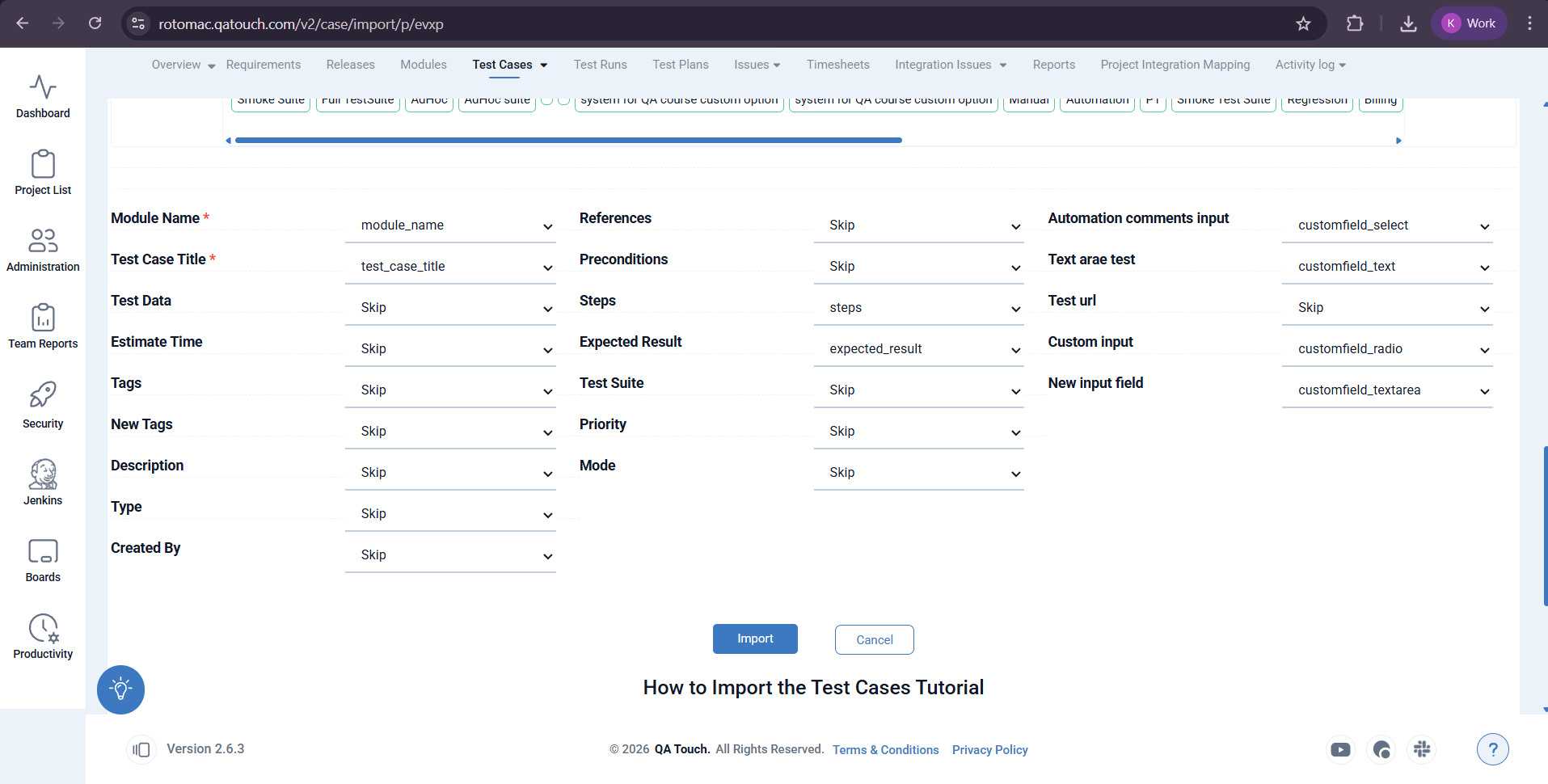
- Click on Import