Playwright Claude Skill Test Capture
QA Touch Playwright Capture Case Skill
The QA Touch Playwright Capture Case Skill lets you record real user interactions on a website and automatically convert them into QA Touch import-ready test cases.
Download and Install the Skill
Go to the qatouch-claude-skills repository on GitHub and download the playwright-qatouch-capture-case skill.
⬇ Download Skill GitHub Repository
playwright-qatouch-capture-case.skill
Open Claude and go to:
Customize → Skills → Add → Upload SkillUpload the downloaded skill package and enable it. The skill is now available in Claude.
Setup
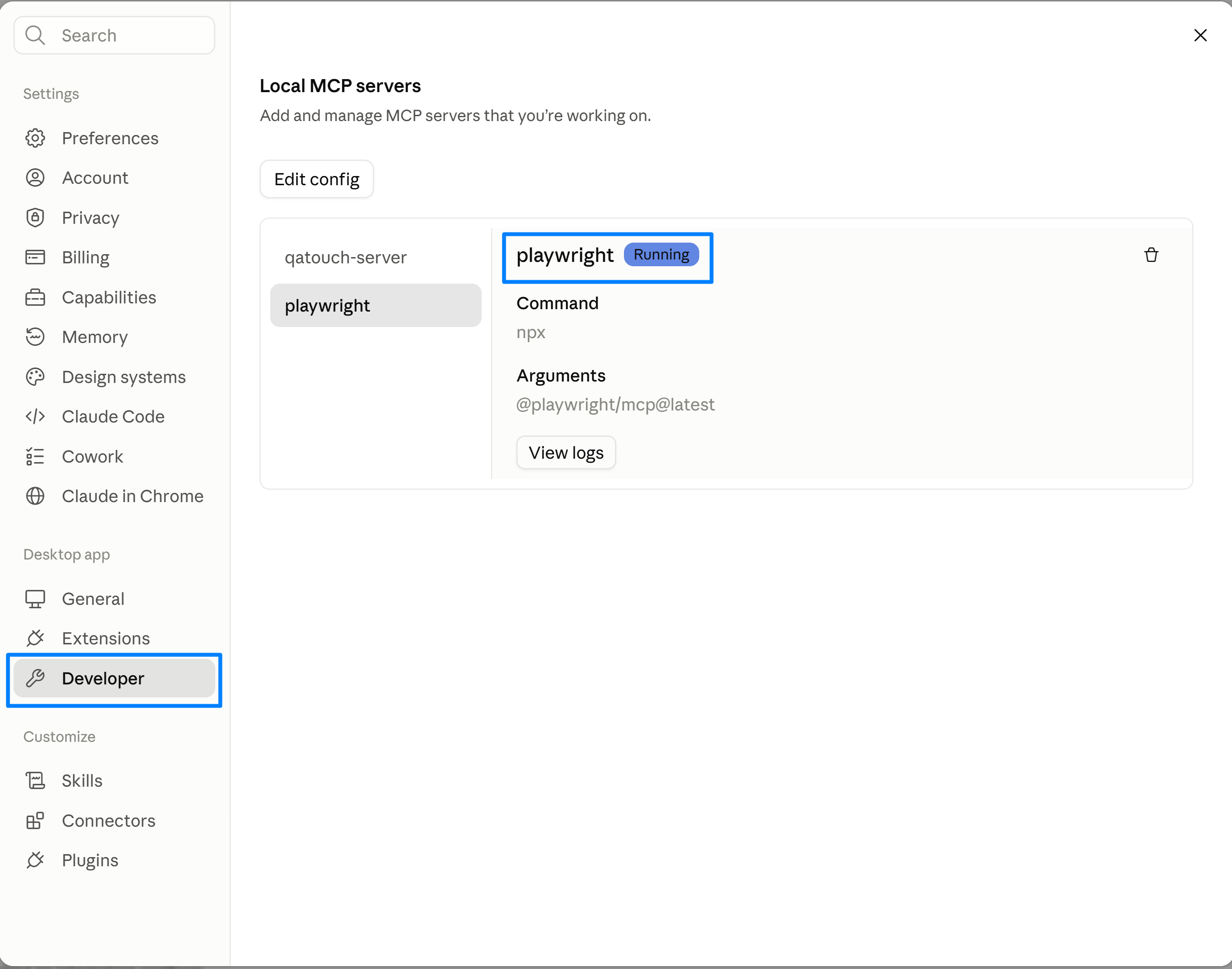
Before using the skill, configure both the QA Touch MCP Server and Playwright MCP in Claude Desktop.
Open the claude_desktop_config.json file.
Add the following configuration under mcpServers:
{
  "mcpServers": {
    "qatouch-server": {
      "command": "npx",
      "args": [
        "-y",
        "qatouch-mcp-server"
      ],
      "env": {
        "QATOUCH_DOMAIN": "YOUR_DOMAIN",
        "QATOUCH_API_TOKEN": "YOUR_API_TOKEN"
      }
    },
    "playwright": {
      "command": "npx",
      "args": [
        "@playwright/mcp@latest"
      ]
    }
  }
}
Replace:
YOUR_DOMAINwith your QA Touch domain.YOUR_API_TOKENwith your QA Touch API token.
Save the configuration and restart Claude Desktop.
How to Use
1. Start the Skill
In Claude, enter:
/playwright-qatouch-capture-case <URL> STARTFor example:
/playwright-qatouch-capture-case https://www.saucedemo.com/ START
or
/playwright-qatouch-capture-case https://opensource-demo.orangehrmlive.com/web/index.php/auth/login START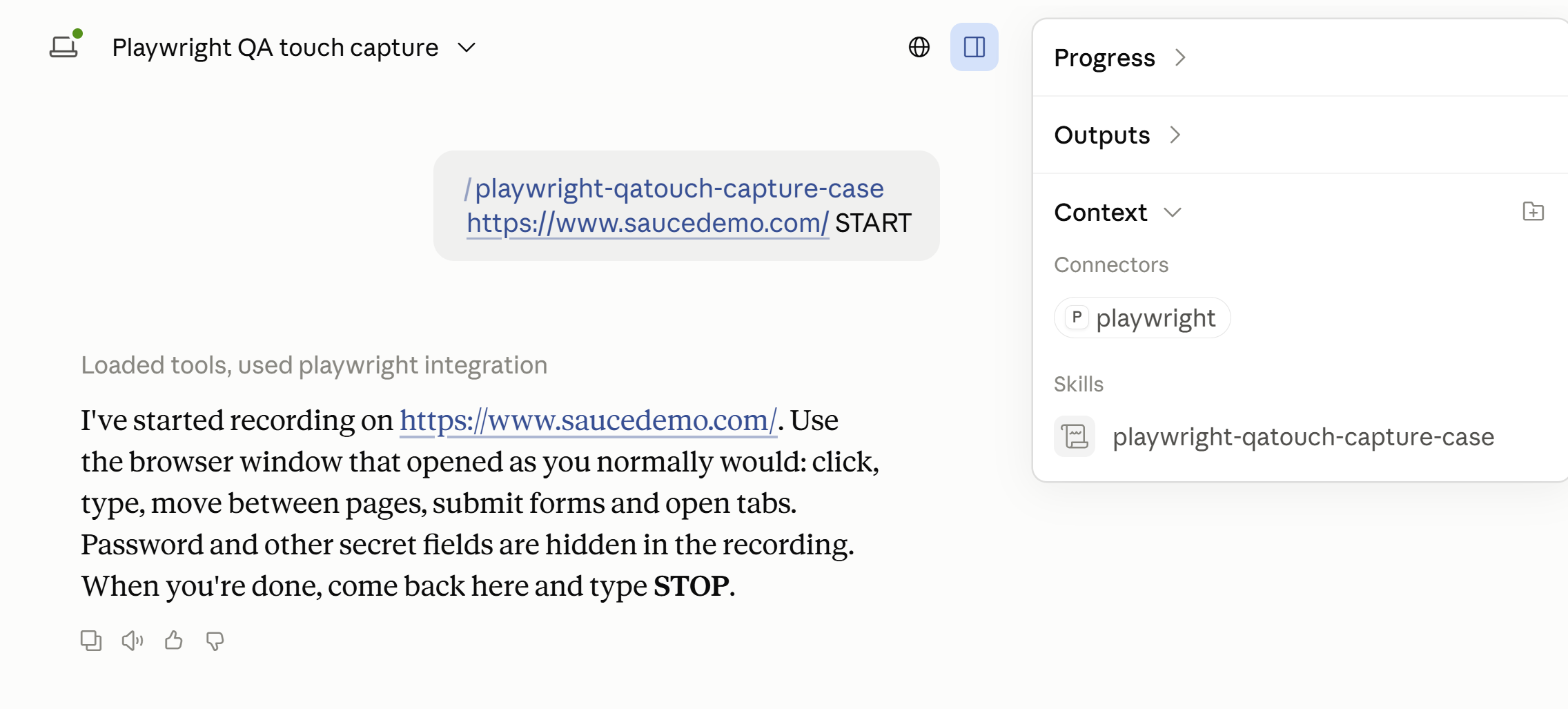
The skill opens the provided website in a browser and starts recording your actions.
2. Perform Your Actions
Interact with the website normally and complete the workflow you want to convert into test cases.
The skill records the actions performed during the active recording session.
3. Stop the Recording
Once you complete the workflow, return to Claude and type:
STOPThe skill stops the recording and processes the captured actions.
4. Generate QA Touch Test Cases
The recorded workflow is automatically converted into QA Touch import-ready test cases.
The generated test cases include the relevant test case details such as:
- Test Case Title
- Precondition
- Test Data
- Test Steps
- Expected Results
- Type
- Module
The test cases are provided as a CSV file, ready to import into QA Touch.
Workflow
START → Open Website → Perform Actions → STOP → QA Touch Test CasesTo Import Generated Test Cases to QA Touch
In Claude, enter:
Import these test cases into QA Touch project - PROJECT_NAME PROJECT_KEYCreate Test Run and Execute the Results
Create a Test Run with these test cases and name it as "September Regression Test Run name"Create a Test Run with these test cases and name it as “September Regression Test Run name”
Create a New Test Run and include the module which is required, and assign it to the respective person.
Verify the Test Run has been created in QA Touch in the respective project. Then execute the Test Run — status will be updated automatically in QA Touch.
Example flow:
- Prompt:
Create a Test run with all test cases and name it as "September Run" under release "Sprint 1" and Assign them to user "Emma jones"Result: “September Run” (run key41Ek9) is created in the project, assigned to Emma Jones, including every test case. - Prompt:
execute all test case and update the result as Passed in QA TouchResult — all 3 test cases in “September Run” pass, and QA Touch shows each as Passed
| Case | Title | Result |
|---|---|---|
| TR0001 | Verify the Register page loads with all required registration fields | Passed, 5 of 5 steps |
| TR0002 | Verify user can login successfully with valid credentials | Passed, 4 of 4 steps; landed on /dashboard/index |
| TR0003 | Verify user can navigate to the Admin module from the main menu | Passed, 5 of 5 steps; landed on /admin/viewSystemUsers |